
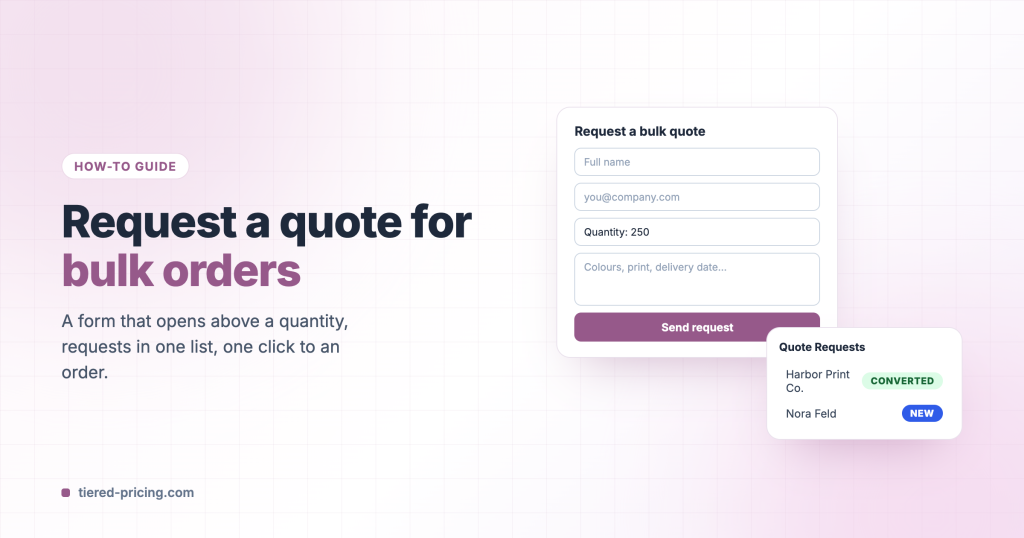
Above a certain quantity you would rather talk to the customer than sell at a list price. Tiered Pricing Table for WooCommerce adds a Request a quote form to the product page, collects the requests in one place and turns an accepted quote into an order with one click.
1. Build the form
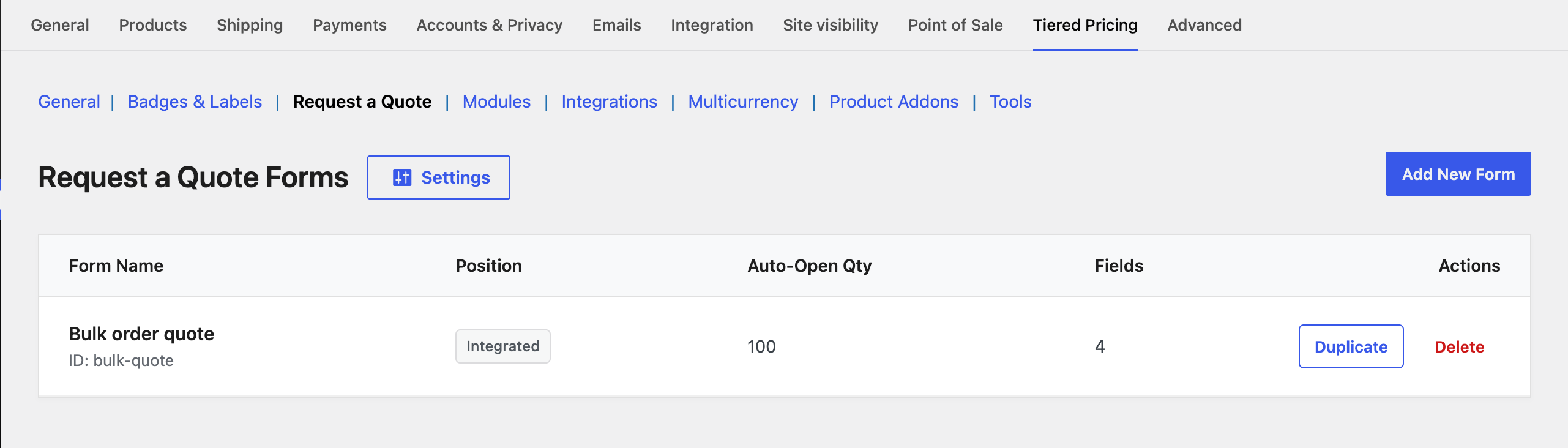
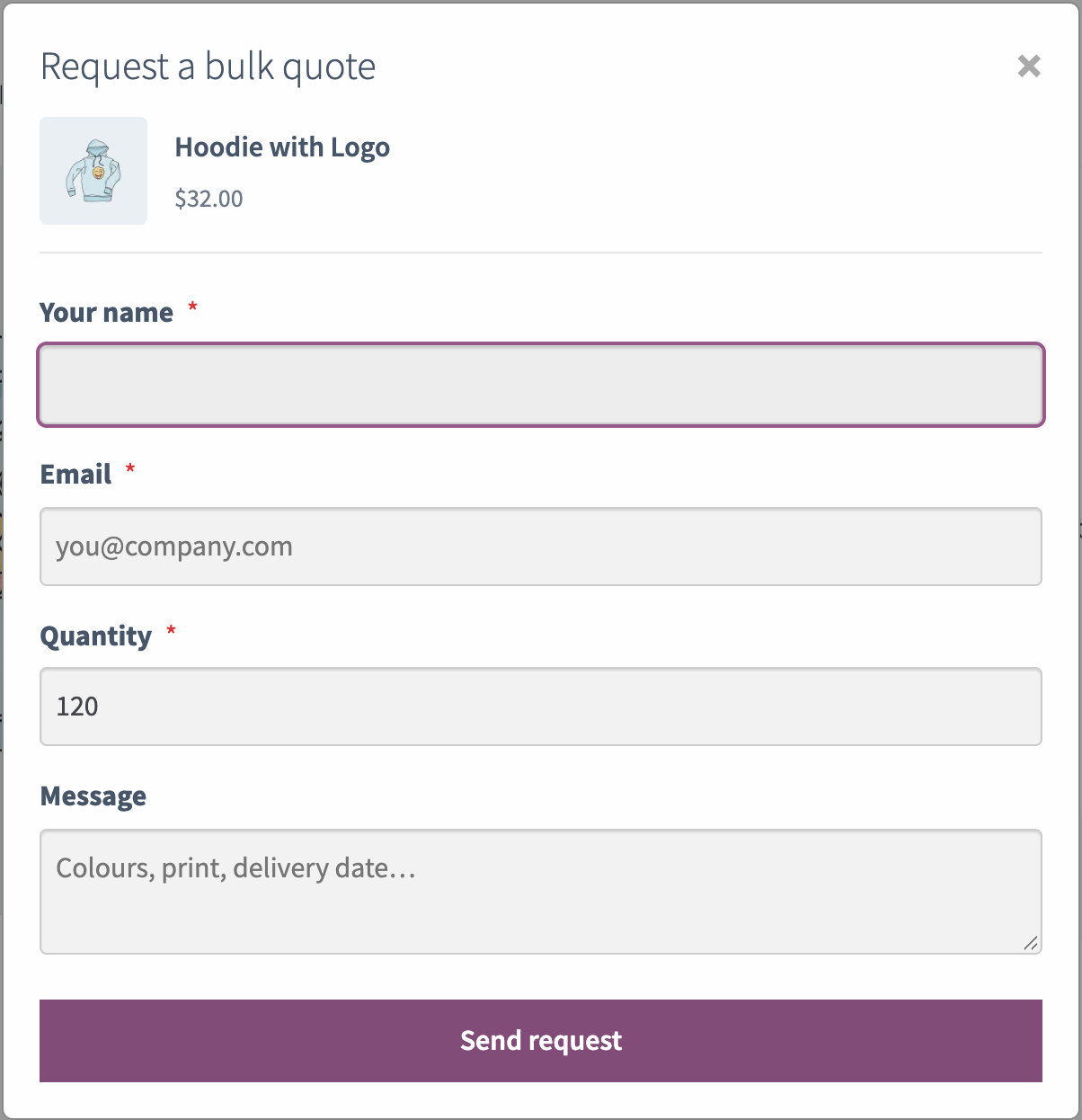
Go to WooCommerce → Settings → Tiered Pricing → Request a Quote and click Add New Form. Give it a name, add the fields (name and e-mail are typical, plus a quantity field that follows the product’s quantity box, and a message) and choose where it appears:
- Integrated: an extra row at the end of the pricing table, for example “Need more than 100? Request a quote”. Set an auto-open quantity to open the form as soon as the customer enters that quantity.
- Next to Add to cart: a button beside, or instead of, the add-to-cart button. This also works for products that cannot be purchased.
Set the success message (or a redirect), then save.
2. Attach it to products
Open a product, go to the Tiered Pricing tab and choose the form under Request a Quote Form. To cover many products at once, choose the form in a role rule or a global pricing rule instead.
3. Handle the requests
Requests land in WooCommerce → Quote Requests with the customer’s details, the product and the quantity. Each request is unread, read, converted or rejected. Convert to order creates a WooCommerce order from the request, so you can set the agreed price and send the customer the payment link. The admin and customer notifications are ordinary WooCommerce e-mails, editable under WooCommerce → Settings → Emails.
Spam protection
The quote settings accept a reCAPTCHA v3 site key and secret. Add them if the form gets spam.