
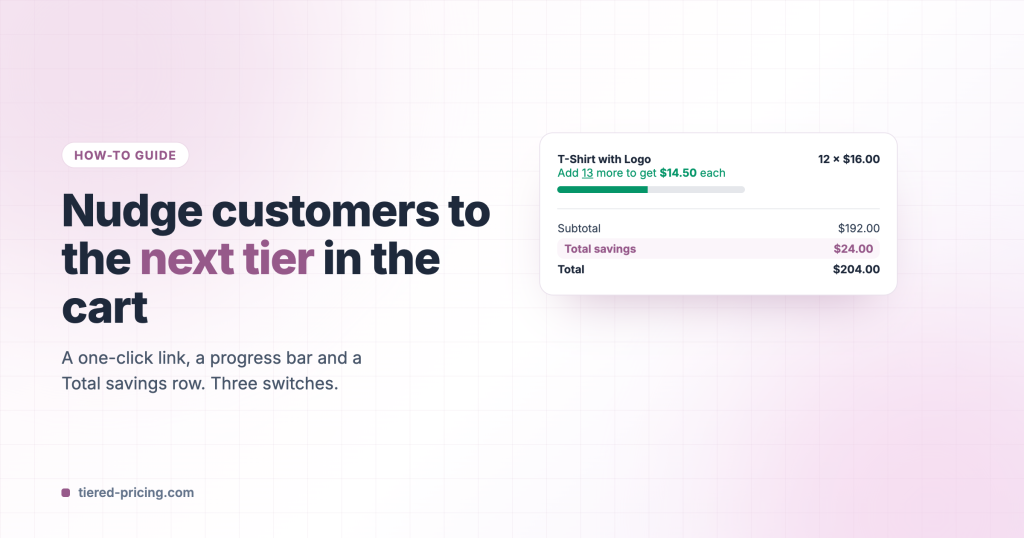
A customer with 12 shirts in the cart is one click away from the 25-piece price. Tiered Pricing Table for WooCommerce can tell them, let them jump to the next tier with one click, and show what the tiers already saved them. Everything lives on one settings tab.
Switch it on
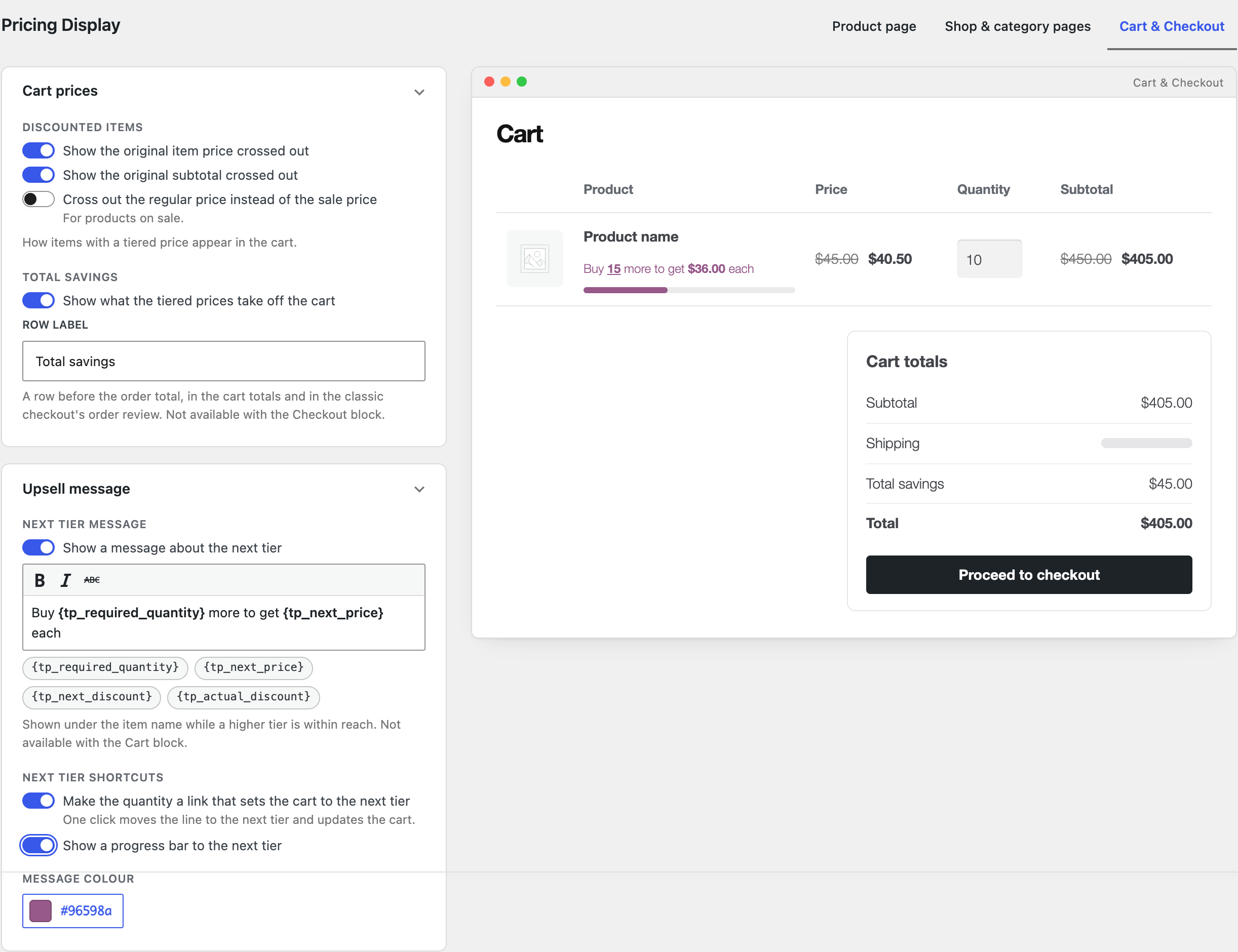
Go to WooCommerce → Settings → Tiered Pricing → General → Pricing Display and open the Cart & Checkout tab.
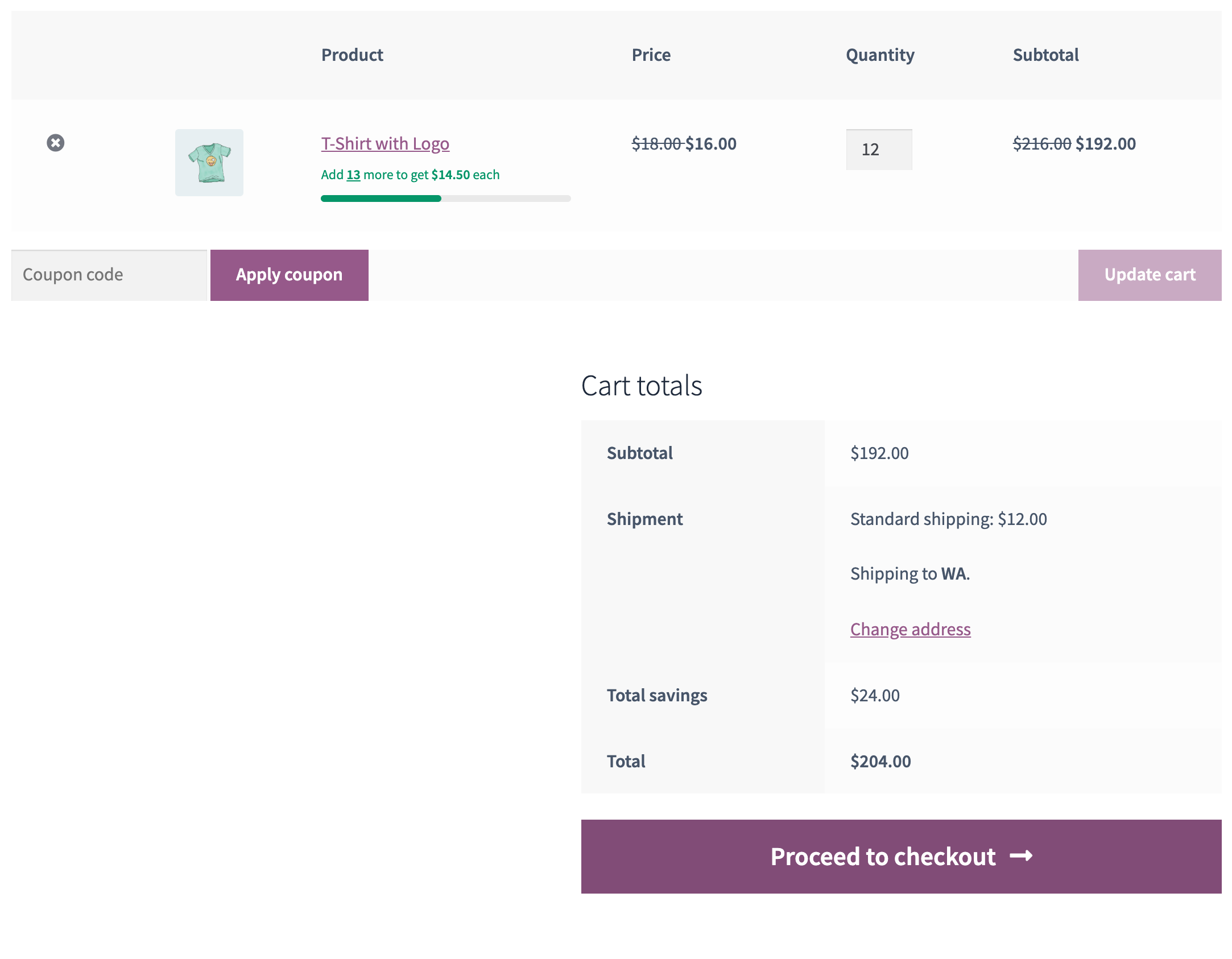
- Show a message about the next tier: the message under the cart item, for example “Add 13 more to get $14.50 each”. Edit the wording;
{tp_required_quantity},{tp_next_price},{tp_next_discount}and{tp_actual_discount}are filled in per item. - Make the quantity a link that sets the cart to the next tier: the number in the message becomes a link. One click updates the line to the next tier’s quantity and refreshes the cart.
- Show a progress bar to the next tier: a bar under the message that fills up as the quantity grows.
- Show what the tiered prices take off the cart: a Total savings row before the order total, in the cart totals and in the classic checkout’s order review.
The preview on the right shows the result while you change the options. Save.
Classic cart and checkout
The message, the link, the bar and the savings row need the classic cart and checkout shortcodes. The WooCommerce Cart and Checkout blocks do not offer a place for them.