
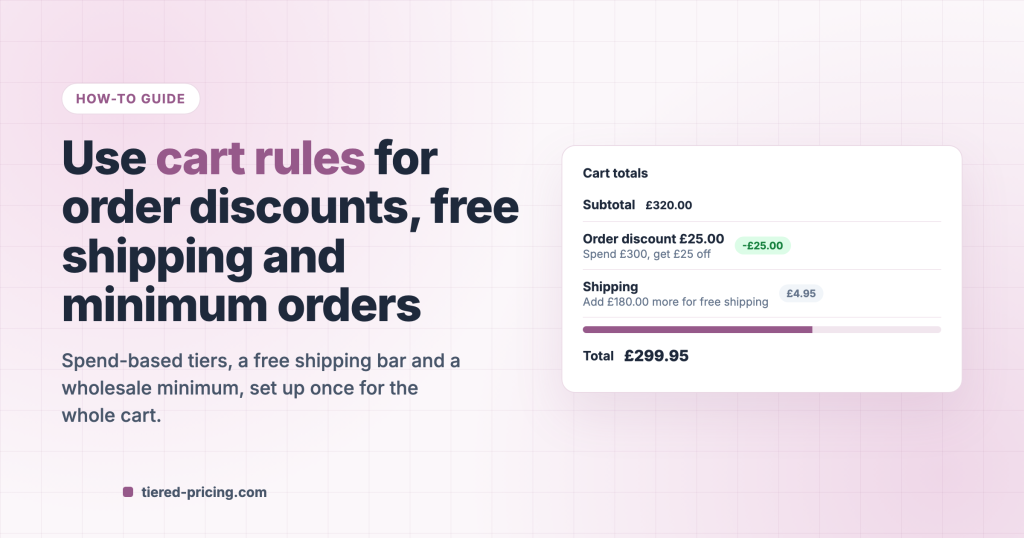
A customer with £280 in the cart is £20 away from £25 off. A wholesale buyer should not check out under £200. Free shipping should start at £500 and the cart should say how far away it is. Tiered Pricing Table for WooCommerce does all three with one kind of rule, the Cart rule: tiers on the cart subtotal or item count, free shipping from a threshold, and a minimum order, each for the roles, products and dates you choose.
What a cart rule is
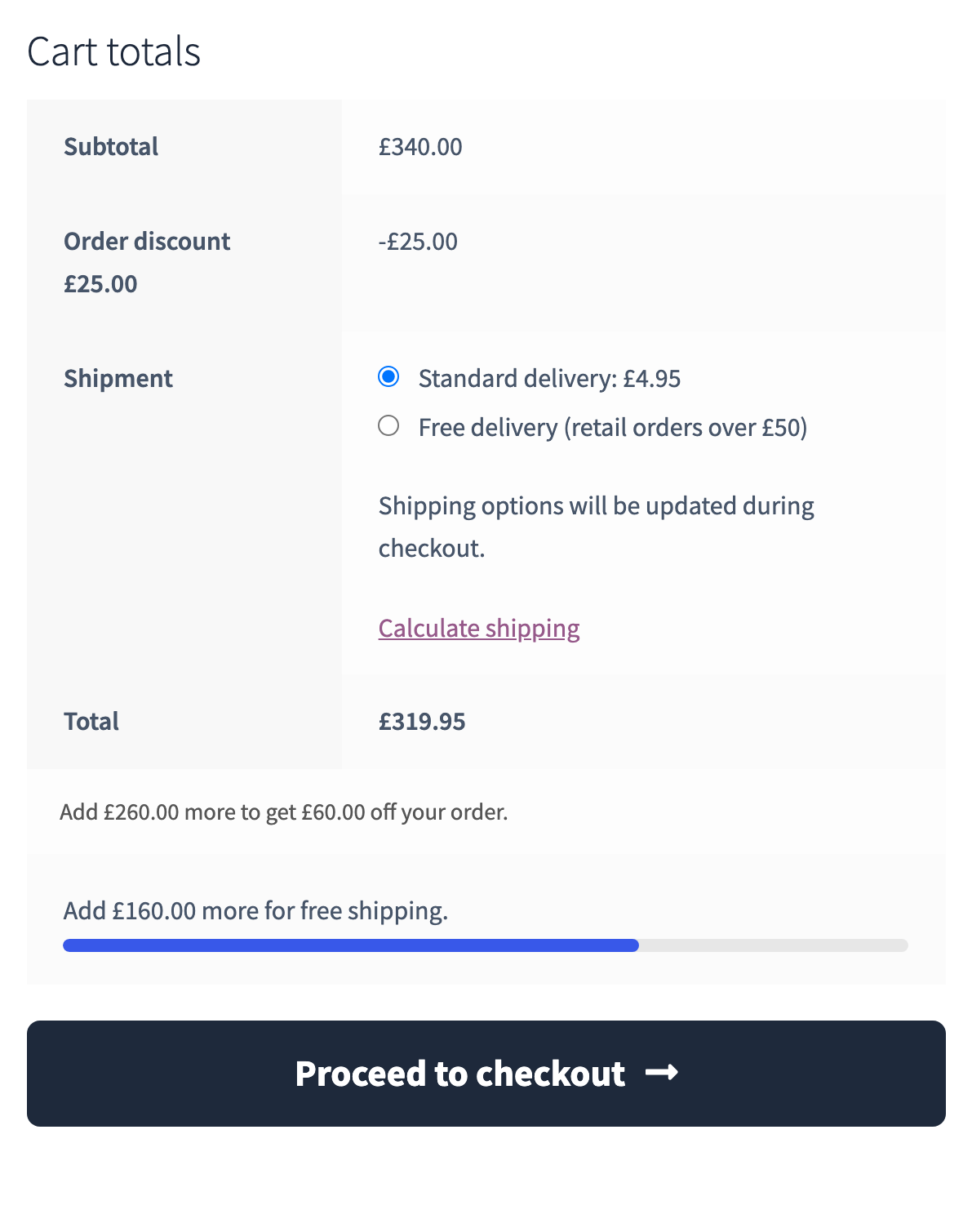
Pricing rules come in two types. Product prices give products tiers and base prices, one line at a time. A Cart rule looks at the cart as a whole: the subtotal of the lines it counts, or their number of items, decides what the customer gets.
Go to WooCommerce → Pricing Rules → Add new, pick Cart rule in the Rule status box on the right, and the tabs change:
| Tab | What you set |
|---|---|
| Discount | Tiers from a subtotal or an item count, a fixed amount off (free) or a percentage off (premium), and the label of the discount line |
| Free shipping | Free shipping on every order, or from a subtotal or an item count, and the free shipping bar (premium) |
| Minimum order | An amount or a number of items the cart must reach before the order can be placed (premium) |
| Products | The lines the rule counts and discounts; empty lists mean the whole cart |
| Users & Roles | Who gets it; empty means everyone |
The discount is applied as an automatic coupon, so WooCommerce shows it as one labelled line in the cart, at checkout and in e-mails, and counts it in Analytics. One cart rule is in play per cart: the one with the lowest priority number that counts a line of the cart.
Use case 1: spend £300, get £25 off
The classic order discount, for every customer and every product.
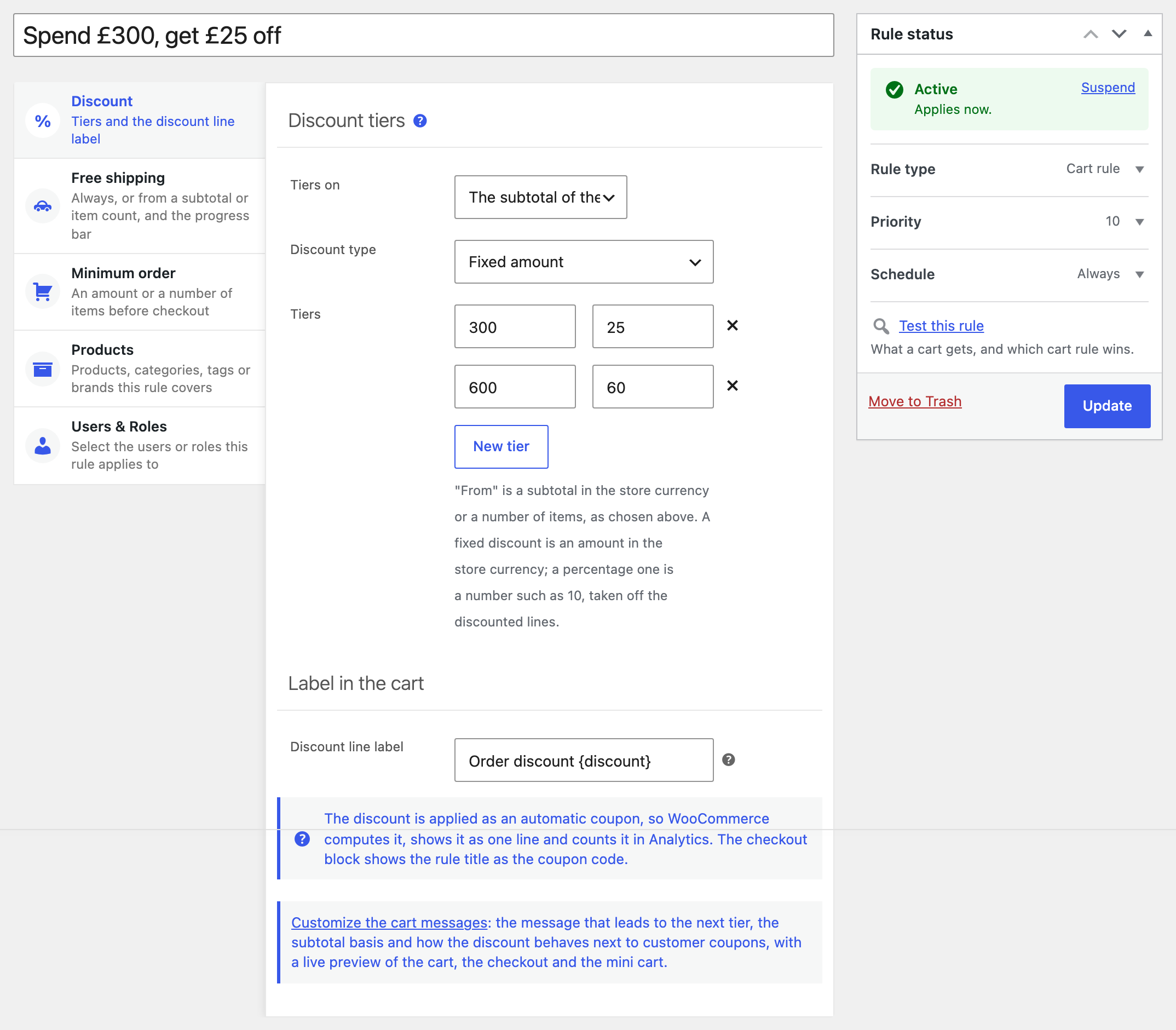
- Add new rule, pick Cart rule, give it a title. The title becomes the coupon code customers see on the checkout block, so make it readable: “Spend £300, get £25 off”.
- On the Discount tab keep Tiers on the subtotal and the type Fixed amount off. Add the tiers: from 300 → 25, from 600 → 60. The highest tier reached is used.
- The label of the discount line defaults to “Order discount {discount}”.
{discount}and{threshold}are filled in. - Leave Products and Users & Roles empty. Publish.
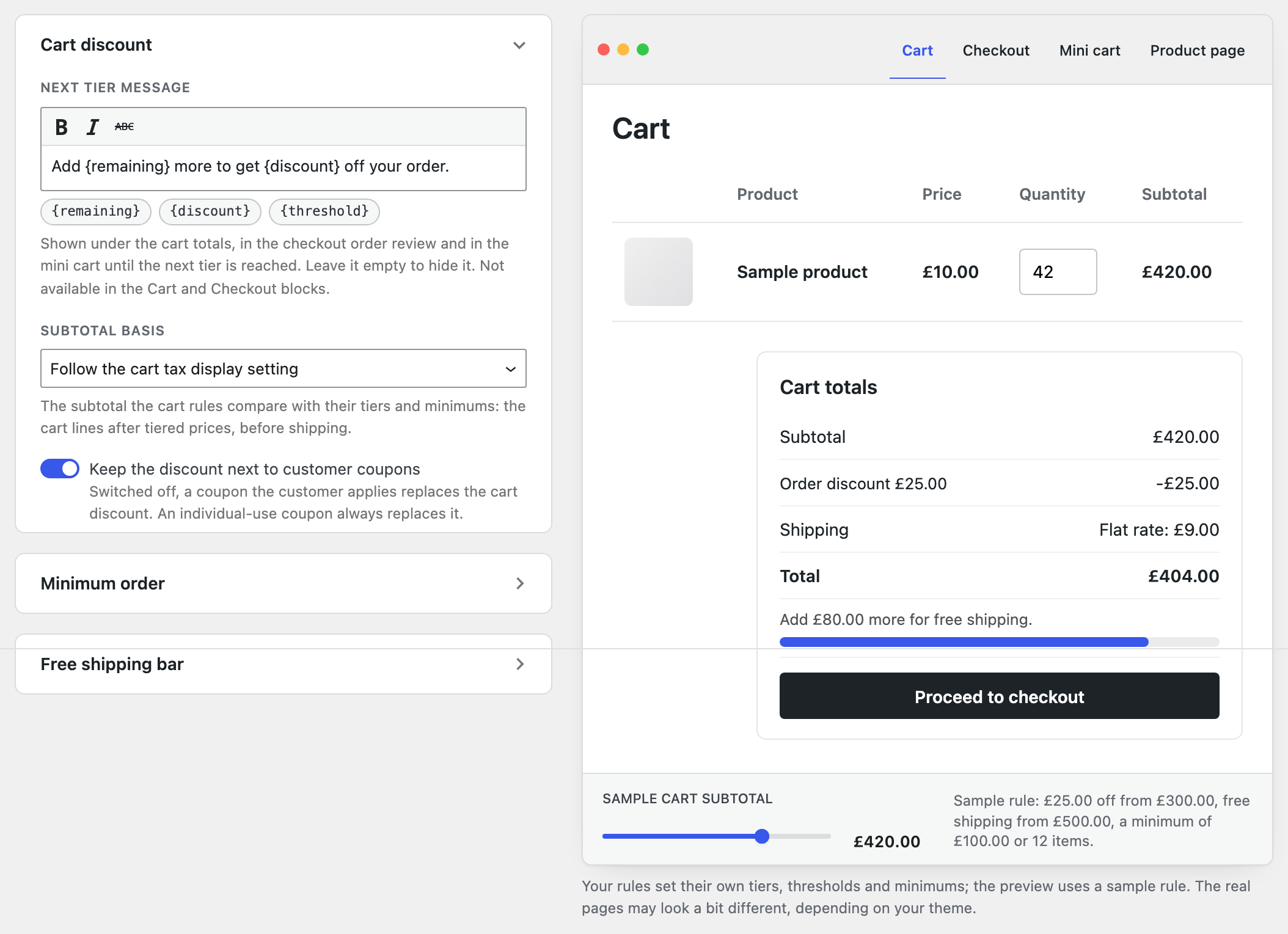
Under the cart totals the customer now reads “Add £20.00 more to get £25.00 off your order.” until the tier is reached. The message, the subtotal basis (with or without tax) and the way the discount behaves next to customer coupons live on the Cart rules settings page, one click from the rule editor.
One rule, several thresholds
Put every threshold of one campaign into one rule as tiers. Two rules with different thresholds do not fall through to each other: the rule with the lowest priority number that counts a line is the one in play, even while the cart is below its first tier.
Use case 2: free shipping from £500, with a progress bar
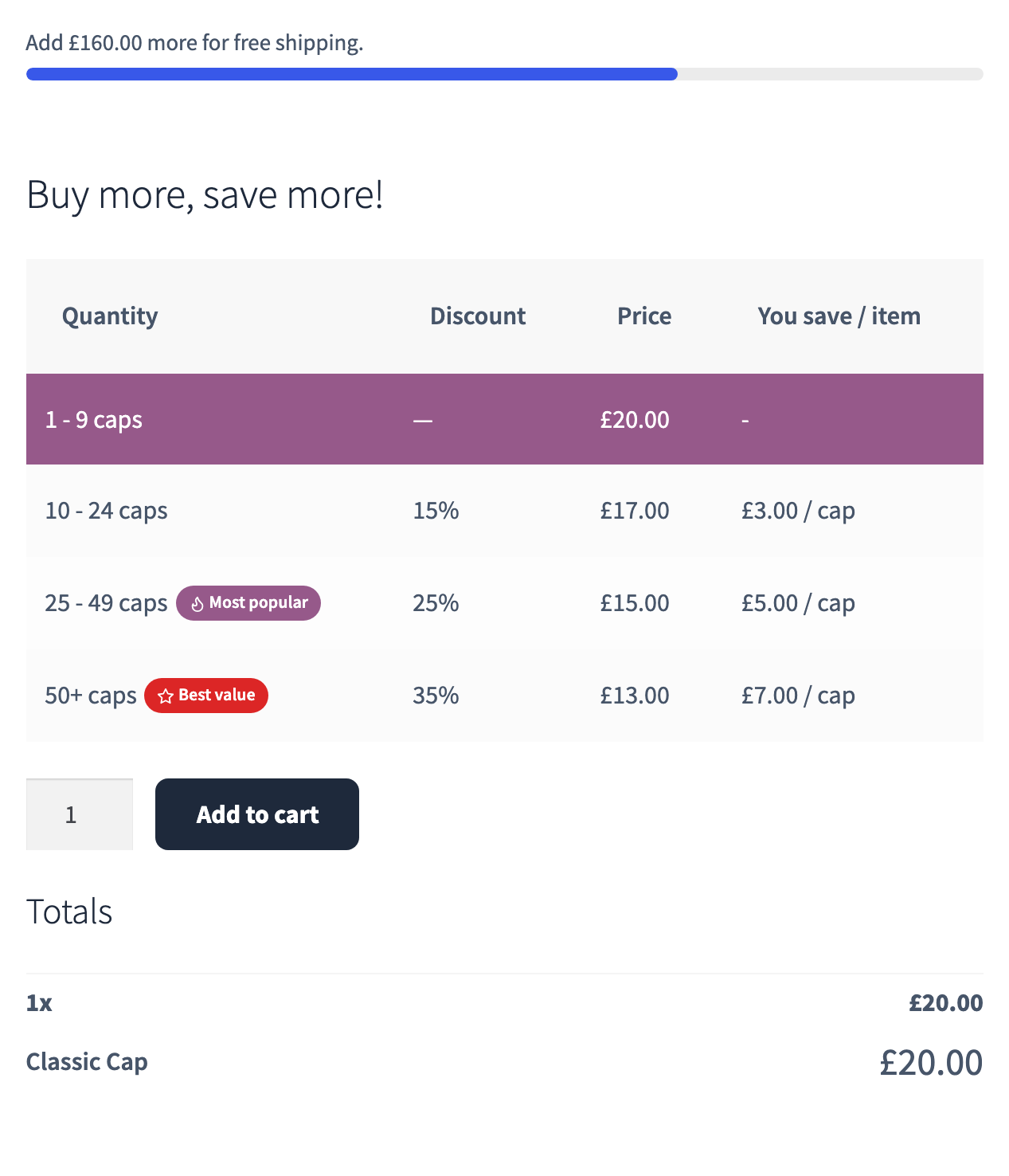
Free shipping is the reward customers understand best, and the bar tells them how close they are.
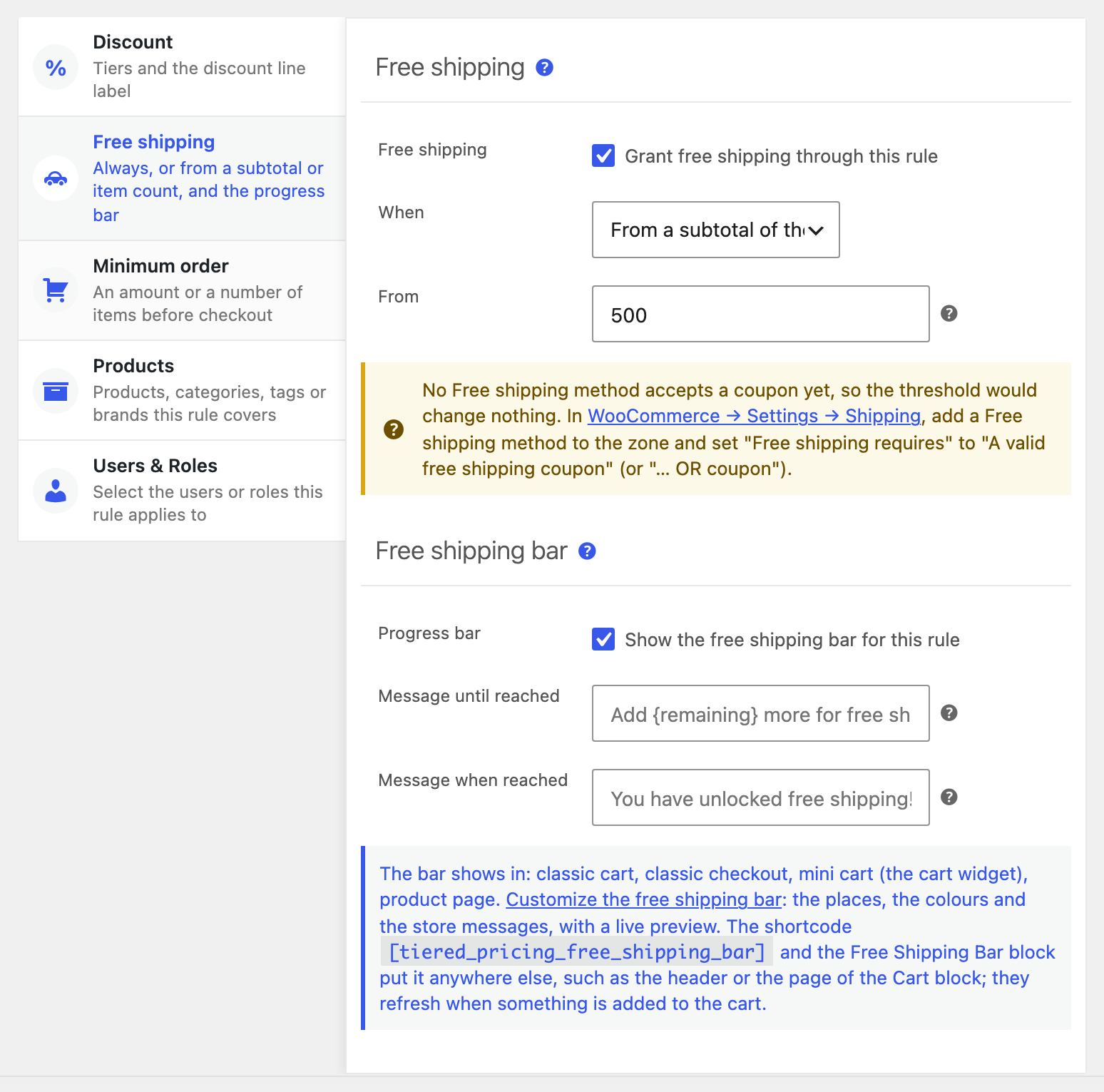
- In the same rule, or a new one, open the Free shipping tab and tick Grant free shipping. Choose From a subtotal and enter 500. A rule can give free shipping without any discount tiers.
- Switch on the free shipping bar (premium) and keep or edit the two messages: until the threshold (“Add {remaining} more for free shipping.”) and once it is reached.
- In WooCommerce → Settings → Shipping, make sure the zone has a Free shipping method whose Free shipping requires is set to A valid free shipping coupon. The rule’s coupon unlocks it; the rule never removes what your shipping settings already give for free.
- On the Cart rules settings page choose where the bar shows: the classic cart, the classic checkout, the mini cart and product pages. The
[tiered_pricing_free_shipping_bar]shortcode and the Free Shipping Bar block put it anywhere else, such as the header or the page of the Cart block.
Use case 3: a minimum order for wholesale customers
Wholesale accounts order in bulk, and a £200 minimum keeps the small orders in the retail store.
- Add new rule, pick Cart rule, title “Wholesale minimum”.
- On the Minimum order tab (premium) enter 200 as the amount, or a number of items, or both.
- On Users & Roles include the Wholesale role. Leave the other tabs empty: a rule may hold a minimum only.
- Publish. The cart and the checkout, classic and blocks, block the order until the minimum is met and show “A minimum order of £200.00 is required to check out. Your order subtotal is £150.00.” The wording is on the Cart rules settings page.
Every minimum of every cart rule that matches the customer must be met, so a store-wide minimum and a wholesale minimum can live side by side.
Updating from an earlier version
The minimum order amounts and quantities that used to sit under Settings → Wholesale → Cart rules by role became cart rules automatically, one per role that had a minimum. Payment and shipping methods limited to roles stayed where they were.
Use case 4: a bonus on one brand or category
Count only part of the cart and discount only those lines.
- Add new rule, pick Cart rule, title “Brand X bonus”.
- On Products select the brand, category, tags or products. For a cart rule these lists are the scope: only the matching lines count towards the tiers and only they are discounted.
- On the Discount tab add a tier from 150 → 10% (percentage discounts are premium) or a fixed amount.
A cart with £120 of Brand X and £300 of other products counts £120 for this rule.
Use case 5: a campaign with dates and a members-only deal
- Dates: open the Schedule section of the Rule status box and set a start and an end date. Outside the window the rule is ignored and the list shows it as Scheduled or Expired.
- Members only: include a role or specific customers on Users & Roles; Guests (not logged in) is a role too, so a deal can be for visitors only, or for everyone but visitors.
- Priority: when several cart rules match a customer, the lowest priority number is in play. Give a campaign a lower number than the store-wide rule it should replace while it runs.
The messages and the look
Every text the customer reads is on the Cart rules settings page: the next tier message, the two minimum order messages, the free shipping bar’s messages, where the bar shows, its colours and height. The page previews the classic cart, the checkout and the mini cart live; a sample cart subtotal slider shows each message in turn, and clicking into a message field moves the preview to where that message appears.
Cart and Checkout blocks
The blocks show the discount line and block the checkout under a minimum. The message about the next tier shows in the classic cart, the classic checkout and the mini cart; the free shipping bar reaches a block-based cart page through the block or the shortcode.
Test before you launch
Settings → Advanced → Utilities → Pricing Test, mode A cart: add a few lines, pick a visitor or a customer, and run. The report shows which cart rule is in play and why the others are not, the discount, every minimum with its verdict and the next tier. A cart rule’s Rule status box has a Test this rule link that opens the tester with that rule highlighted.
Troubleshooting
- No free shipping although the threshold is reached: the shipping zone needs a Free shipping method that requires a valid free shipping coupon.
- The discount does not show: another cart rule with a lower priority number is in play, the lines in the cart do not match the rule’s Products tab, or the rule is suspended, scheduled or expired. The Pricing test says which.
- A coupon replaced the discount: an individual-use coupon always wins; for other coupons switch Keep the discount next to customer coupons on the Cart rules settings page.
- Customers see no message about the next tier: the message is empty on the Cart rules settings page, or the cart is the Cart block, which has no place for it.