
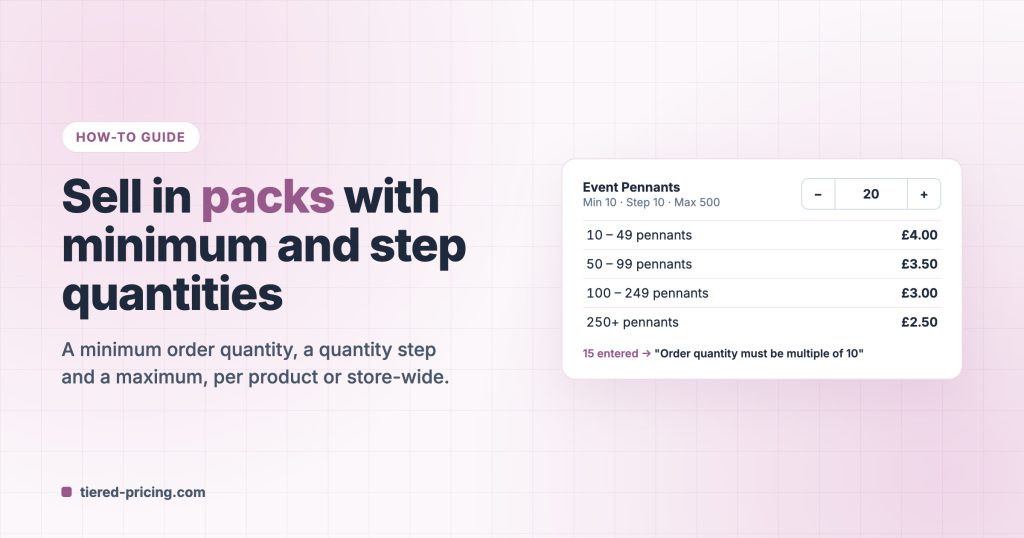
Pennants come in bundles of ten, hoodies leave the warehouse by the case, and nobody wants an order of seven when the box holds twelve. Tiered Pricing Table for WooCommerce gives every product a minimum order quantity, a quantity step and a maximum, and the quantity field, the tiers and the cart all follow. This guide uses the Event Pennants from the demo store: minimum 10, steps of 10, maximum 500.
The three limits
- Minimum order quantity — the quantity field starts there and smaller quantities are rejected.
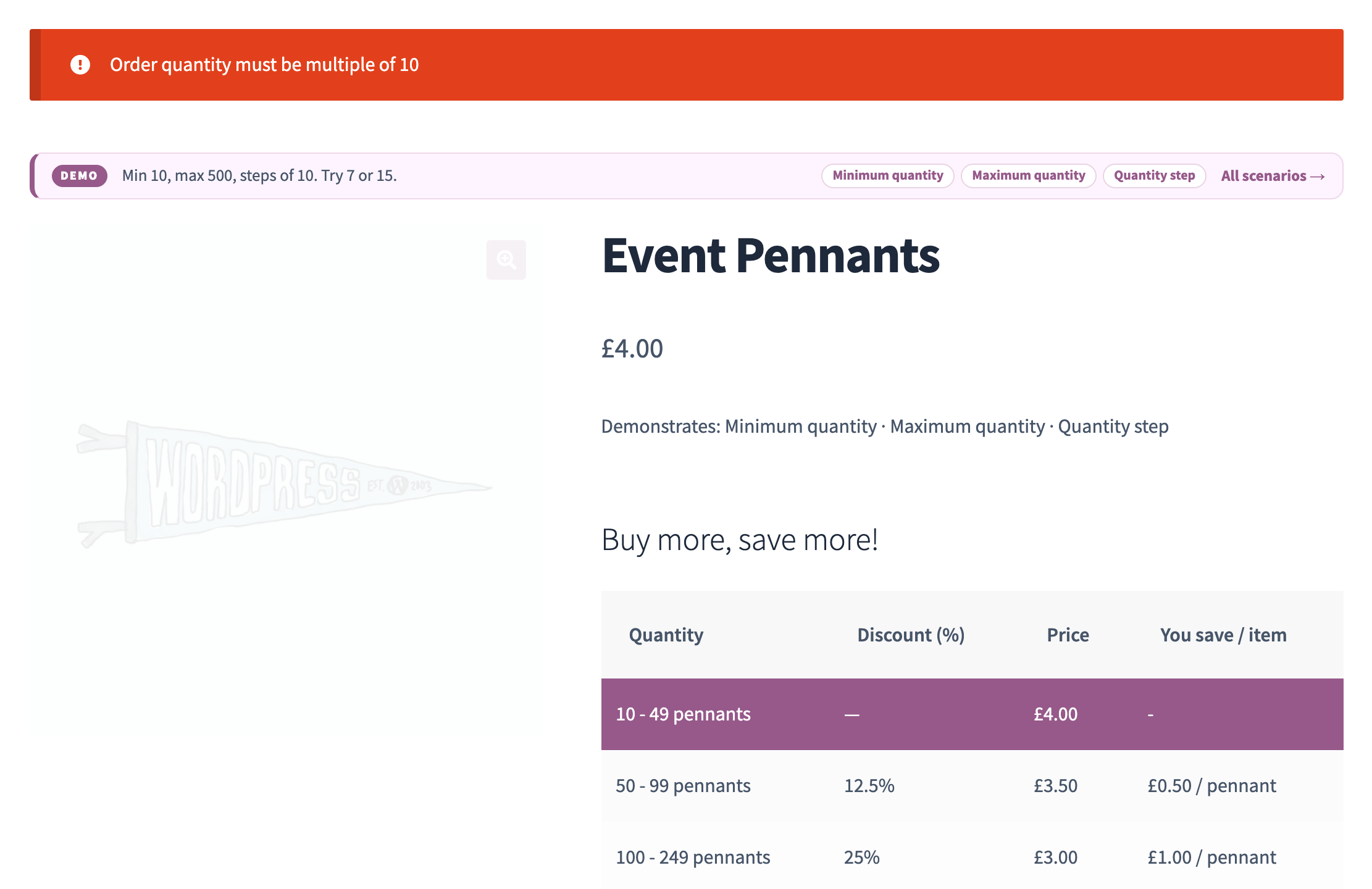
- Quantity step — the quantity moves in multiples, for example 10, 20, 30. Any other number is refused with “Order quantity must be multiple of 10”.
- Maximum order quantity — a cap per order line, checked on add-to-cart and when the cart is updated.
They apply per product line. For a minimum on the whole order, see the cart rules by role in the wholesale guide.
Step 1: Set the limits on the product
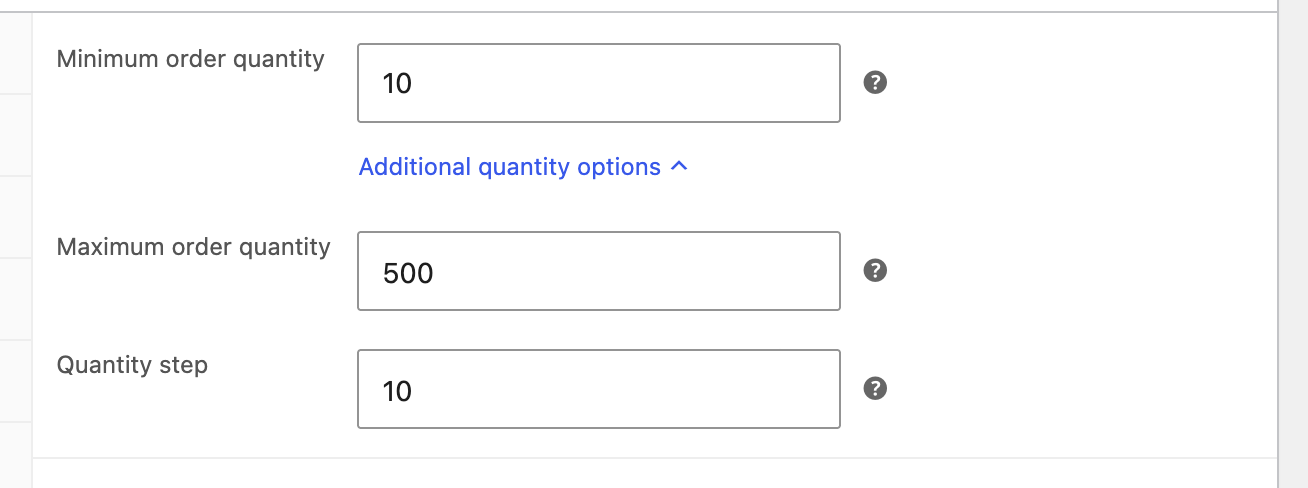
Open the product and go to the Tiered Pricing tab. Minimum order quantity sits under the tiers; Maximum order quantity and Quantity step are in Advanced quantity options below it. Leave a field blank for no restriction. For a variable product the same fields exist on every variation.
Step 2: Line up the tiers with the packs
Tiers and limits work together, so make the tier boundaries multiples of the step. With a minimum of 10 and tiers at 50, 100 and 250, the first row reads “10 – 49 pennants” and every tier starts on a pack.
Minimum and the first tier
The regular price covers the range from the minimum up to the first tier. Minimum 10 with tiers 50 = £3.50, 100 = £3.00 and 250 = £2.50 gives 10–49 at the regular £4.00.
What the customer sees
The quantity field opens at the minimum and steps by the pack size; the tiers are labelled with the product’s unit name.
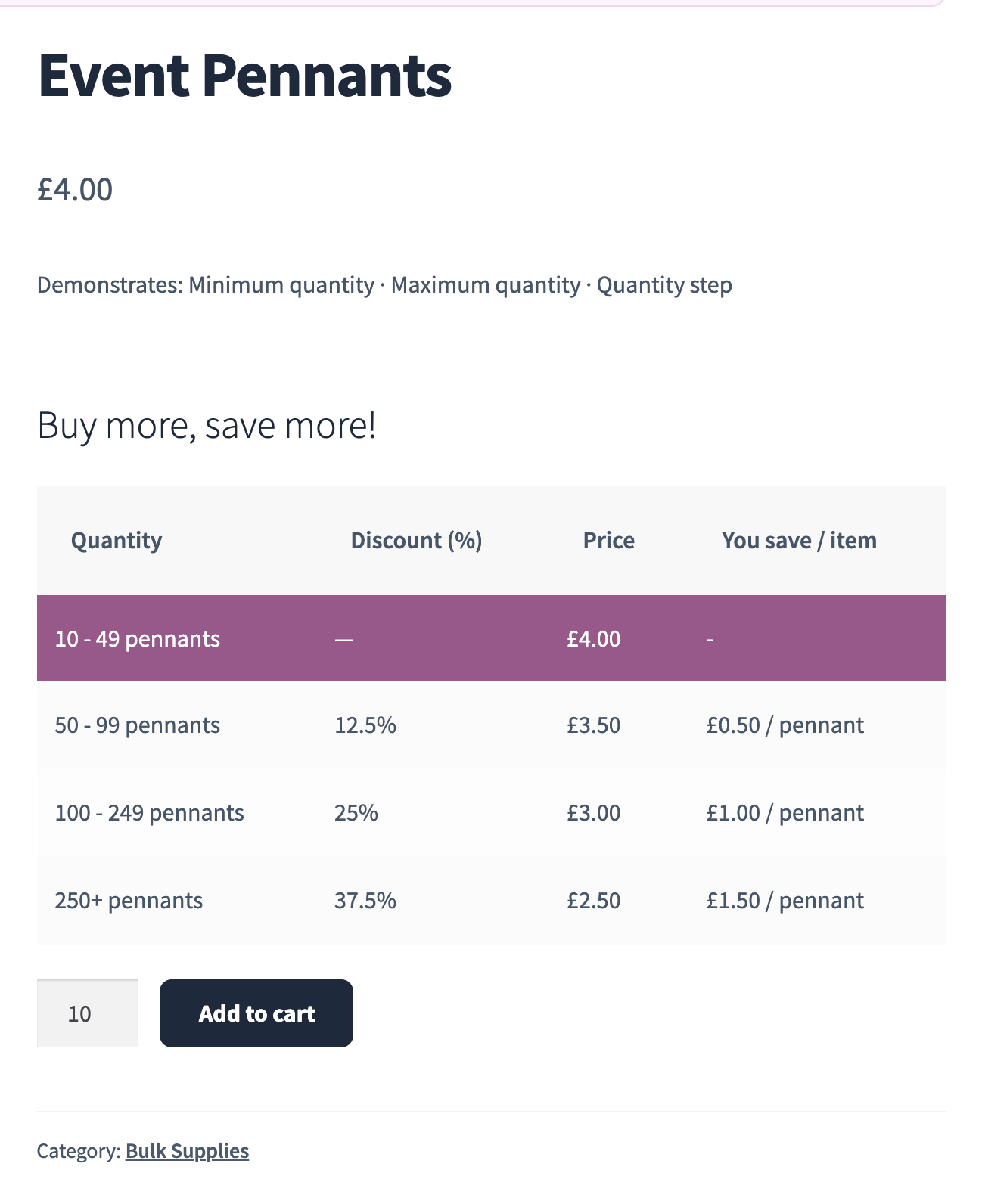
The quantity field carries the minimum, the maximum and the step, so the browser flags a number between the packs before the form is sent. Whatever slips through, a hand-edited request for example, is refused by the plugin itself:
The limits are checked again on the cart page, in the Cart and Checkout blocks and in the Store API, so a quantity changed in the cart cannot break the pack size either.
Variable products: one minimum for all variations
A minimum of 12 hoodies should not mean 12 of each colour. Switch on Combine variations for minimum quantity under Settings → General → Price Calculation, or per product in the Additional options of the Tiered Pricing tab, and the minimum applies to the sum of all variations of the product in the cart: 6 red and 6 blue satisfy a minimum of 12.
Store-wide limits with a global rule
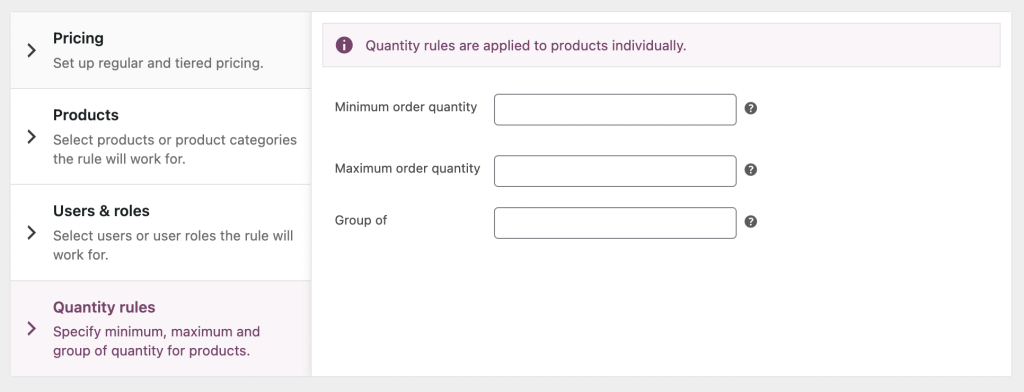
To apply the same pack size to a category or to a whole role, put the limits on a global pricing rule instead of on every product: WooCommerce → Settings → Tiered Pricing → Global Pricing Rules, the Quantity tab of the rule. Role and customer prices carry the same three fields, so a wholesale role can order by the case while retail customers buy single pieces.
Import the limits
The WooCommerce CSV importer accepts the minimum, maximum and step columns of the Tiered Pricing Table section, so a price list with pack sizes can be imported in one go. See How to import tiered pricing via the WooCommerce import tool.