
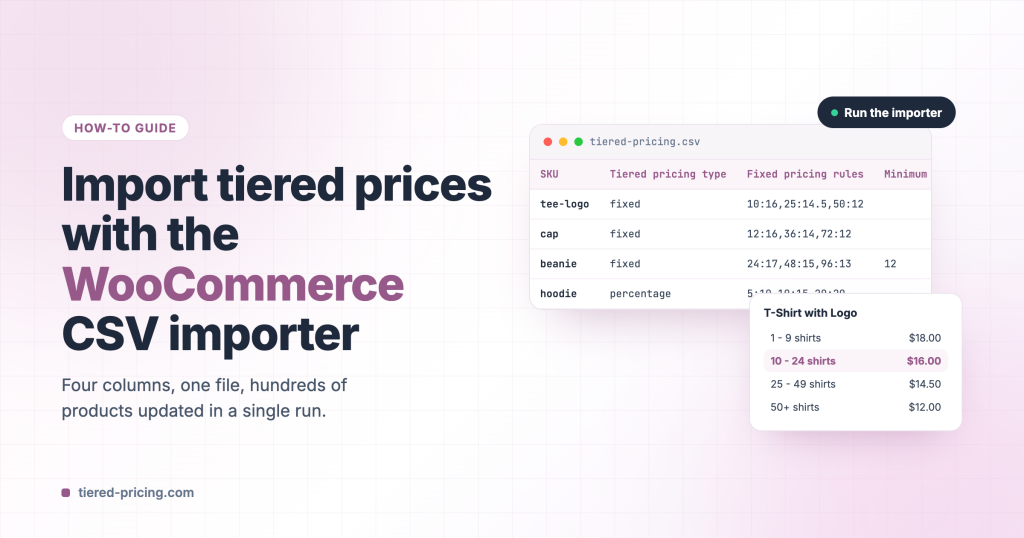
Setting up tiers on hundreds of products by hand takes hours. The built-in WooCommerce CSV importer does it in one run: Tiered Pricing Table for WooCommerce adds its own columns to the importer and the exporter, so a spreadsheet is all you need.
Export first
Go to Products → Export, keep all columns and download the file. The export already contains the four tiered pricing columns with the exact headers and the current values, and the SKU column identifies each product. Edit that file and import it back.
The columns
| Column header | What it holds | Example |
|---|---|---|
Tiered Pricing — Tiered pricing type | fixed or percentage | fixed |
Tiered Pricing — Fixed pricing rules | Tiers as quantity:price, separated by commas | 10:16,25:14.5,50:12 |
Tiered Pricing — Percentage pricing rules | Tiers as quantity:discount (percent) | 10:10,25:20,50:30 |
Tiered Pricing — Minimum order quantity | The minimum a customer can order | 12 |
The short names tiered_price_type, tiered_price_fixed, tiered_price_percentage and tiered_price_minimum work as headers too; both forms are mapped automatically.
A few rules for the values:
- A tier starts at quantity 2 or more; quantity 1 is always the regular price and a
1:…entry is ignored. - Use a dot for decimals and no currency symbol:
25:14.5. - Fill the rules column that matches the type. With
fixed, the percentage column is ignored, and the other way round. - An empty cell clears the product’s tiers. To leave a product untouched, remove it from the file, or leave the column unmapped on the mapping screen.
Run the import
- Go to Products → Import and choose your CSV file.
- Tick Update existing products when the file describes products that already exist; without it, the importer creates new products.
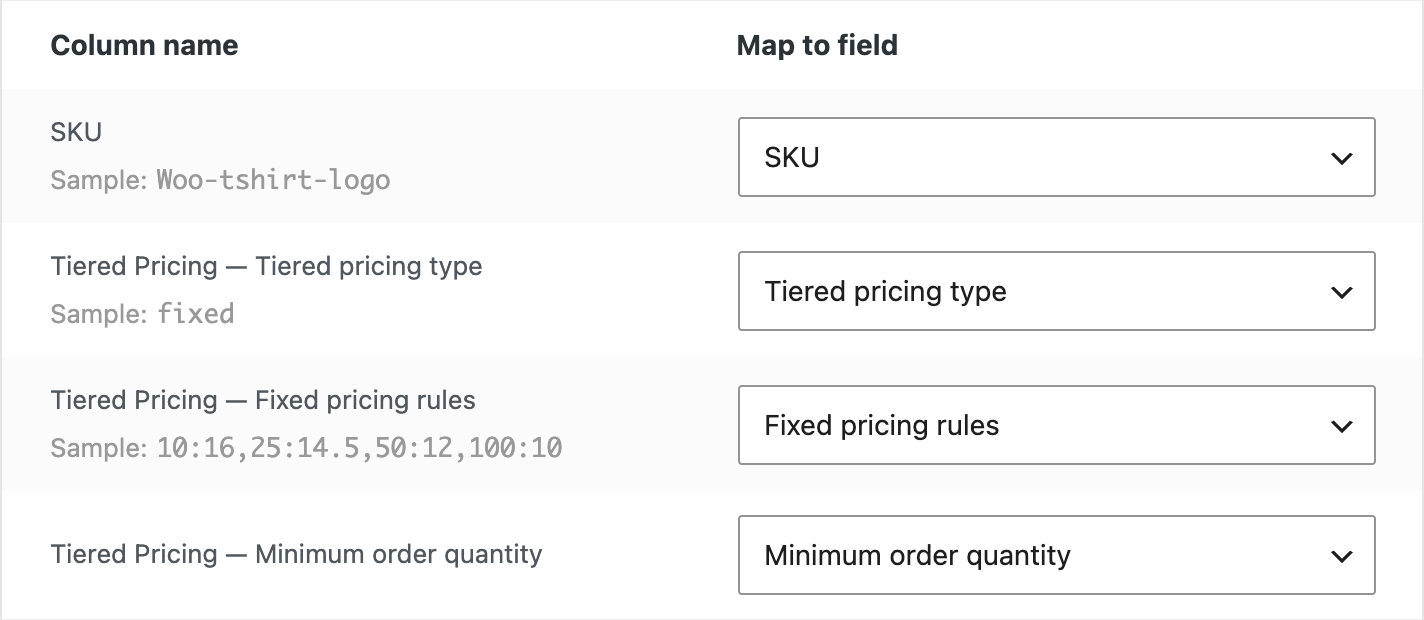
- Click Continue. On the mapping screen the tiered pricing columns are matched to the Tiered Pricing group automatically; if one is not, pick it from the dropdown.
- Click Run the importer.
After the import, purge your page cache and open one of the products to check the tiers.
Variable products
Tiers belong to the variation that is sold, so give each variation its own row, identified by its SKU or ID. Rules on the parent product’s row are used by variations that have no rules of their own.
Role-based prices
Role-based pricing exports and imports the same way, with one set of columns per role (pricing type, regular and sale price, discount, and the tier rules). Export a product that already has a role price to see the headers.
Troubleshooting
- A column was not mapped — open the dropdown on the mapping screen and pick the field under Tiered Pricing.
- The importer created duplicates — Update existing products was not ticked, or the SKU / ID column is missing.
- The tiers did not change — purge the plugin cache (Settings → Tools) and your page cache; check that the rules column matches the pricing type.
- **A rule such as
20:100turned into21:40:00* — the spreadsheet read it as a time. Import the CSV with the rule columns set to *Text (Excel: Data → From Text/CSV; Google Sheets: untick Convert text to numbers, dates and formulas), or write the rules as20=100, which spreadsheets leave alone. The importer ignores time-formatted cells. - The role columns of an exported file show “Do not import” — files exported before version 8.0.3 / 10.0.3 need the role columns picked by hand on the mapping screen (under Tiered Pricing: role name); newer versions map them automatically.
For the file format in general (encoding, delimiters, IDs), see the WooCommerce product CSV importer documentation. For imports from other systems, the plugin also has a WP All Import add-on.