
Trade buyers know what they want: forty caps, two boxes of stickers, the same pennants as last month. Clicking through product pages one at a time slows them down. The quick order form in Tiered Pricing Table for WooCommerce puts the whole order on one page: buyers search by name or SKU, paste a list or upload a CSV, see their own price on every line and add everything to the cart in one click.
1. Switch the form on
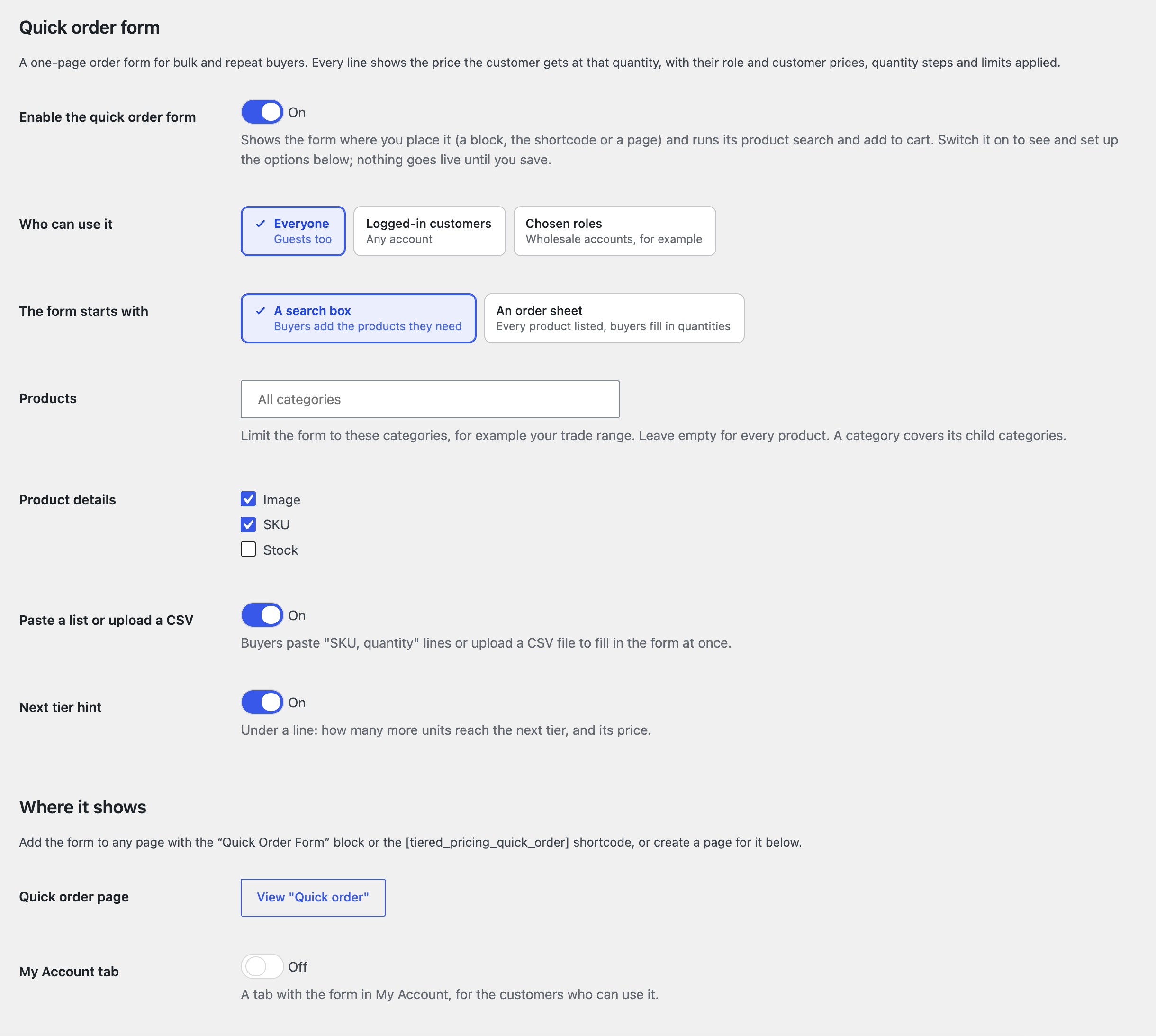
Go to WooCommerce → Settings → Tiered Pricing → Quick Order and switch on Enable the quick order form. The other options appear:
| Setting | What it does |
|---|---|
| Who can use it | Everyone (guests too), Logged-in customers, or Chosen roles such as your wholesale accounts. Everyone else sees a short message instead of the form; guests also get a link to log in. |
| The form starts with | A search box: buyers add the products they need. An order sheet: every product is listed and buyers fill in quantities. |
| Products | Limit the form to some categories, for example your trade range. A category covers its child categories; empty means every product. |
| Product details | The image, the SKU and the stock on each line. |
| Paste a list or upload a CSV | Lets buyers fill in the form from a list. |
| Next tier hint | Under each line: how many more units reach the next tier, and its price. |
2. Put it on your store
Use one or more of these:
- Create a page with the form, under Where it shows. It saves your settings first and publishes a Quick order page; the button then links to it.
- My Account tab: a Quick order tab in My Account for the customers who can use the form. Tab title renames it.
- The Quick Order Form block or the
[tiered_pricing_quick_order]shortcode on any page, for example next to your trade price list.
While the form is switched off, a page with the form shows store managers a note with a link to the setting, and shows shoppers nothing.
3. How buyers order
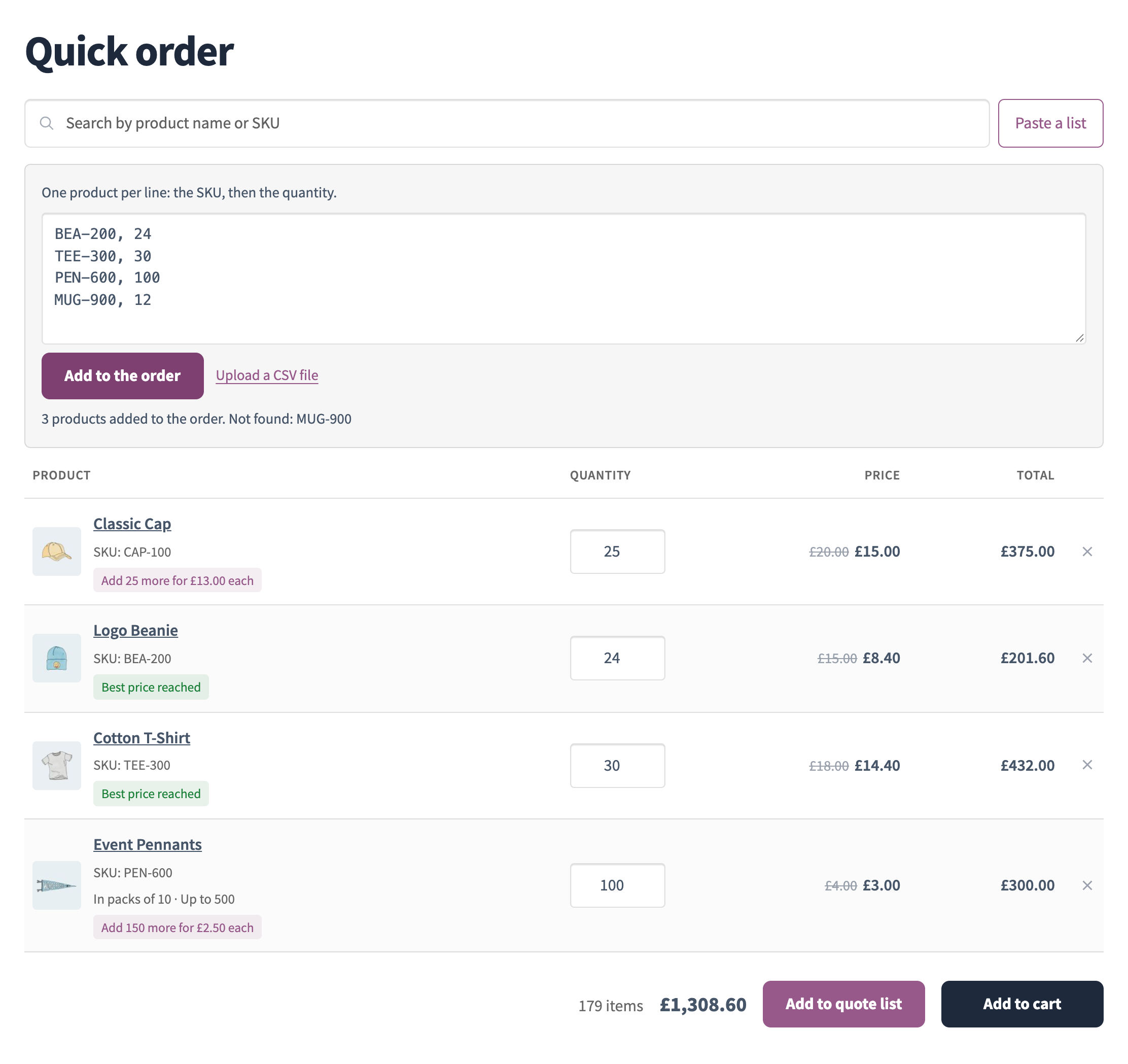
Search. Typing a name or a SKU lists the matching products with their price range; a click adds the product as a line. For a product with variations, the buyer picks the option on the line.
Paste a list. Paste a list opens a box for one product per line: the SKU, then the quantity, for example CAP-100, 25. Upload a CSV file reads the same two columns from a file. The form says how many products it added and names every SKU it could not find, so nothing goes missing quietly.
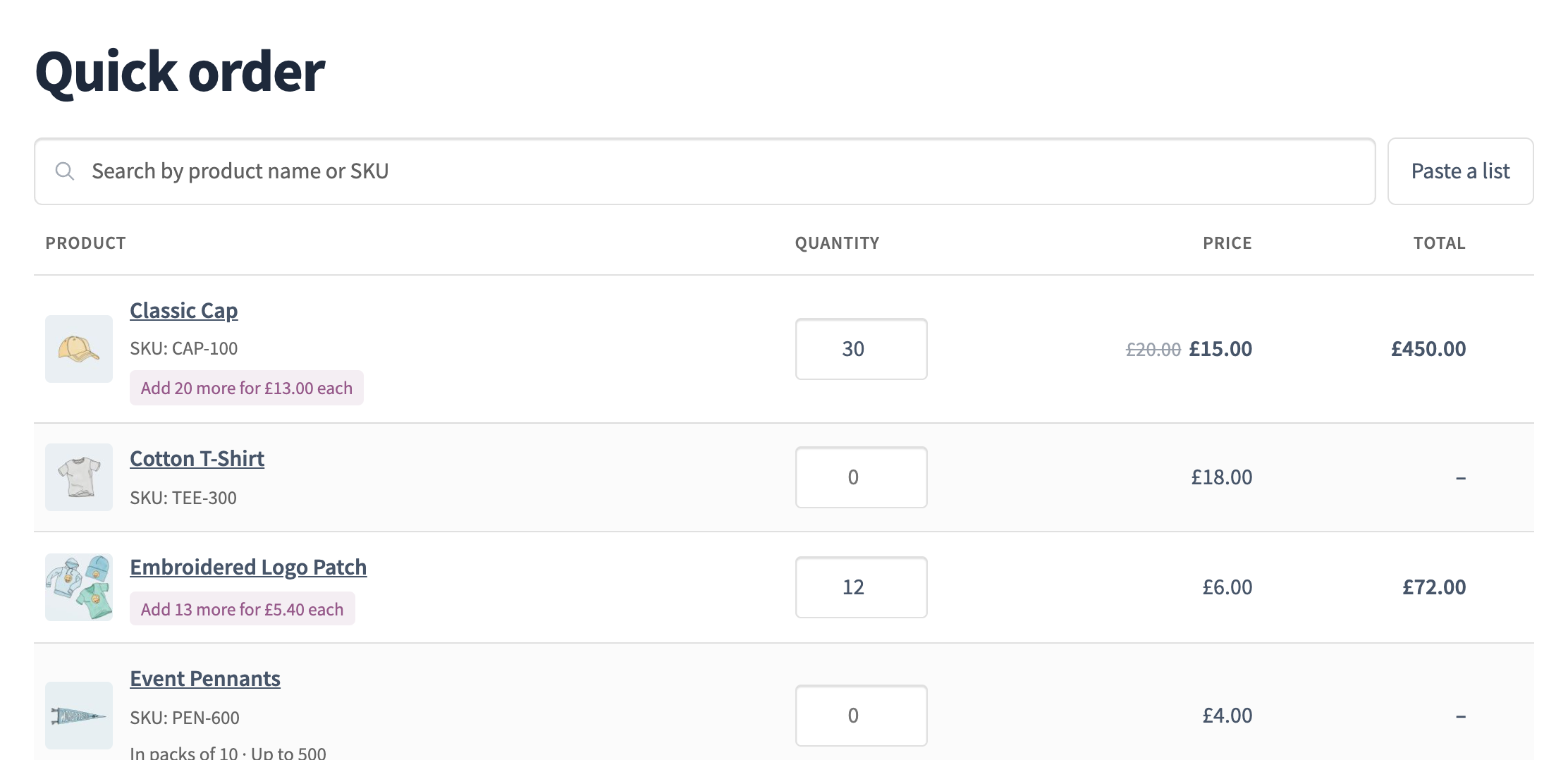
Order sheet. With An order sheet, the form opens with every product the buyer may order, 20 at a time with Load more products. Buyers type quantities into the list; only lines with a quantity go to the cart.
Add to cart. The footer shows the number of items and the total. Add to cart adds every line at once, then offers View cart and Checkout. A line that cannot be added, for example because it is out of stock, keeps its message and the other lines still go in.
If the buyer leaves before adding to cart, the form keeps the lines in their browser and restores them on the next visit.
Prices on every line
Each line shows what the cart will charge for that quantity:
- role and customer prices, and the tiers of the product or of a global pricing rule;
- the minimum, maximum and quantity step: 25 pennants sold in packs of 10 become 30, a quantity over the maximum comes down to it, and the line says so;
- quantities already in the cart count toward the tiers, and the line says how many are there;
- the next tier hint, or Best price reached on the top tier.
The form only lists products the buyer may see and buy, so products you hide from a role or from guests with the private store settings stay hidden.
Quick order and quote requests
When the quote list of Request a Quote is on, the form has a second button, Add to quote list: the same lines go to the quote list instead of the cart, for buyers who want a price before they order. See How to let customers request a quote for bulk orders.
Troubleshooting
- Shoppers see nothing on the page: the form is switched off, or the page has neither the block nor the shortcode.
- A buyer sees “The quick order form is available to business accounts”: Who can use it is set to logged-in customers or chosen roles, and the buyer is not one of them.
- A pasted SKU is “Not found”: no published product has that SKU, the product is outside the categories under Products, or it is hidden from this buyer.
- The quantity changed after typing: the product has a minimum, a maximum or a quantity step; the line names it.
- A line shows a different price than the product page: the form prices the whole quantity on the line plus what is already in the cart, while the product page prices its own quantity box.