
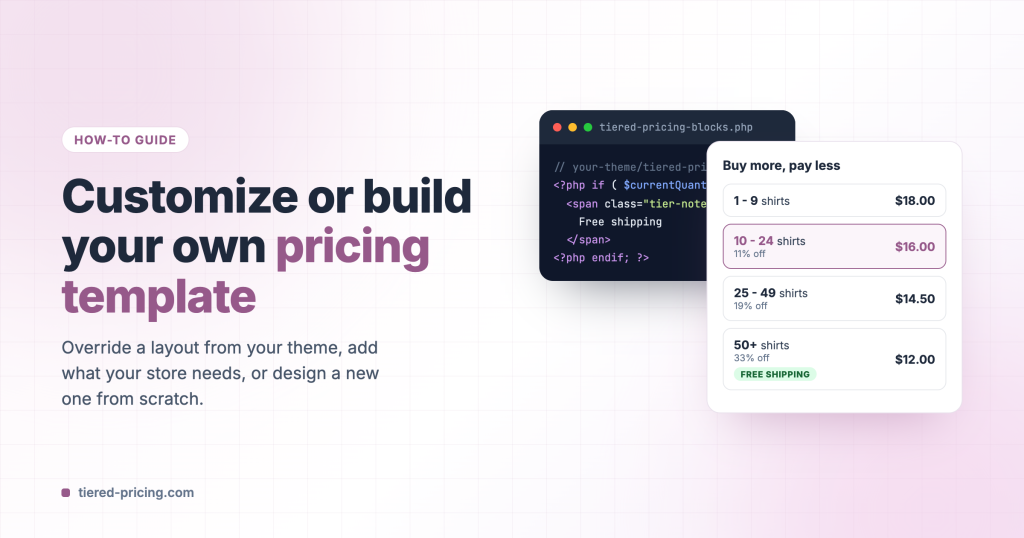
Every pricing layout of Tiered Pricing Table for WooCommerce is a small PHP template. The settings and the layout configurator cover most needs: seven layouts, more than twenty design styles, colours, texts, spacing and tier badges, all with a live preview. When you need something the settings cannot give you — a “Free shipping” note on certain tiers, a column your customers ask for, or a layout that follows your brand exactly — you edit a template or write your own.
This guide shows the three ways to do that, from the smallest change to a template built from scratch, and the rules a template has to follow so the live price, the active tier and the totals keep working.
Before you write code
Check the Pricing Display settings (WooCommerce → Settings → Tiered Pricing → General) first. Layout, design style, quantity format, tier order, discount format, spacing, colours, texts and tier labels (“Most popular”) are all settings, and every change shows in the live preview. Code is for what the settings do not cover.
How the plugin picks a template
Templates live in the plugin folder under views/frontend/. The file the plugin loads follows from the Layout and the Design style you chose:
| Layout | Default template | Design styles |
|---|---|---|
| Table | tiered-pricing-table.php | tiered-pricing-table-style-1.php … -style-6.php |
| Blocks | tiered-pricing-blocks.php | tiered-pricing-blocks-style-1.php … -style-8.php |
| Options | tiered-pricing-options.php | tiered-pricing-options-style-1.php … -style-6.php |
| Dropdown | tiered-pricing-dropdown.php | tiered-pricing-dropdown-style-1.php |
| Plain text | tiered-pricing-plain-text.php | tiered-pricing-plain-text-style-1.php, -style-2.php |
| Horizontal table | tiered-pricing-horizontal-table.php | — |
| Tooltip | tooltip.php (wraps the table template) | — |
The same folder holds the pricing summary (summary-table.php, summary-detailed.php, summary-inline.php) and the product grid wrapper (shop-loop.php). Only the files under views/frontend/ can be overridden; admin templates cannot.
Before the plugin includes one of these files it looks for a copy in your theme, in a folder named tiered-pricing-table. If the copy exists, it wins:
Option 1: override a template from your theme
This is the right choice for most customizations. A copy in the theme survives plugin updates, and the plugin’s stylesheet and script keep working because the markup stays the same.
- Copy the template you want to change from
wp-content/plugins/tier-pricing-table/views/frontend/towp-content/themes/your-theme/tiered-pricing-table/. Keep the file name; drop thefrontend/part of the path. - Edit the copy. Everything else stays in the plugin.
- Purge your page cache and open a product with tiers. If you use the layout configurator, the live preview already shows your version.
Use a child theme
Put the folder in a child theme. A theme update replaces the parent theme’s files, and your template with them.
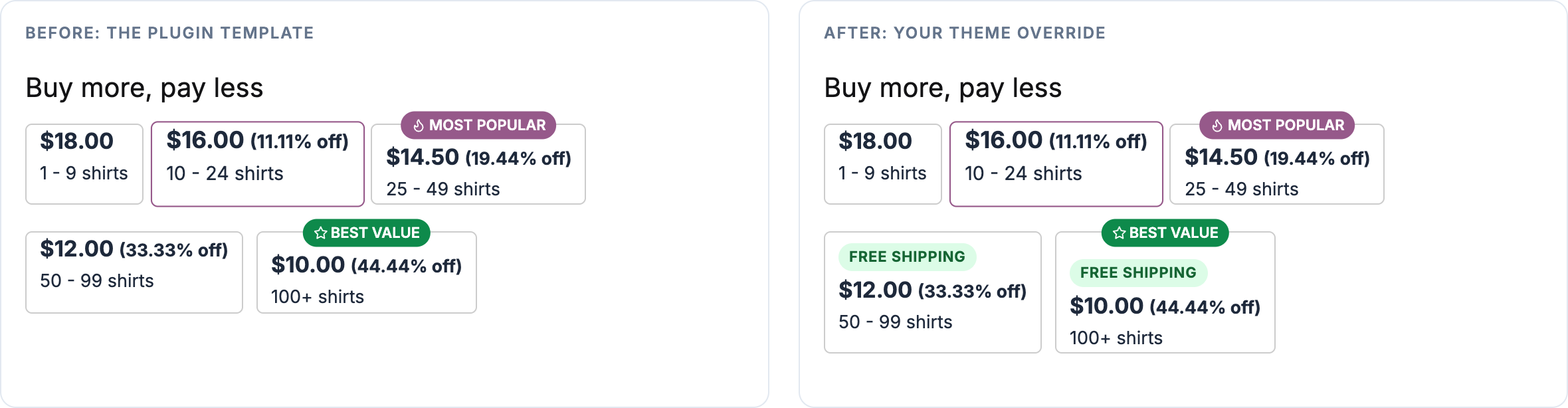
Example: a “Free shipping” note on the higher tiers
Say orders of 30 pieces or more ship for free and you want the Blocks layout to say so. In the copied tiered-pricing-blocks.php, find the loop that prints one block per tier — the current tier’s quantity is in $currentQuantity — and add a note after the tier label hook:
<?php
	do_action( 'tiered_pricing_table/blocks/label', $pricing_rule, $currentQuantity, array(
			'id'    => $id,
			'style' => 'default',
	) );
?>

<?php // Custom: orders of 30 or more ship for free ?>
<?php if ( $currentQuantity >= 30 ) : ?>
	<span class="tiered-pricing-block__note">Free shipping</span>
<?php endif; ?>
Give the note a style in the <style> block at the end of the template (it is scoped to this instance by $id), or in your theme stylesheet:
.tiered-pricing-block__note {
	display: inline-block;
	margin: 8px 0 2px;
	padding: 2px 8px;
	border-radius: 999px;
	background: #dcfce7;
	color: #166534;
	font-size: 11px;
	font-weight: 700;
	letter-spacing: .04em;
	text-transform: uppercase;
}
Option 2: change the template path from a plugin
When there is no child theme, or the customization ships inside your own plugin, redirect the template instead of copying it into the theme. Every template path passes through the tiered_pricing_table/template/location filter. The first argument is the file the plugin is about to include, the second the template name, for example frontend/tiered-pricing-blocks.php:
add_filter( 'tiered_pricing_table/template/location', function ( $file, $template ) {
	if ( 'frontend/tiered-pricing-blocks.php' === $template ) {
		return plugin_dir_path( __FILE__ ) . 'templates/tiered-pricing-blocks.php';
	}

	return $file;
}, 10, 2 );
The redirected file gets the same variables as the original, so start from a copy of the plugin’s template here too.
Option 3: add to a template without touching it
Small additions rarely need a template at all. The templates fire hooks at the places you would edit, and a few lines in functions.php do the job. The “Free shipping” note again, this time in every layout at once:
foreach ( array( 'table', 'horizontal-table', 'blocks', 'options', 'dropdown', 'plain-text' ) as $layout ) {
	add_action( "tiered_pricing_table/{$layout}/label", function ( $pricing_rule, $quantity ) {
		if ( $quantity >= 30 ) {
			echo '<span class="tiered-pricing-block__note">Free shipping</span>';
		}
	}, 10, 2 );
}
Other hooks worth knowing: tiered_pricing_table/tiered_pricing/header_columns and …/row_columns add a column to the table layouts, …/tiered_pricing/last_tier_postfix changes the “+” after the last tier, and …/blocks/after_blocks prints something after the layout. The full list is in the developer documentation.
For a pure look change, CSS is enough: the layouts use stable class names (.tiered-pricing-table, .tiered-pricing-block, .tiered-pricing-option, .tiered-pricing--active for the highlighted tier), and the gap and cell padding are CSS variables (--tiered-pricing-gap, --tiered-pricing-cell-padding).
Creating a template from scratch
A new design starts from the same mechanism: you override the file of a design style you do not use and fill it with your own markup. The plugin then treats your file as that style, so it can be picked in the settings, previewed in the configurator and set per product like any other.
What the script expects
The storefront script reads the markup to update the price, highlight the active tier and react to clicks. Keep this contract and everything works:
| Element | Required markup |
|---|---|
| Root element | The layout’s class (tiered-pricing-blocks for a Blocks template, tiered-pricing-table with data-tiered-pricing-table for a Table template, tiered-pricing-options for Options) and the data attributes id, data-product-id, data-price-rules, data-minimum, data-product-name, data-regular-price, data-sale-price, data-price, data-product-price-suffix |
| One element per tier | The layout’s tier class (tiered-pricing-block, a <tr> in tbody, tiered-pricing-option) with data-tiered-quantity, data-tiered-price, data-tiered-price-exclude-taxes, data-tiered-price-include-taxes |
| The base tier | The first element, data-tiered-quantity equal to the minimum, with the class tiered-pricing--active |
| Tier order and limit | Collect each tier’s HTML in $tptTierRows and print PricingTable::orderTiers( $tptTierRows, $settings ), so the “Tier order” and “Tiers per grid item” settings apply |
The script adds tiered-pricing--active to the tier that matches the quantity and removes it from the others, so style that class. Choose the layout whose behaviour you want: Blocks and Table highlight and click, Options renders radio inputs and totals, Dropdown needs its list markup.
The variables a template receives
| Variable | What it holds |
|---|---|
$pricing_rule | The PricingRule that applies: tiers, minimum, type, labels |
$price_rules | quantity => price for fixed rules, quantity => discount for percentage rules |
$pricing_type | fixed or percentage |
$minimum | Minimum order quantity, 1 when none is set |
$real_price | The product price of the base tier |
$product, $product_id, $product_name | The WooCommerce product (a variation on variable products) |
$id | A unique id for this instance; scope your CSS with it |
$settings | Display settings: title, active_tier_color, quantity_measurement_singular / _plural, quantity_type, show_discount_column, clickable_rows, compact_layout, discount_format, tiers_order, … |
Two helpers do the price maths for you: PriceManager::getPriceByRules( $quantity, $product_id ) returns the unit price of a tier, and PricingTable::formatDiscount( … ) formats the discount the way the store shows it (percentage, amount or both).
Example: a “quantity ladder”
The template below replaces design style #8 of the Blocks layout with a vertical list: a step marker, the quantity range, and the price with the discount under it. Save it as wp-content/themes/your-theme/tiered-pricing-table/tiered-pricing-blocks-style-8.php, then choose Blocks and Style #8 in the settings.
<?php
/**
 * Quantity ladder: a custom pricing template for Tiered Pricing Table for WooCommerce.
 * Saved as wp-content/themes/{your-theme}/tiered-pricing-table/tiered-pricing-blocks-style-8.php
 * it replaces design style #8 of the Blocks layout.
 */

use TierPricingTable\PriceManager;
use TierPricingTable\PricingTable;

if ( ! defined( 'WPINC' ) ) {
	die;
}

if ( empty( $price_rules ) ) {
	return;
}

$unit       = $settings['quantity_measurement_plural'];
$accent     = $settings['active_tier_color'];
$quantities = array_keys( $price_rules );

// One entry per tier: the base tier first, then every rule.
$tiers   = array();
$tiers[] = array(
	'quantity' => $minimum,
	'label'    => $minimum < $quantities[0] - 1 ? number_format_i18n( $minimum ) . ' - ' . number_format_i18n( $quantities[0] - 1 ) : number_format_i18n( $minimum ),
	'price'    => $real_price,
	'discount' => 0,
	'active'   => true,
);

foreach ( $quantities as $index => $quantity ) {
	$next  = $quantities[ $index + 1 ] ?? null;
	$label = $next ? number_format_i18n( $quantity ) . ' - ' . number_format_i18n( $next - 1 ) : number_format_i18n( $quantity ) . '+';
	$price = PriceManager::getPriceByRules( $quantity, $product_id, null, null, false );

	$tiers[] = array(
		'quantity' => $quantity,
		'label'    => $label,
		'price'    => $price,
		'discount' => PriceManager::calculateDiscount( $product->get_price(), $price ),
		'active'   => false,
	);
}
?>
<div class="tiered-pricing-wrapper">
	<?php if ( ! empty( $settings['title'] ) ) : ?>
		<h3 class="tpt-ladder__title"><?php echo esc_html( $settings['title'] ); ?></h3>
	<?php endif; ?>

	<div class="tiered-pricing-blocks tpt-ladder"
	     id="<?php echo esc_attr( $id ); ?>"
	     data-product-id="<?php echo esc_attr( $product_id ); ?>"
	     data-price-rules="<?php echo esc_attr( wp_json_encode( $price_rules ) ); ?>"
	     data-minimum="<?php echo esc_attr( $minimum ); ?>"
	     data-product-name="<?php echo esc_attr( $product_name ); ?>"
	     data-regular-price="<?php echo esc_attr( wc_get_price_to_display( $product, array( 'price' => $product->get_regular_price() ) ) ); ?>"
	     data-sale-price="<?php echo esc_attr( $product->get_sale_price() ? wc_get_price_to_display( $product, array( 'price' => $product->get_sale_price() ) ) : '' ); ?>"
	     data-price="<?php echo esc_attr( wc_get_price_to_display( $product, array( 'price' => $product->get_price() ) ) ); ?>"
	     data-product-price-suffix="<?php echo esc_attr( $product->get_price_suffix() ); ?>">

		<?php $tptTierRows = array(); ?>
		<?php foreach ( $tiers as $step => $tier ) : ob_start(); ?>
			<div class="tiered-pricing-block tpt-ladder__step <?php echo $tier['active'] ? 'tiered-pricing--active' : ''; ?>"
			     data-tiered-quantity="<?php echo esc_attr( $tier['quantity'] ); ?>"
			     data-tiered-price="<?php echo esc_attr( wc_get_price_to_display( $product, array( 'price' => $tier['price'] ) ) ); ?>"
			     data-tiered-price-exclude-taxes="<?php echo esc_attr( wc_get_price_excluding_tax( $product, array( 'price' => $tier['price'] ) ) ); ?>"
			     data-tiered-price-include-taxes="<?php echo esc_attr( wc_get_price_including_tax( $product, array( 'price' => $tier['price'] ) ) ); ?>">

				<span class="tpt-ladder__marker"><?php echo esc_html( $step + 1 ); ?></span>

				<span class="tpt-ladder__quantity">
					<?php echo esc_html( $tier['label'] . ' ' . $unit ); ?>
					<?php do_action( 'tiered_pricing_table/blocks/label', $pricing_rule, $tier['quantity'], array( 'id' => $id, 'style' => 'ladder' ) ); ?>
				</span>

				<span class="tpt-ladder__price">
					<?php echo wp_kses_post( wc_price( wc_get_price_to_display( $product, array( 'price' => $tier['price'] ) ) ) ); ?>
					<?php if ( $tier['discount'] > 0 ) : ?>
						<em class="tpt-ladder__discount"><?php echo wp_kses_post( PricingTable::formatDiscount( $tier['discount'], $pricing_rule, $product, $tier['quantity'], $settings, 'off' ) ); ?></em>
					<?php endif; ?>
				</span>
			</div>
		<?php $tptTierRows[] = ob_get_clean(); endforeach; ?>

		<?php echo PricingTable::orderTiers( $tptTierRows, $settings ); // phpcs:ignore WordPress.Security.EscapeOutput.OutputNotEscaped ?>
	</div>
</div>

<style>
	#<?php echo esc_attr( $id ); ?>.tpt-ladder { display: flex; flex-direction: column; gap: 0; margin: 0 0 20px; padding: 0; border: 0; }
	#<?php echo esc_attr( $id ); ?> .tpt-ladder__step { position: relative; display: grid; grid-template-columns: 32px 1fr auto; align-items: center; gap: 14px; margin: 0; padding: 12px 14px 12px 0; border: 0; border-top: 1px solid #e5e7eb; border-radius: 0; background: transparent; box-shadow: none; transform: none; cursor: pointer; }
	#<?php echo esc_attr( $id ); ?> .tpt-ladder__step:first-child { border-top: 0; }
	#<?php echo esc_attr( $id ); ?> .tpt-ladder__marker { display: inline-flex; width: 28px; height: 28px; align-items: center; justify-content: center; border-radius: 50%; border: 2px solid #d1d5db; font-size: 12px; font-weight: 700; color: #6b7280; background: #fff; }
	#<?php echo esc_attr( $id ); ?> .tpt-ladder__quantity { font-weight: 600; color: #111827; }
	#<?php echo esc_attr( $id ); ?> .tpt-ladder__price { text-align: right; font-weight: 700; color: #111827; }
	#<?php echo esc_attr( $id ); ?> .tpt-ladder__discount { display: block; font-size: 12px; font-style: normal; font-weight: 600; color: <?php echo esc_attr( $accent ); ?>; }
	#<?php echo esc_attr( $id ); ?> .tiered-pricing--active .tpt-ladder__marker { border-color: <?php echo esc_attr( $accent ); ?>; background: <?php echo esc_attr( $accent ); ?>; color: #fff; }
	#<?php echo esc_attr( $id ); ?> .tiered-pricing--active .tpt-ladder__quantity { color: <?php echo esc_attr( $accent ); ?>; }
</style>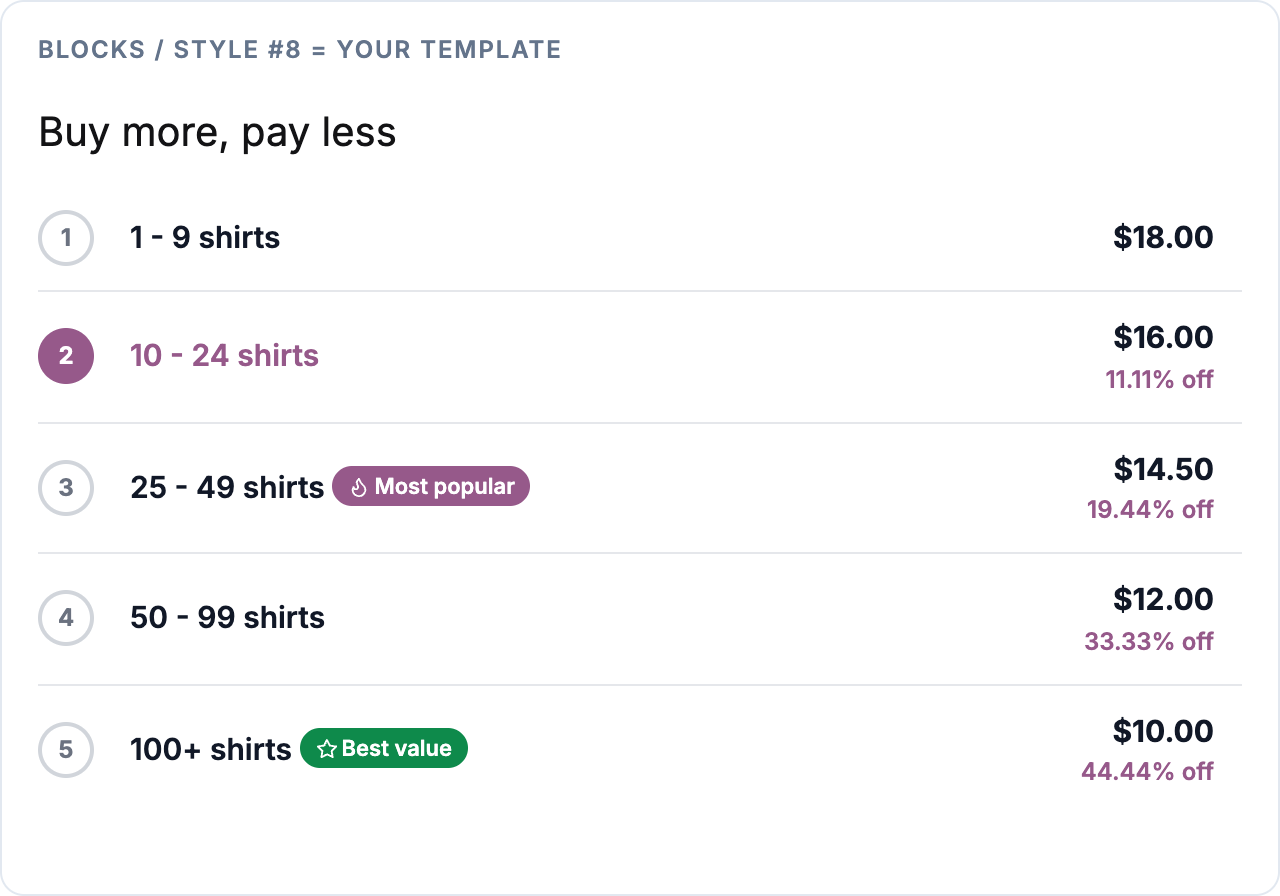
A few things the example does on purpose:
- It keeps the Blocks classes on the root and the tiers, so the plugin’s script drives it: the quantity field moves the highlight, clicking a step sets the quantity, the price and the summary update.
- It reads the title, the unit name and the accent colour from
$settings, so the settings page still controls them. - It calls the tier label hook, so “Most popular” style badges from Badges & Labels still appear.
- The plugin’s own CSS for
.tiered-pricing-block(border, padding) still applies; the template resets what it does not want and scopes every rule with#id.
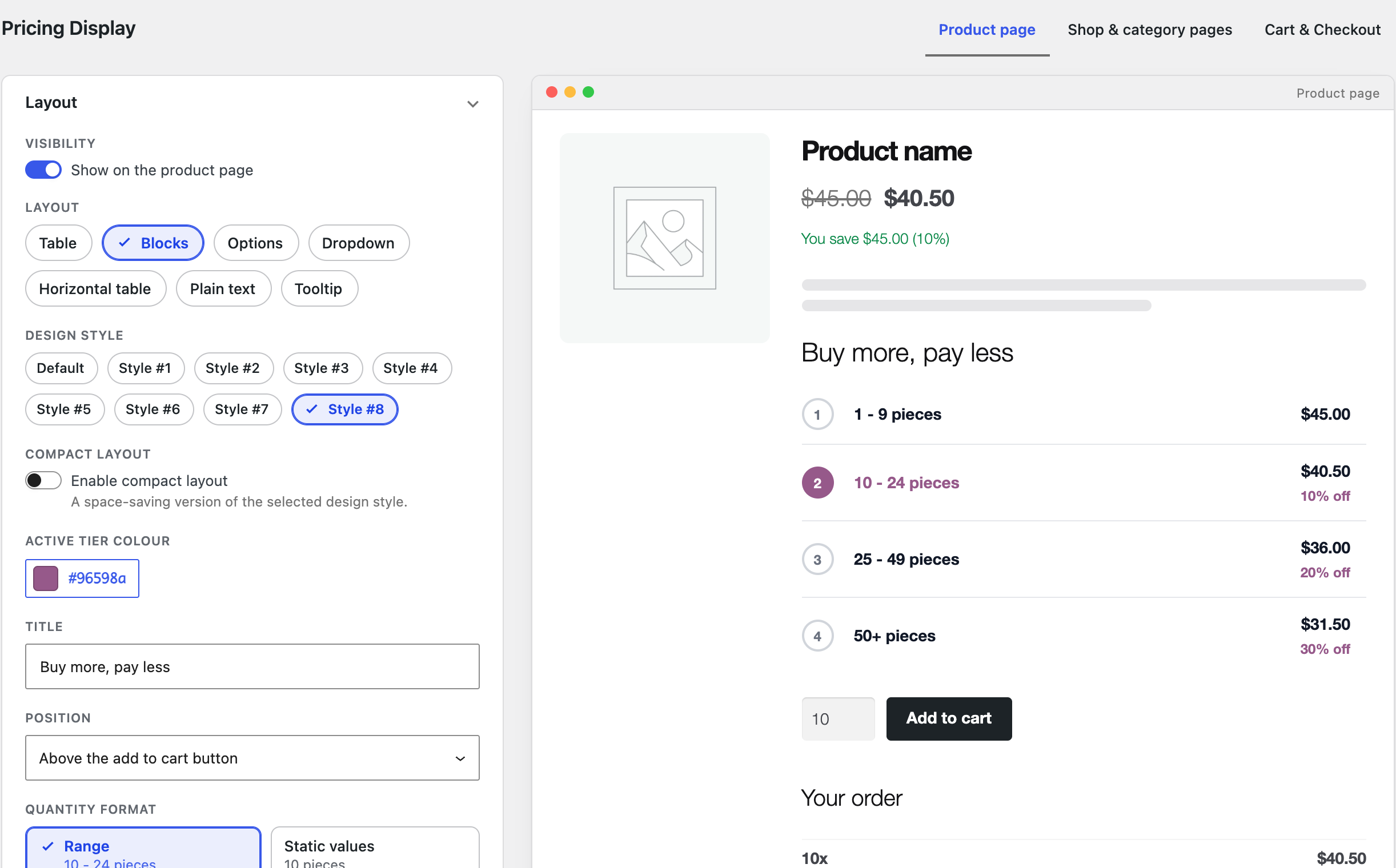
Because the file sits in your theme’s tiered-pricing-table folder, the layout configurator renders it in the live preview as soon as you pick the style:
Registering a brand-new layout
The tiered_pricing_table/pricing_layouts filter can add a new layout key to the settings, and the plugin then loads tiered-pricing-{key}.php. The storefront script, however, only drives the built-in layouts, so a template registered this way renders without live updates. Overriding a design style, as above, gives you a new look and keeps the behaviour.
Testing your template
- Change the quantity on the product page: the highlighted tier, the price and the summary must follow.
- Click a tier if clickable tiers are on: the quantity field must change.
- Check a variable product, a product on sale, and one with a minimum quantity; they exercise the base tier and the price helpers.
- Enable Debug mode (Settings → Tools) if a price looks wrong; it shows which rule the plugin applied.
- Purge your page cache after every change; the templates themselves are not cached by the plugin.
Keeping overrides up to date
An override freezes the template at the version you copied. New plugin versions sometimes change the templates — 7.2.0, for example, added the tier order and limit (orderTiers), the discount format and the spacing variables. After an update, compare your copy with the file in views/frontend/ and carry the changes over. Keep the override as small as the job allows: a hook (option 3) needs no maintenance at all.
Troubleshooting
- The override is ignored — check the folder name (
tiered-pricing-table, directly in the theme, withoutfrontend/), the file name (a design style needs the-style-Nsuffix), and that the theme with the folder is the active one. Then purge caches. - The price does not follow the quantity — a data attribute is missing on the root element or a tier, or the base tier lacks
tiered-pricing--active. Compare with the table in “What the script expects”. - The preview shows the old design — the configurator caches the stylesheet URL by file time; save the template again and reload the settings page.
- Styles look off in the grid — the shop page uses the same template with the compact layout; test it with Show on shop and category pages on.
Need a hook the templates do not have? Let us know; we add hooks on request.