
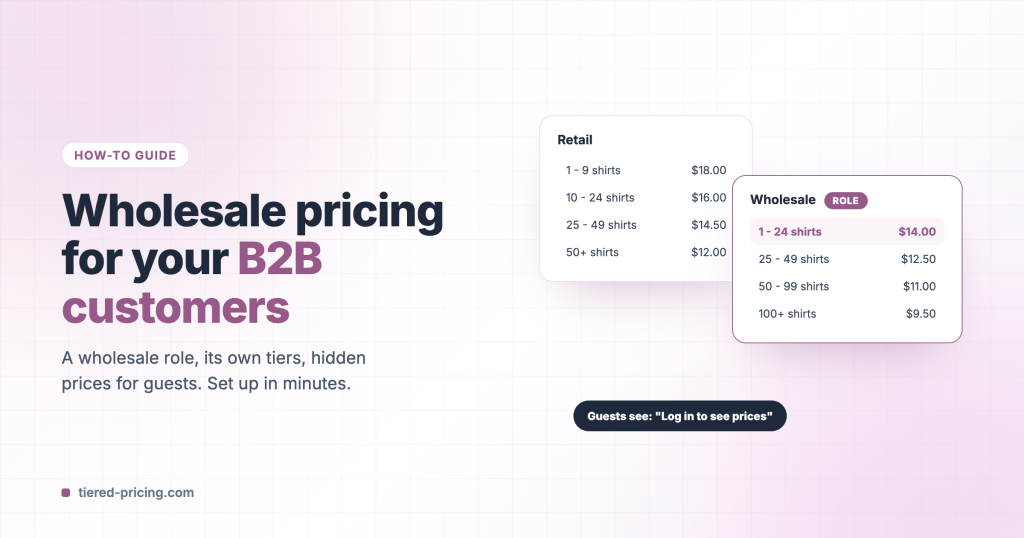
Wholesale customers expect their own prices, their own minimums, their own payment terms and often a quote before a large order, while the retail store keeps working for everyone else. Tiered Pricing Table for WooCommerce covers all of that with one idea: a customer role. Give wholesale accounts the role, attach prices, limits and cart rules to it, and decide what guests may see. This guide walks through every piece, from the first role and the application form to tax, quotes and imports.
New in version 8.0.0
Version 8.0.0 turns the plugin into a complete B2B toolkit: customers apply for a wholesale account on your site and you approve them in a queue (step 2), the store can be closed to visitors or show parts of the catalog to selected roles only (step 9), and every role can get a minimum order and its own payment and shipping methods (step 7). On older versions customers register as usual and you change their role by hand.
The building blocks
- Roles — a customer group, for example Wholesale or Distributor. A customer has one role; the plugin reads it on every page.
- Wholesale registration — an application form you build, an approval queue and four e-mails; approved applicants get the role.
- Role pricing — prices for the role: store-wide with a global pricing rule, or per product on the product’s Role & Customer Prices tab.
- Customer-specific pricing — negotiated prices for one account, on top of the role prices.
- Quantity limits — minimum, maximum and pack sizes per rule, so wholesale buyers order by the case.
- Cart rules by role — a minimum order amount or quantity for the whole cart, and payment or shipping methods limited to a role.
- Guest options — hide prices from visitors and require a login to buy.
- Private store — close the store to visitors, or show products and categories to selected roles only.
- Role-based tax options — tax-exempt roles, net prices for trade customers.
- Quotes, imports and manual orders — the rest of the B2B workflow, covered at the end.
Choose your scenario
| You want… | Set up |
|---|---|
| Customers apply for wholesale accounts themselves | Wholesale registration (step 2) |
| The same discount on everything for all wholesale accounts | One global pricing rule for the role (step 3) |
| A wholesale price list with different prices per product | Role pricing on each product (step 4), or a CSV import (step 12) |
| Negotiated prices for one big account | Customer-specific pricing (step 5) |
| Several partner levels, e.g. Wholesale and Distributor | One role per level, each with its own rules |
| Orders by the case, with a minimum per product | Quantity limits (step 6) |
| A minimum wholesale order, invoice payment for wholesale only, free shipping for retail only | Cart rules by role (step 7) |
| Retail prices hidden from visitors, or no purchases without a login | Guest options (step 8) |
| A store only approved accounts can enter | Closed store (step 9) plus registration (step 2) |
| Products or categories only wholesale accounts may see | Catalog visibility by role (step 9) |
You can combine them. The section “Which price applies” explains what wins when a product is covered by more than one rule.
Step 1: Create the wholesale role
Go to WooCommerce → Settings → Tiered Pricing → Advanced → Roles Management (the tab was called Tools before 8.0.0) and click Add New Role. Name it Wholesale; the role key is created for you. Create one role per partner level if you sell at several levels, for example Wholesale and Distributor.
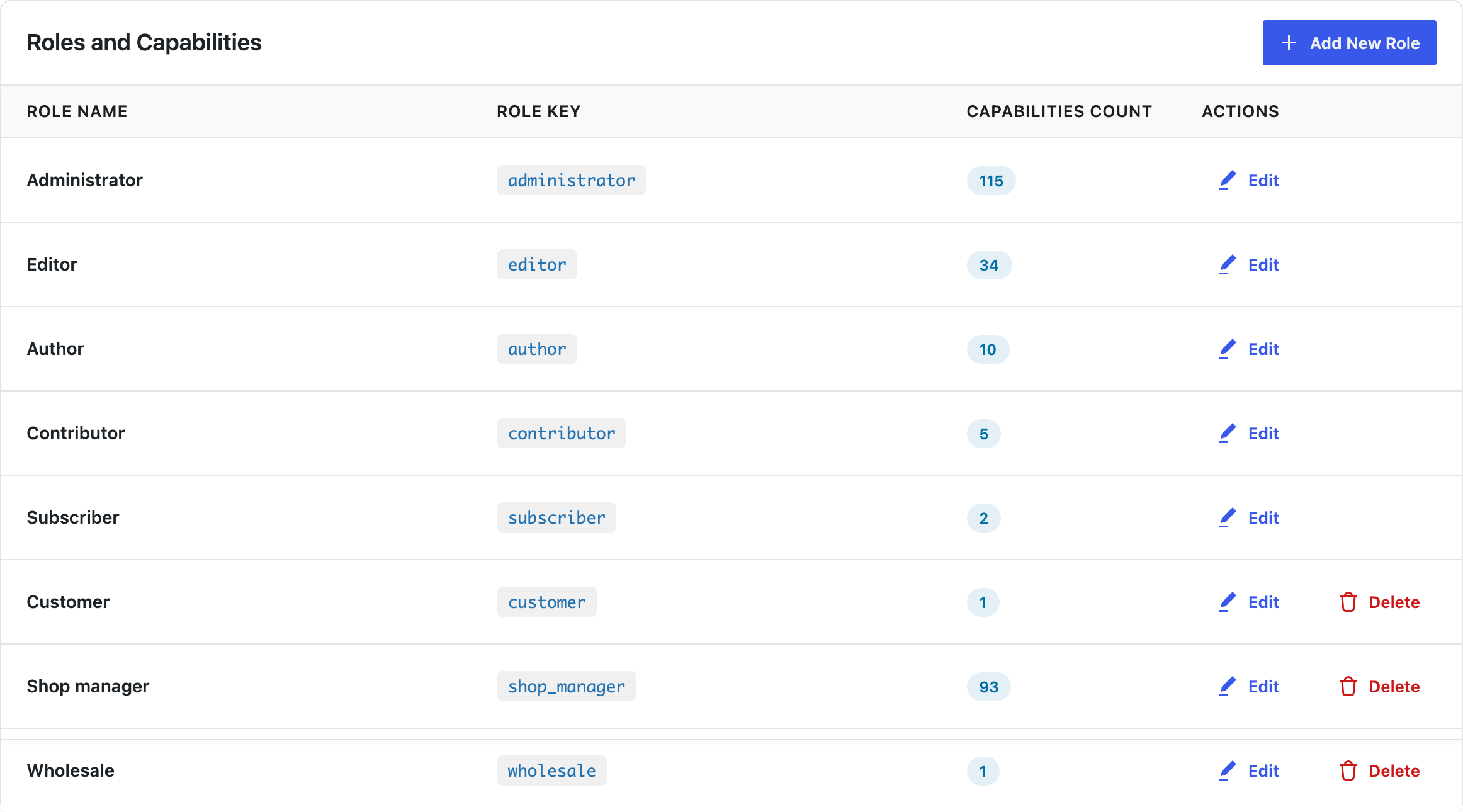
To assign the role by hand, open a customer under Users → All Users, set the role to Wholesale and save. Step 2 shows how customers get the role on their own.
Step 2: Let customers apply for a wholesale account
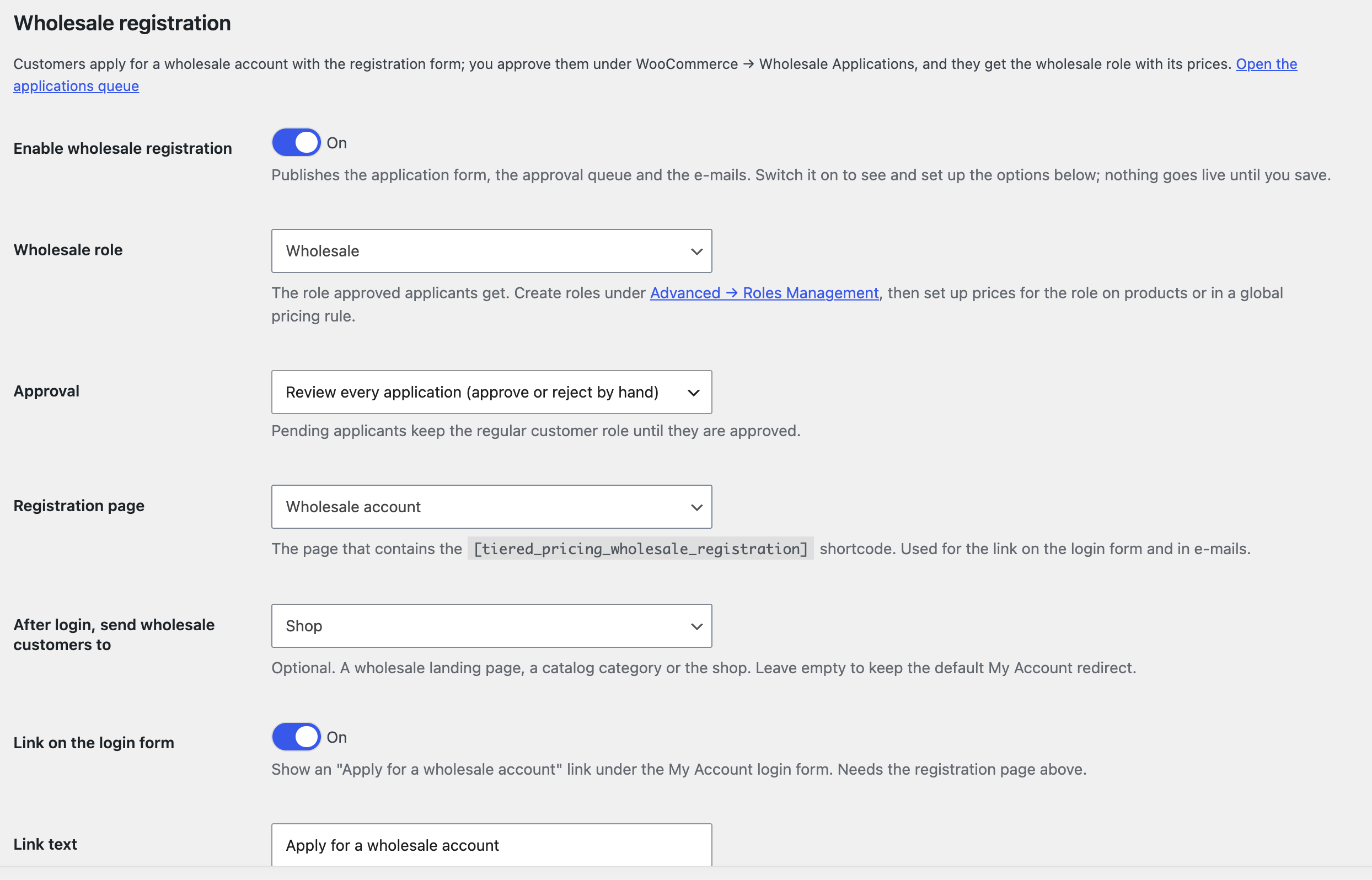
Under WooCommerce → Settings → Tiered Pricing → Wholesale:
- Switch on Enable wholesale registration and pick the Wholesale role approved applicants get.
- Choose the Approval mode: Review every application (you approve or reject by hand) or Approve automatically (every applicant gets the role at once and is logged in).
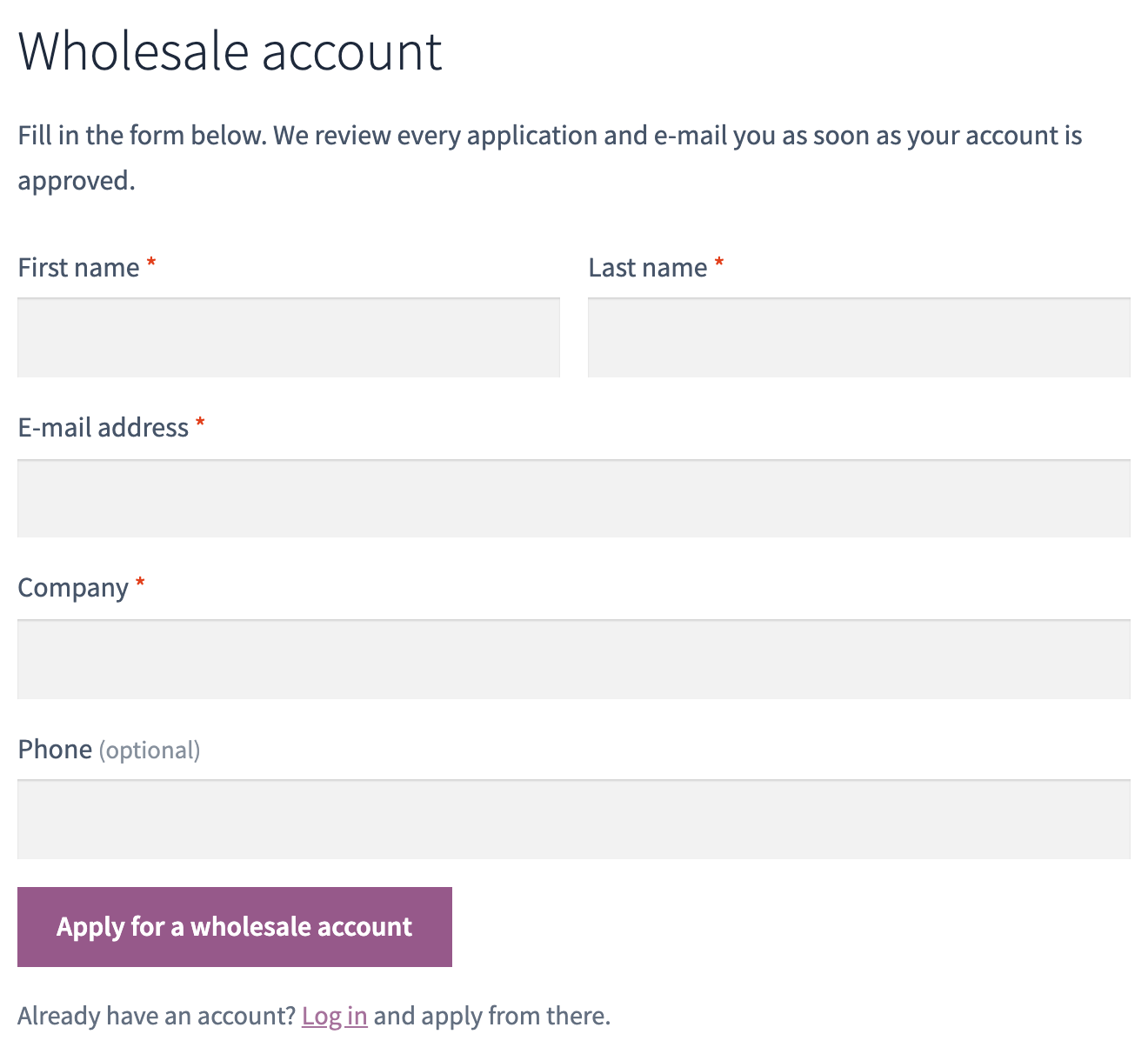
- Create a page, put the
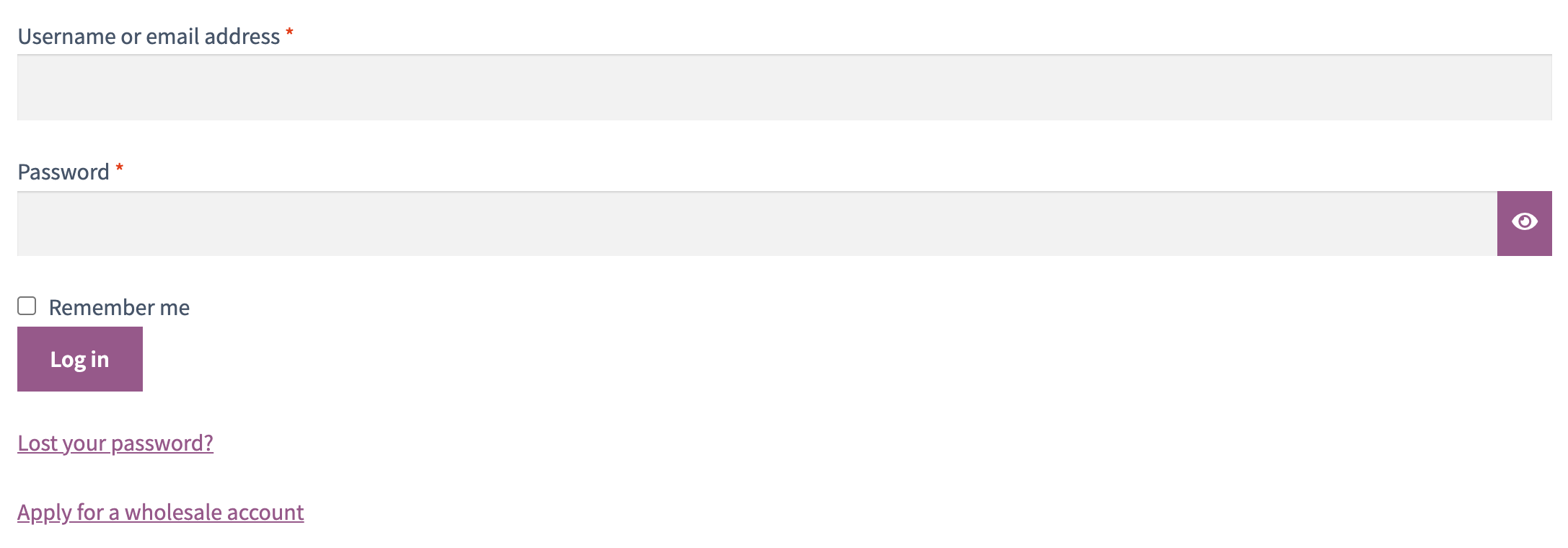
[tiered_pricing_wholesale_registration]shortcode on it and select it as the Registration page. The page is linked from the login form and the e-mails. - Optionally pick the page wholesale customers land on after login, for example a wholesale catalog or a price-list page, and switch on the link on the login form so the “Apply for a wholesale account” link appears under the My Account login form.
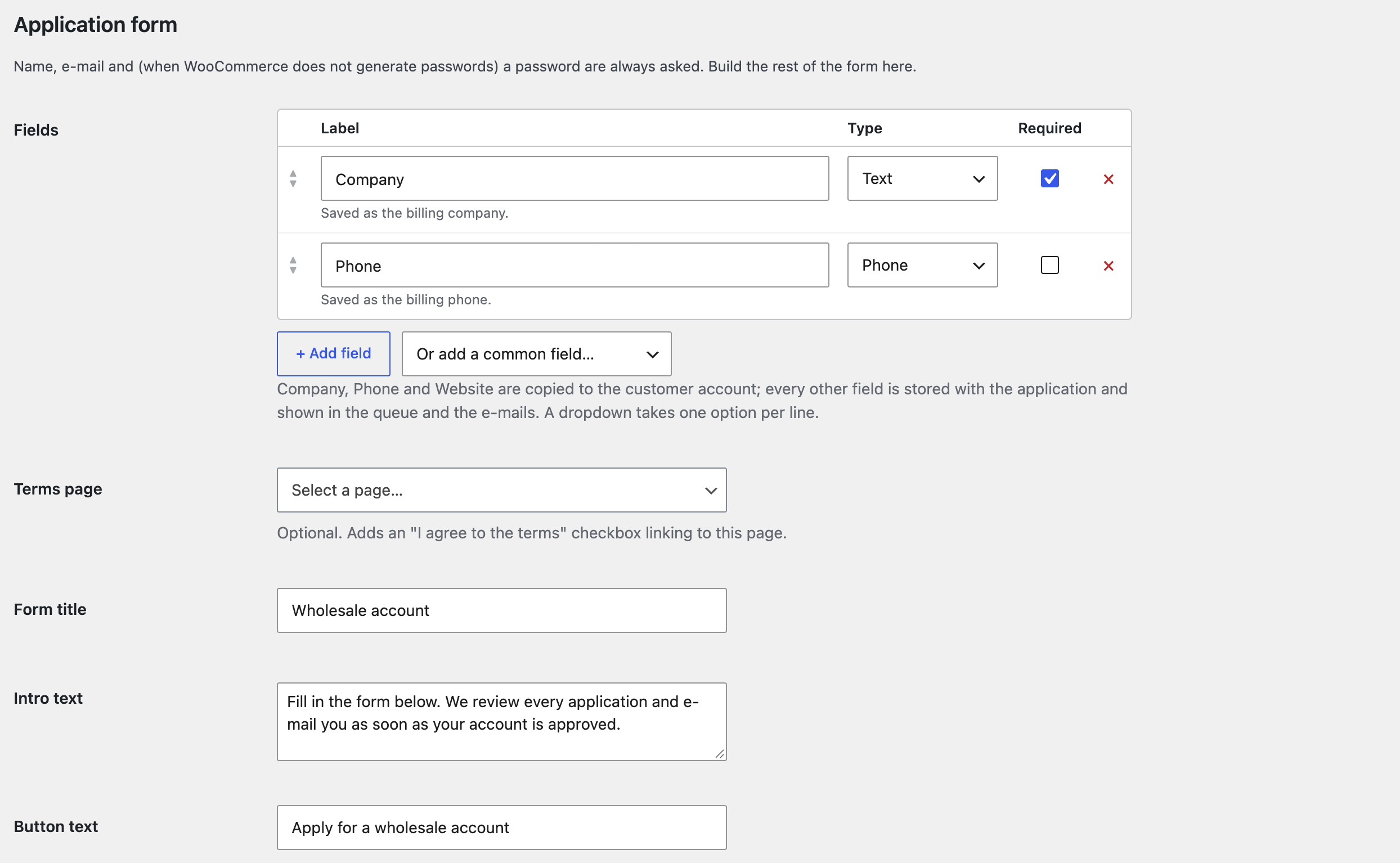
Build the form. Name, e-mail and, unless WooCommerce generates passwords, a password are always asked. Everything else is up to you under Application form: add a field with a label, a type (text, paragraph, phone, e-mail, website, number, dropdown or checkbox) and a required flag, drag the rows into order, or pick a common field from the dropdown: Company, Phone, Tax ID, Website, Message. Company, Phone and Website are copied to the customer’s billing details; every other answer is stored with the application and shown in the queue and the e-mails. A Terms page adds an “I agree” checkbox, and the Form title, Intro text and Button text are yours to write.
Spam protection. The form carries a honeypot out of the box. For reCAPTCHA v3, create a key pair of type Score based in the reCAPTCHA admin console and enter it under Spam protection; these keys are separate from the Request a Quote keys.
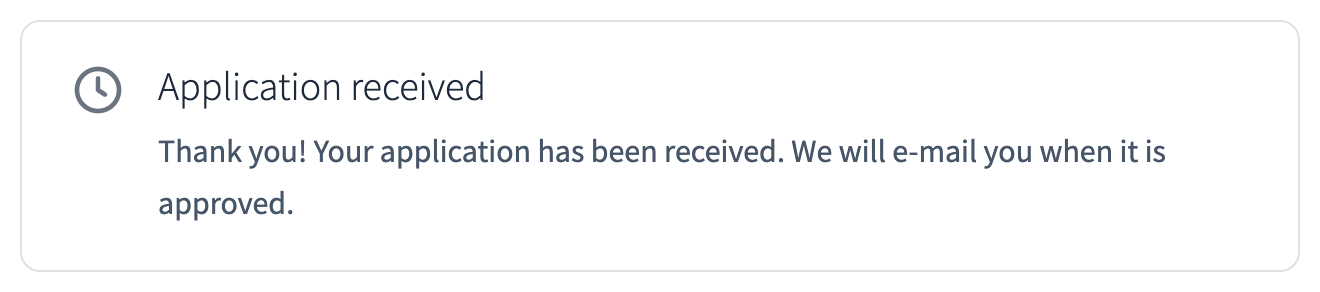
What the applicant sees. A visitor fills in the form and gets a customer account right away, with the regular Customer role, and the “Application received” message. A logged-in customer applies from the same page without re-entering name and e-mail. The three status messages (received, approved, rejected) are editable under Messages.
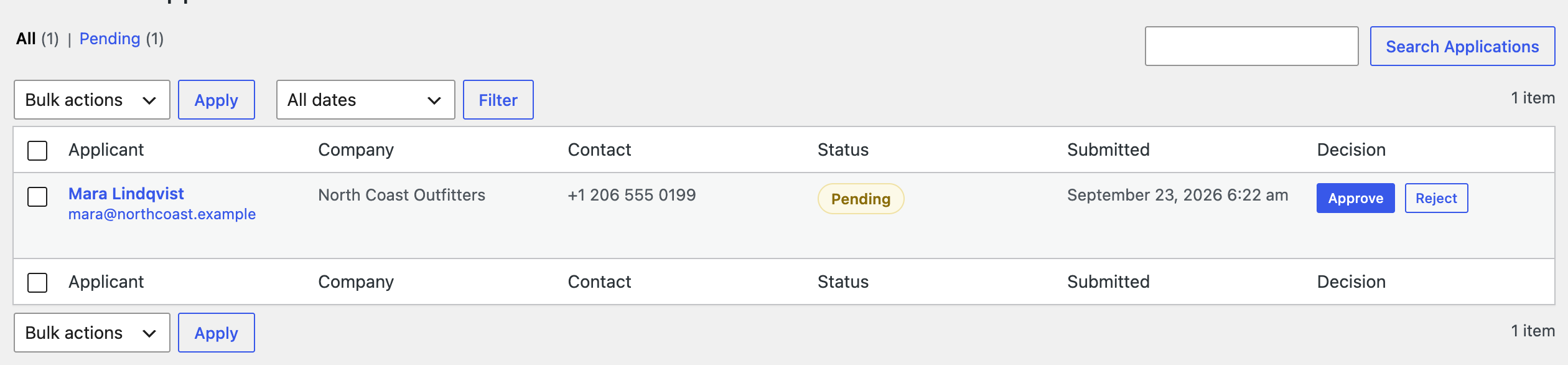
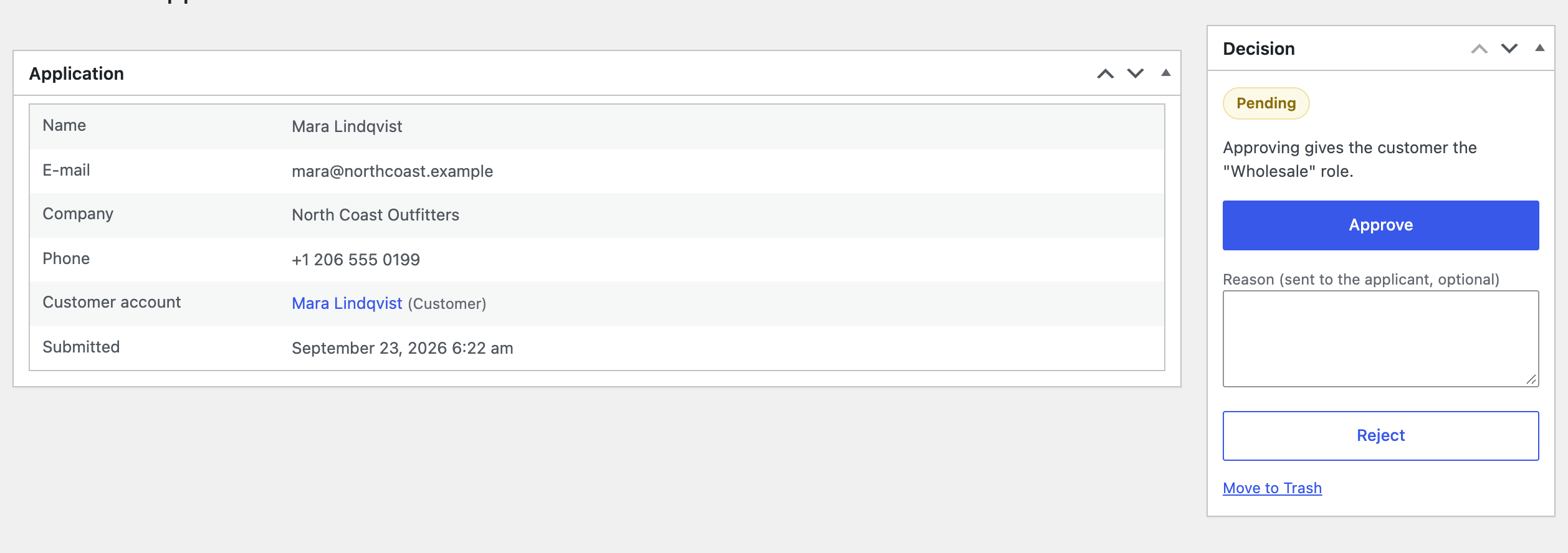
Approve or reject. Applications land under WooCommerce → Wholesale Applications, with a pending counter in the menu. Approve or reject from the row actions, in bulk, or on the application screen, where you can add a reason that goes to the applicant. Approving gives the customer the wholesale role; rejecting keeps the customer role, and the customer can shop at retail prices as before.
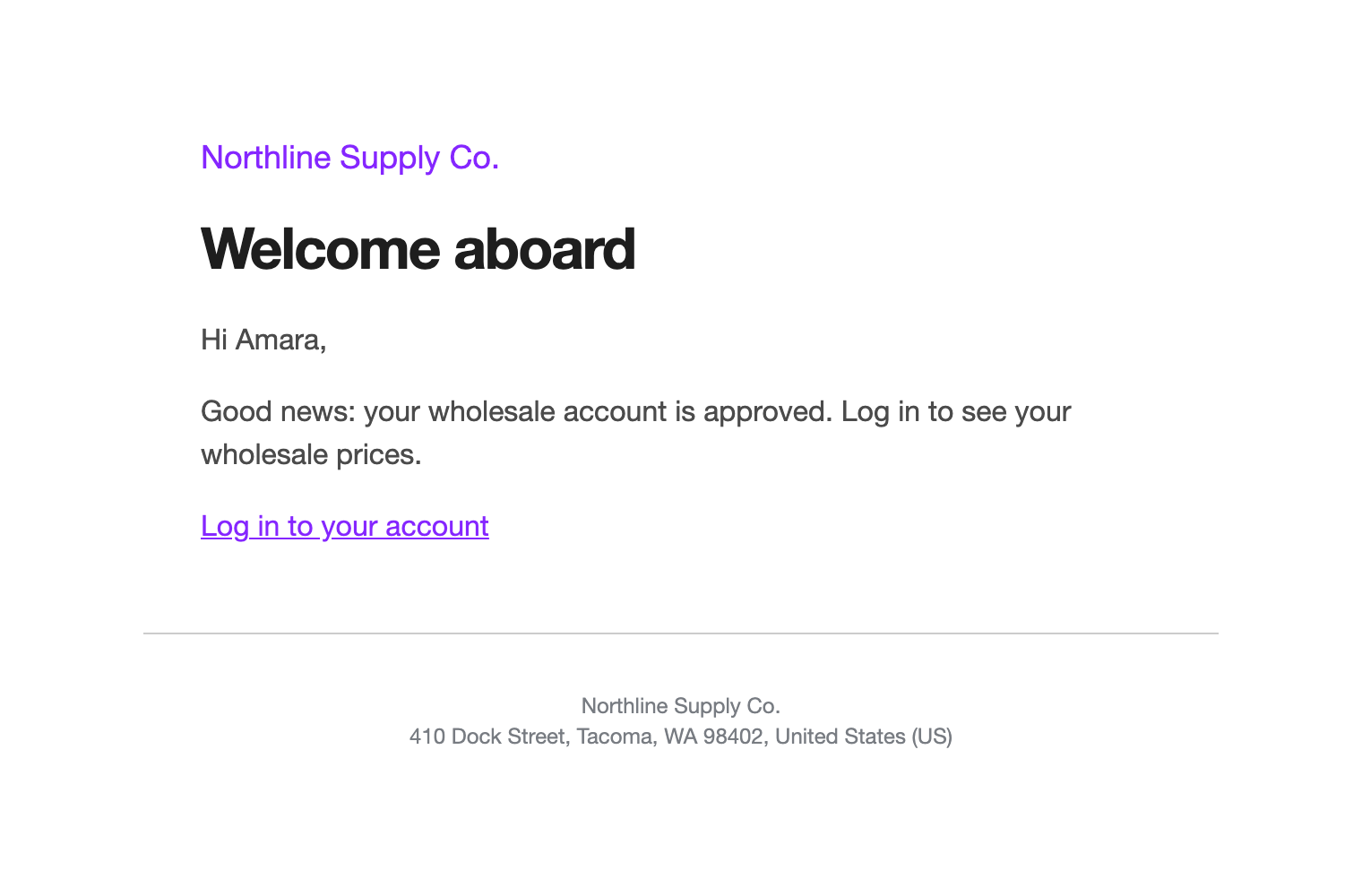
E-mails. Four e-mails go out, edited like any WooCommerce e-mail under WooCommerce → Settings → Emails: New wholesale application to the shop, and Application received, Application approved and Application rejected (with your reason) to the applicant.
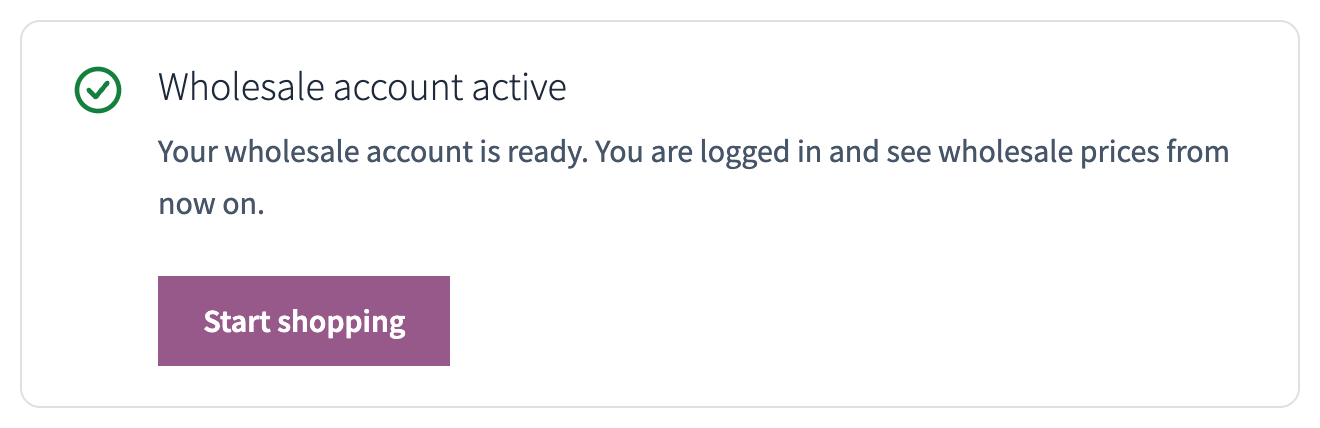
An approved customer sees the wholesale prices at the next login, lands on the page you chose, and the registration page confirms the account is active.
Step 3: Store-wide wholesale pricing with a global rule
The fastest way to give a role its prices is one rule for the whole catalog.
- Go to WooCommerce → Pricing Rules → Add new and name the rule, for example “Wholesale partners”.
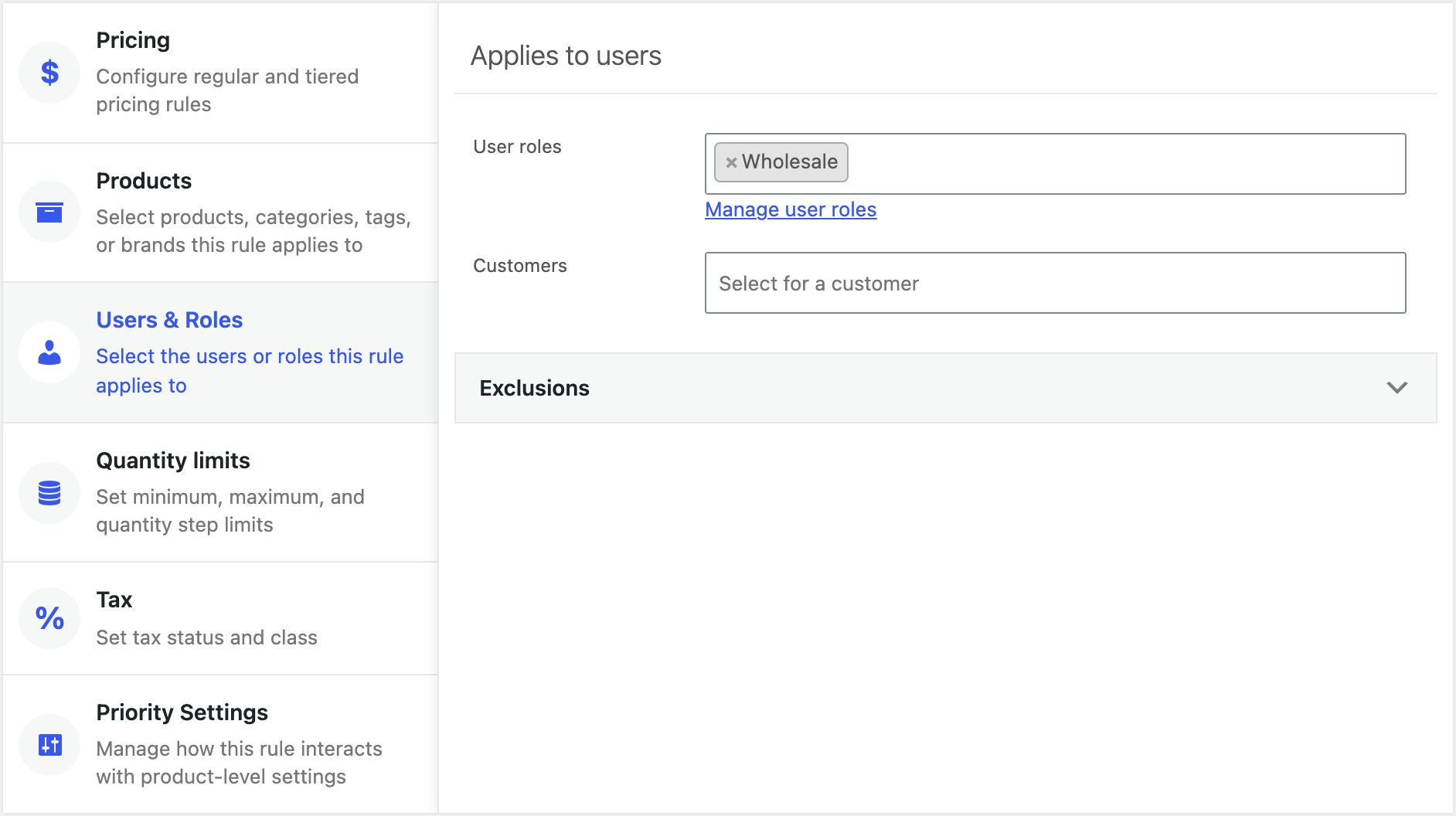
- On the Users & Roles tab choose Wholesale.
- On the Pricing tab set a Percentage discount (15% off the sale price, say), and optionally tiers on top of it: 5% more from 50 pieces, 10% from 100.
- Leave the Products tab empty to cover every product, or pick the wholesale categories.
- Publish.
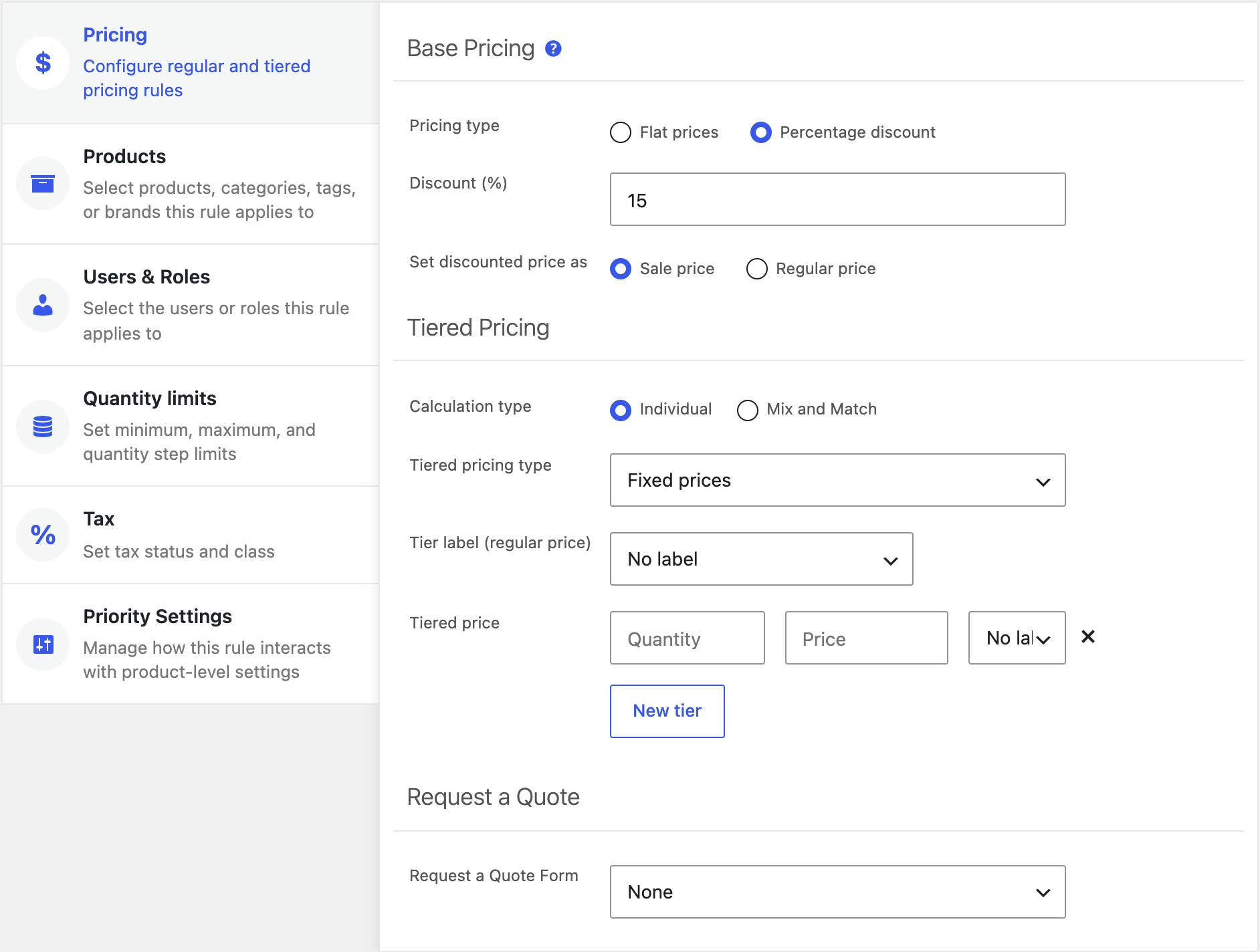
A wholesale customer who logs in now sees the discounted prices everywhere: product pages, the grid, the cart and the checkout. Retail customers and guests see nothing different.
Step 4: A wholesale price list per product
When wholesale prices do not follow one percentage, set them on the product. Open the product, go to the Role & Customer Prices tab, choose Wholesale in the dropdown and click Add role pricing. The block that appears holds everything the role needs for this product:
- Pricing type — Flat prices (enter the wholesale regular and sale price) or Percentage discount from the retail price.
- Minimum order quantity, with maximum and pack size under Additional quantity options.
- Tiered pricing type and the tiers, with tier labels if you use them.
- Request a Quote Form for this role (see step 11).
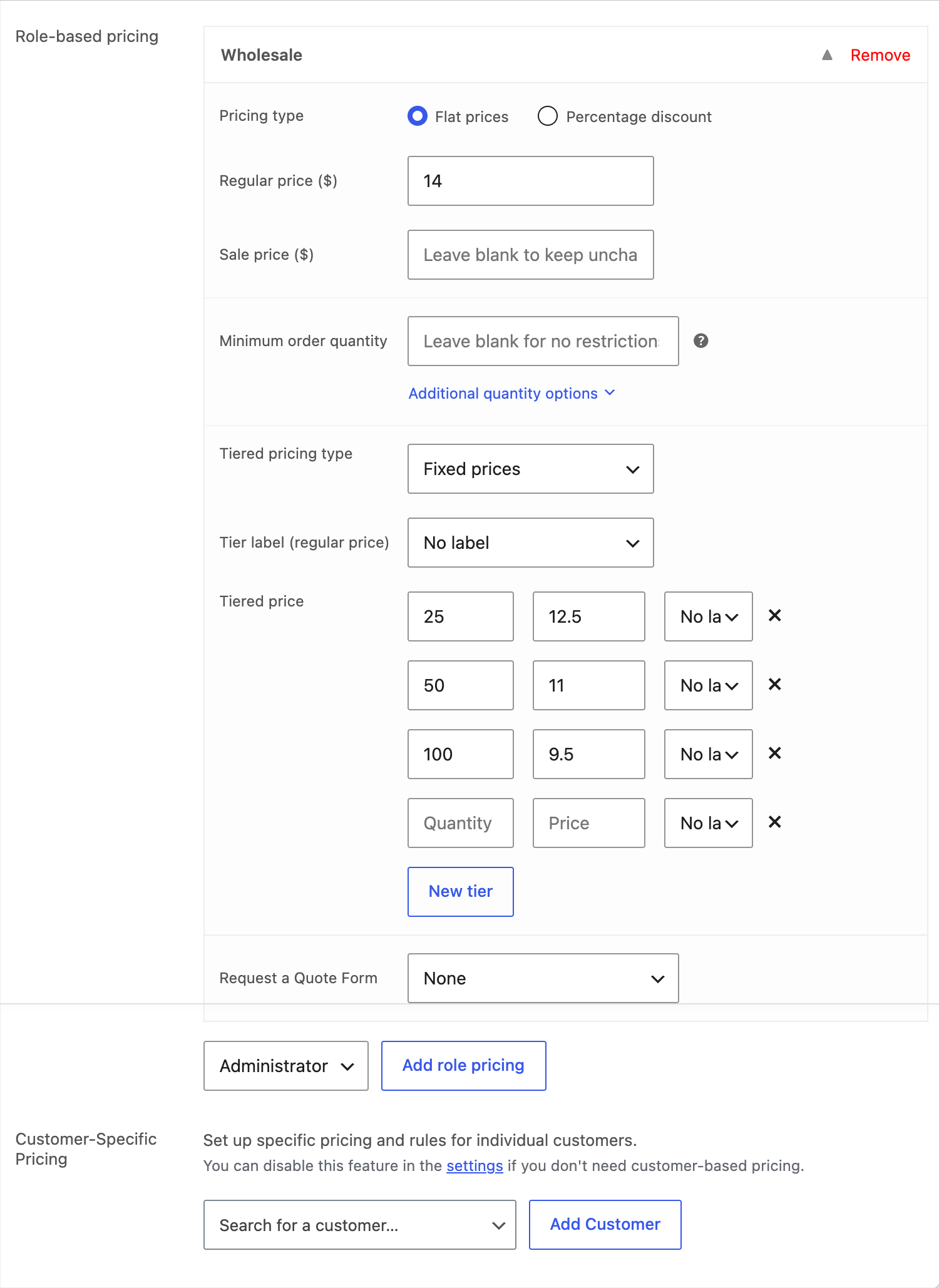
A role rule on a product replaces the product’s retail pricing for that role completely: base price, tiers and limits. It also wins over a global rule for the same role, so you can keep a store-wide discount and override it on the products that need their own list.
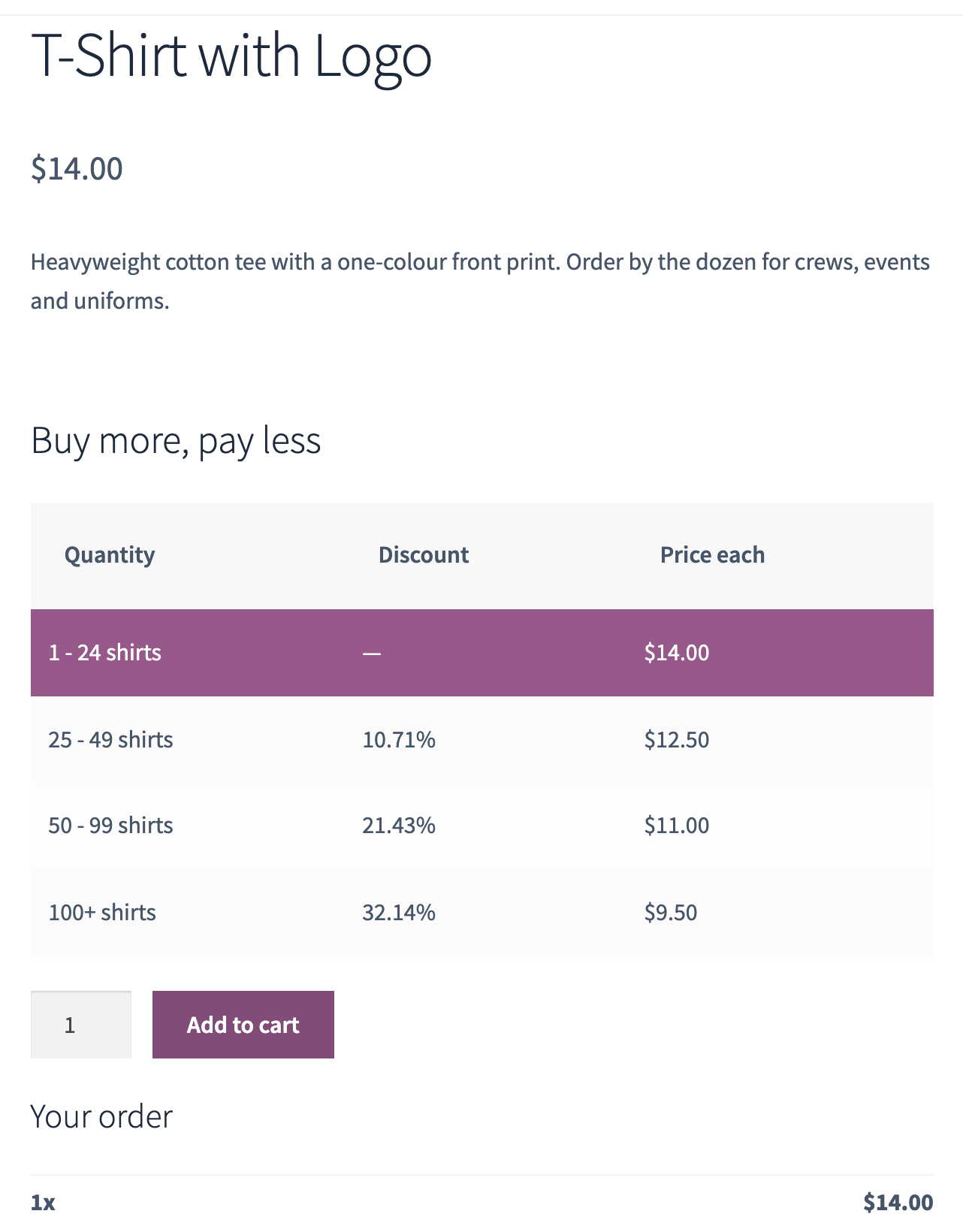
Step 5: Negotiated prices for one customer
Some accounts get their own deal. On the same tab, under Customer-Specific Pricing, search for the customer and click Add Customer. The fields are the same as for a role: base price, minimum, tiers. A customer rule beats the role rule and the product’s own pricing for that customer only.
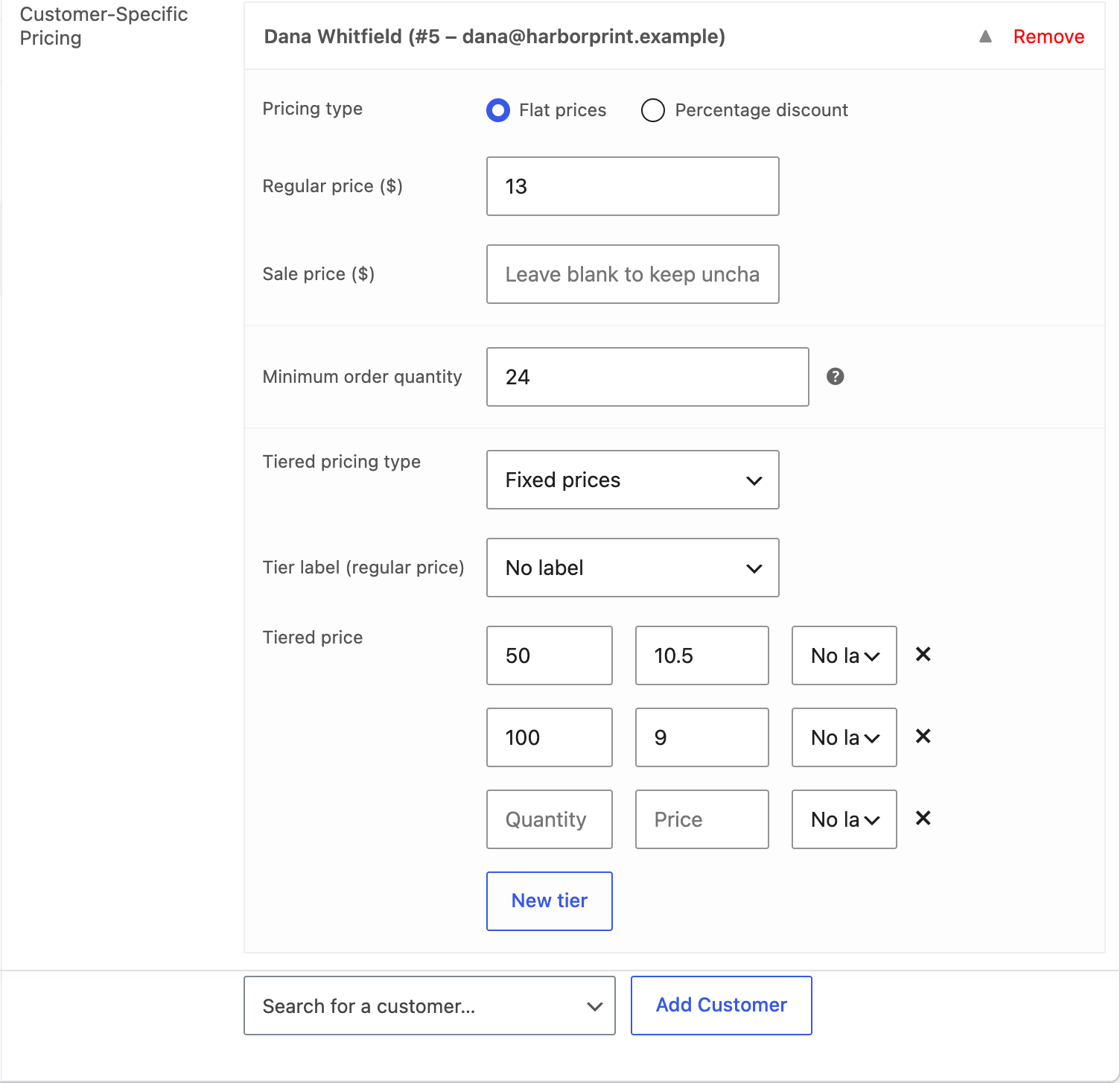
Use customer rules sparingly; they live on the product, so a deal that spans many products is easier to manage as a global rule with the customer selected on the Users & Roles tab.
Which price applies
When a product is covered by several rules the plugin decides in this order:
- The product’s own pricing (or the variation’s; variations inherit the parent’s rules) is the starting point.
- A role rule on the product replaces it for customers with that role. If a customer has several roles, the first of their roles that has a rule for the product is used.
- A customer rule on the product replaces both for that customer.
- A global rule is applied on top according to its Priority Settings tab: prefer product rules, override them, or decide separately for tiers, base price and quantity limits. Default follows the store-wide switch Prioritize global pricing rules under Settings → General → Price Calculation.
See what applied
Switch on Debug mode under Settings → Advanced (Tools before 8.0.0). The product page and the cart then show which rule produced the price. Turn it off again when you are done; everyone can see it.
Step 6: Minimums, packs and maximums per product
Wholesale orders come in cases, not single pieces. Every rule (product, role, customer and global) has quantity limits:
- Minimum order quantity — the quantity field starts there and smaller quantities are rejected.
- Group of — the quantity moves in steps, for example packs of 6.
- Maximum order quantity — a cap per order line.
With a minimum of 12 and packs of 6 the first tier reads “12 – 23 pieces” and the quantity field steps 12, 18, 24. For variable products, Calculate minimum quantity by (on the product’s Tiered Pricing tab or under Price Calculation) can apply the minimum to all variations together, so 6 red and 6 blue satisfy a minimum of 12.
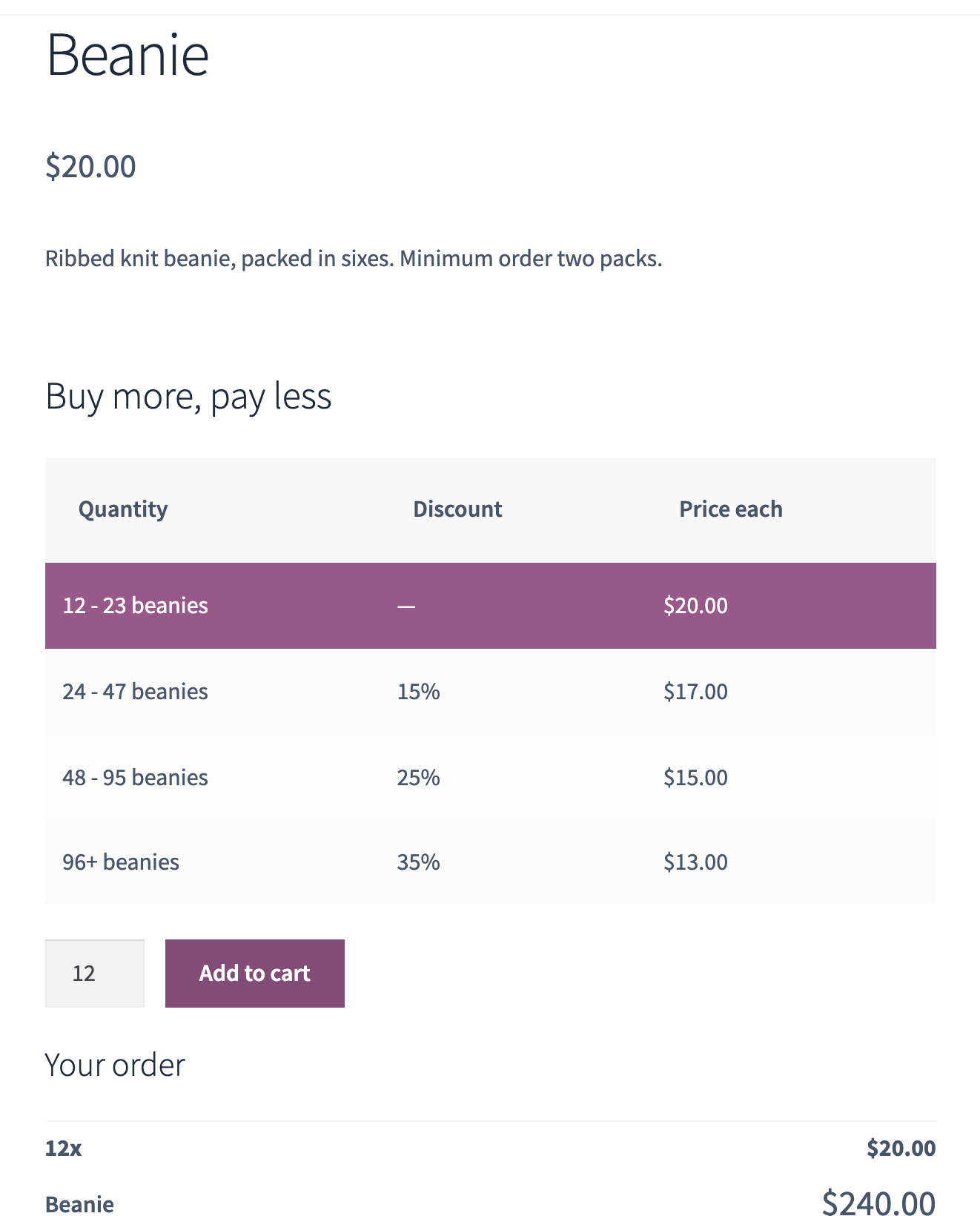
These limits work per product line. For a minimum on the whole order, use the cart rules in the next step.
Step 7: A minimum order, payment and shipping per role
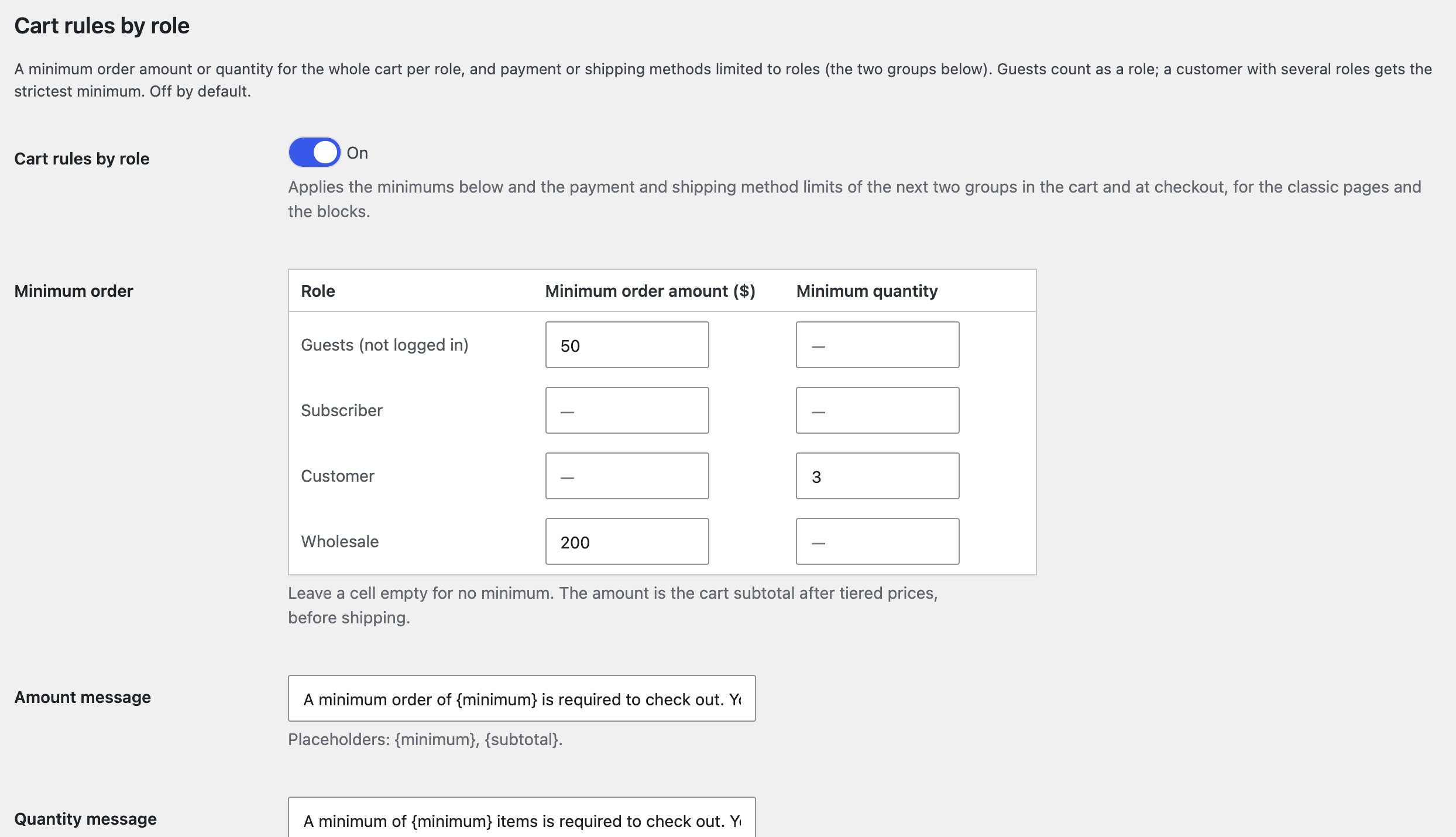
Settings → Wholesale → Cart rules by role covers three things B2B stores ask for. Switch the group on, then:
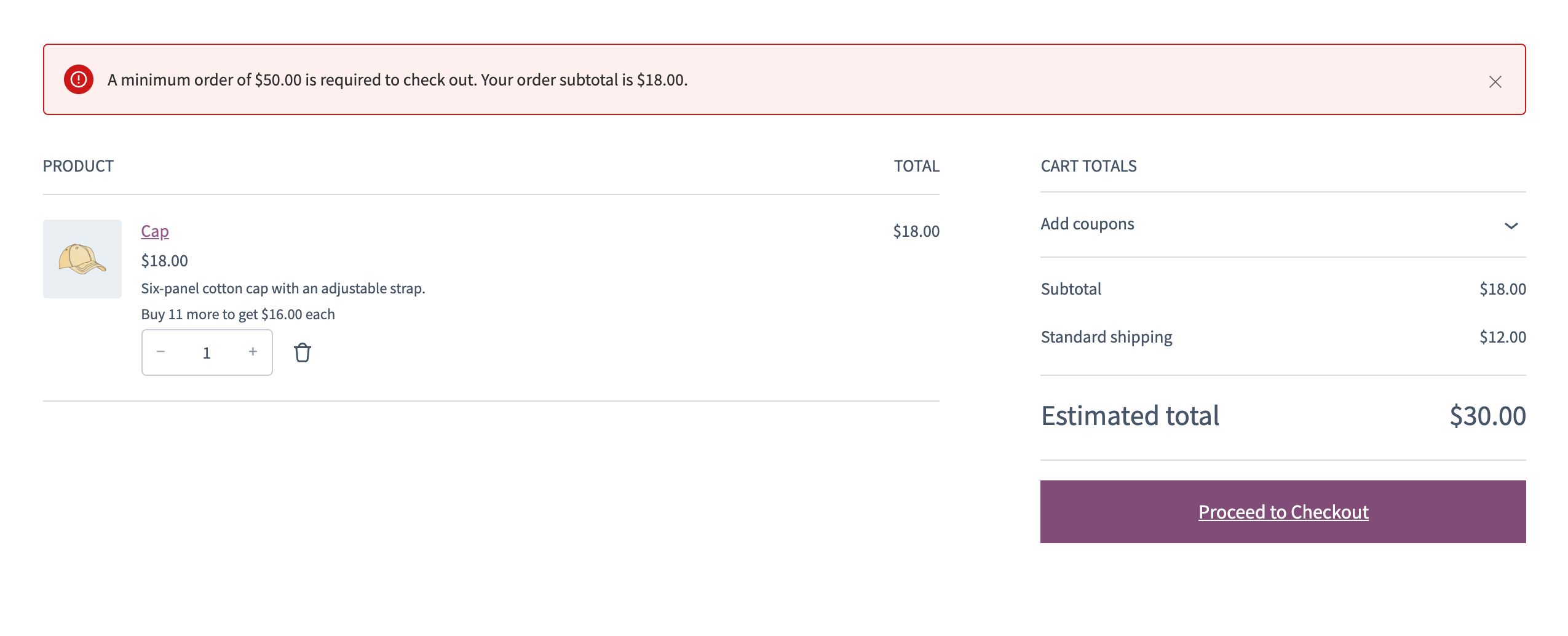
Minimum order. The table has one row per role, including Guests, with a minimum order amount and a minimum quantity for the whole cart. A $500 minimum for the Wholesale role, say, while retail customers order freely, or 12 items for everyone who is not logged in. The amount is the cart subtotal after tiered prices, before shipping. A customer with several roles gets the strictest minimum of them. The cart and the checkout, classic pages and blocks alike, show the message and block the order until the minimum is met; the two messages are yours to edit, with the placeholders {minimum}, {subtotal} and {count}.
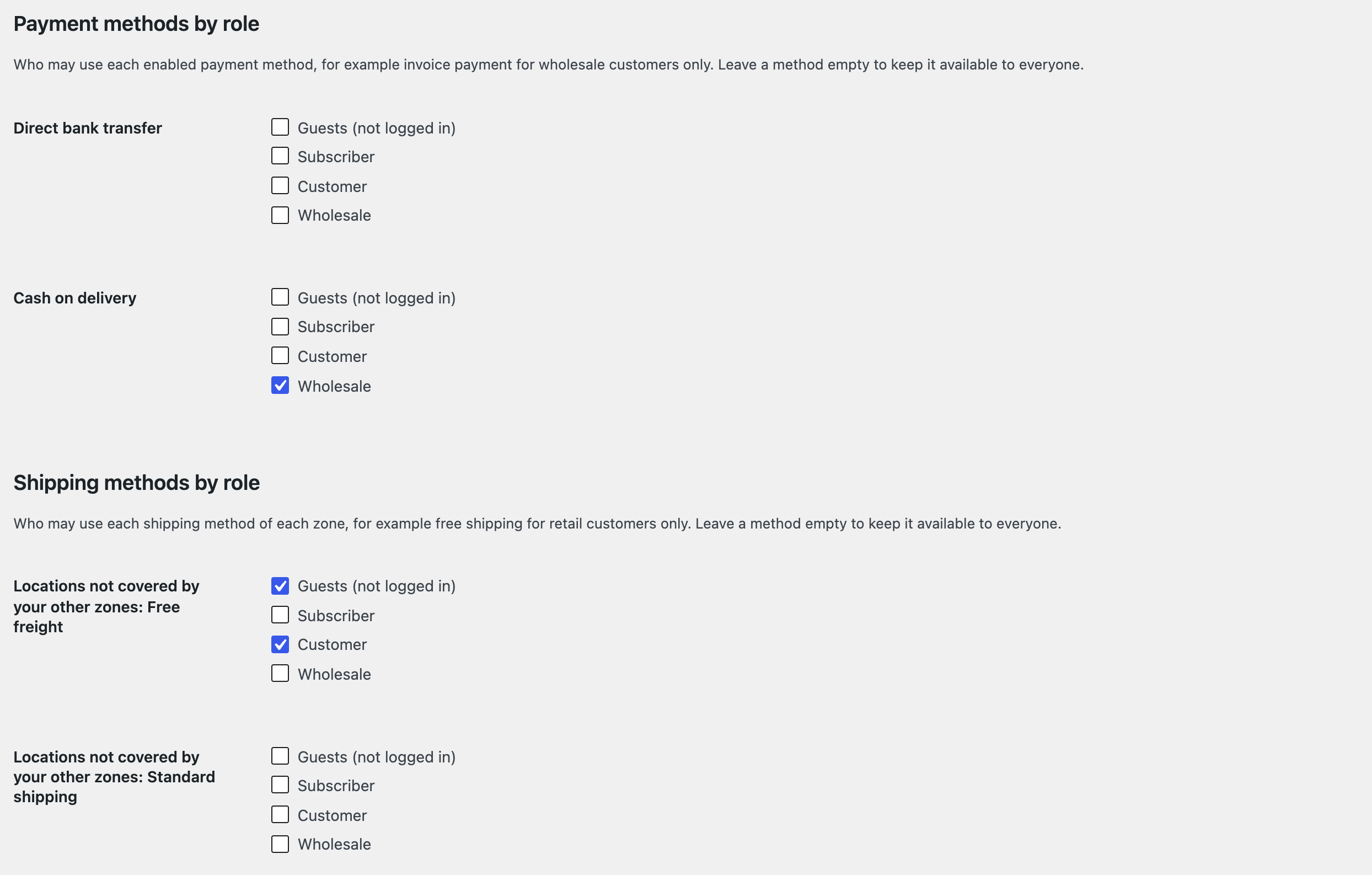
Payment methods by role. Every enabled payment method gets a list of roles that may use it. Leave a method empty to keep it available to everyone; tick Wholesale alone to reserve invoice or bank-transfer payment for wholesale accounts.
Shipping methods by role. The same list for every shipping method of every shipping zone: free shipping for guests and retail customers only, a freight method for wholesale accounts only. A changed rule shows on the next cart load.
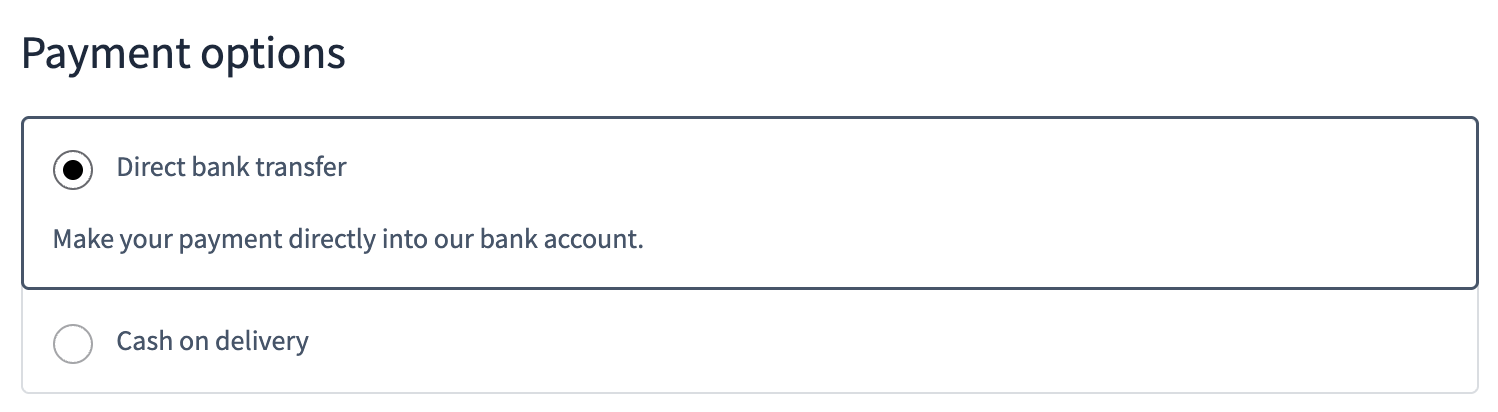
Your own order screens in the admin keep every method, so phone orders are not limited by these rules.
Step 8: What guests and retail customers see
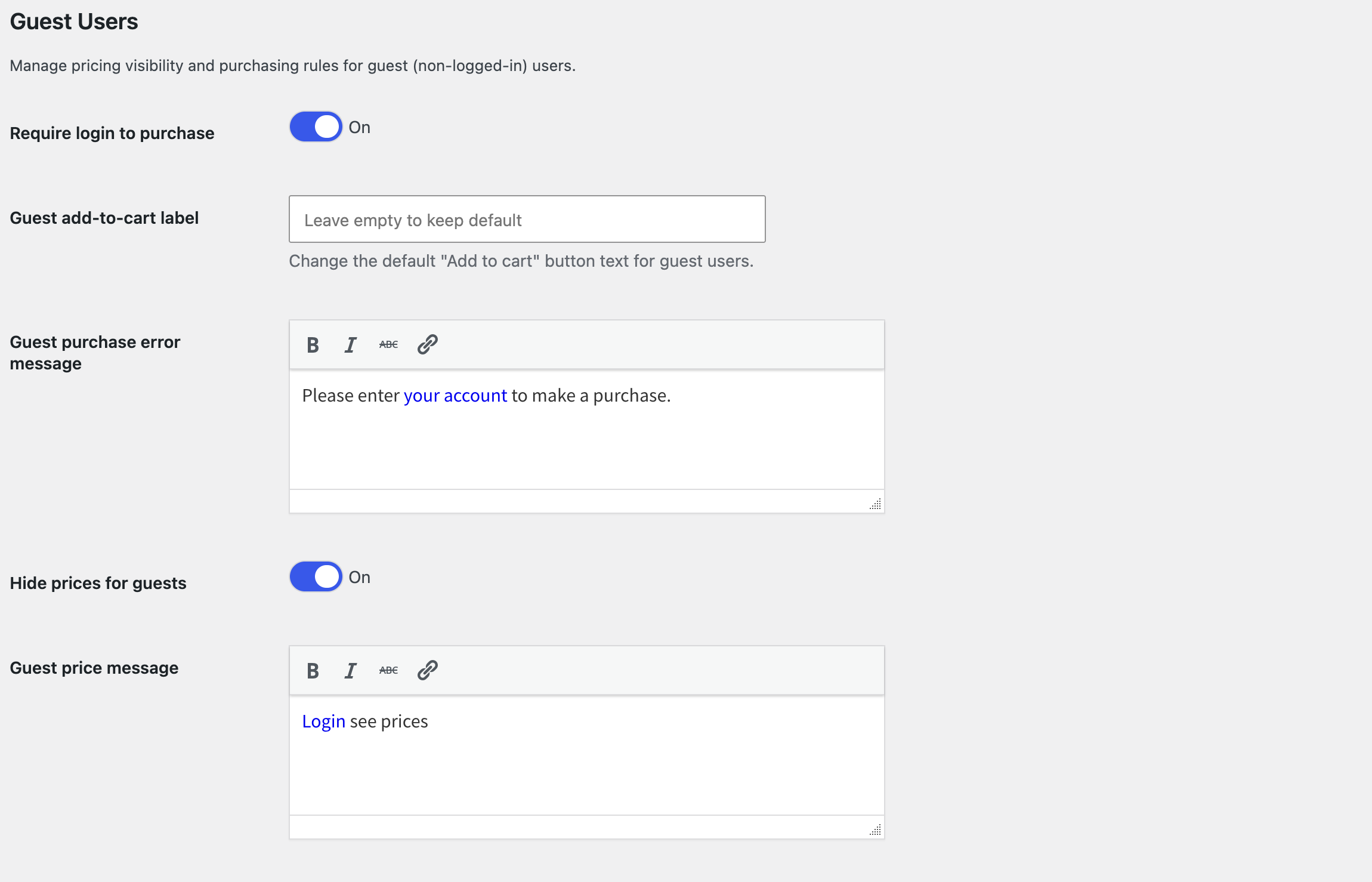
Under Settings → Wholesale → Guest Users (Settings → General → Guest Users before 8.0.0):
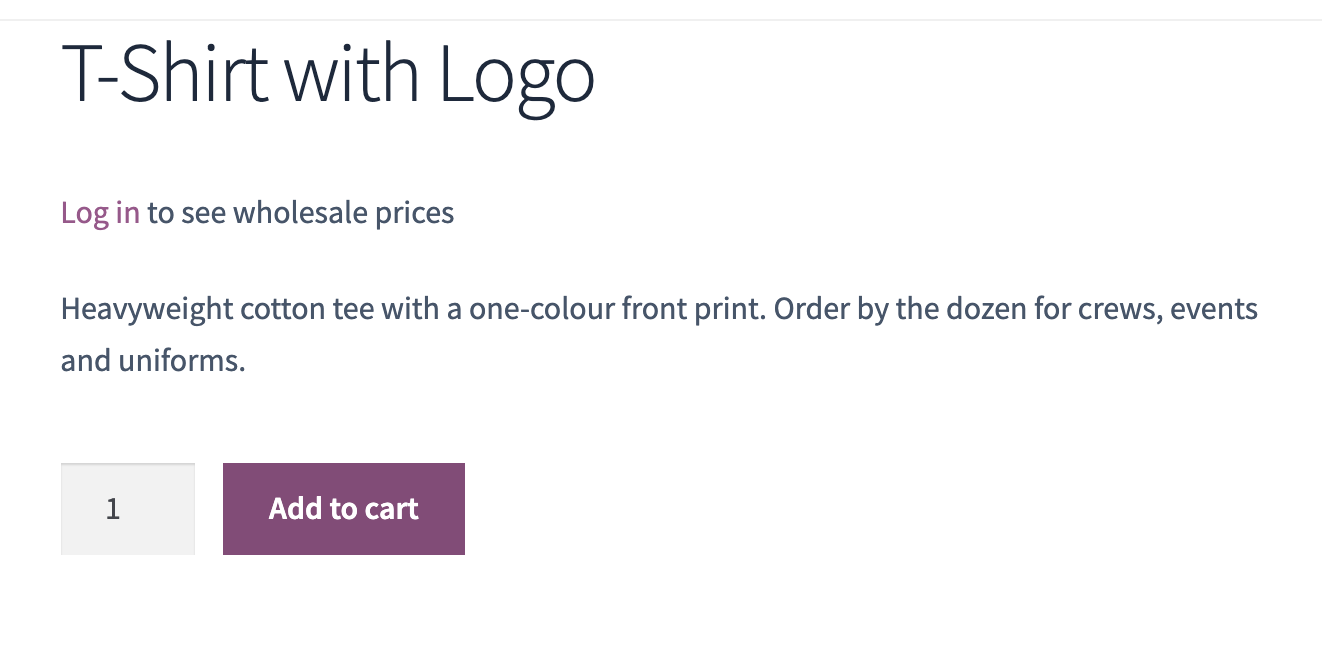
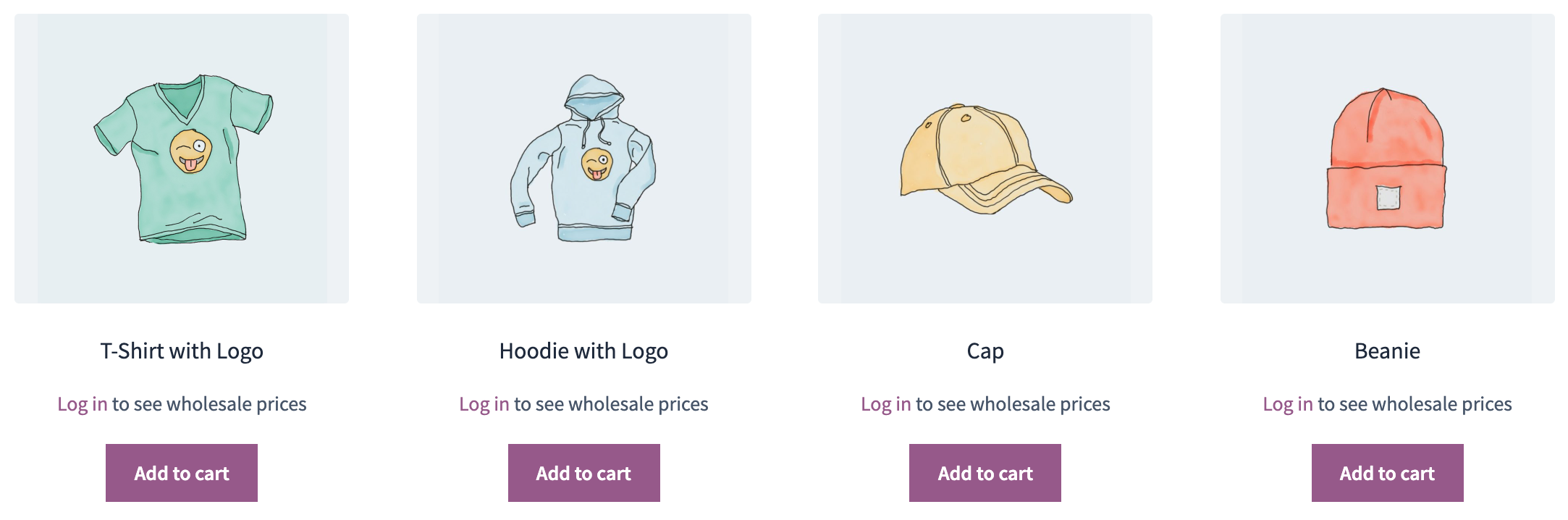
- Hide prices for guests replaces every price for visitors with a message. Put a login link in the Guest price message, for example “Log in to see wholesale prices”.
- Require login to purchase disables the add-to-cart button for visitors and shows the Guest purchase error message; you can relabel the button.
Logged-in customers with the ordinary Customer role still see the retail prices. For a store that sells to trade only, combine both switches with role pricing and leave the retail prices as list prices, or close the store altogether (step 9).
Step 9: A private store: close the store or hide parts of the catalog
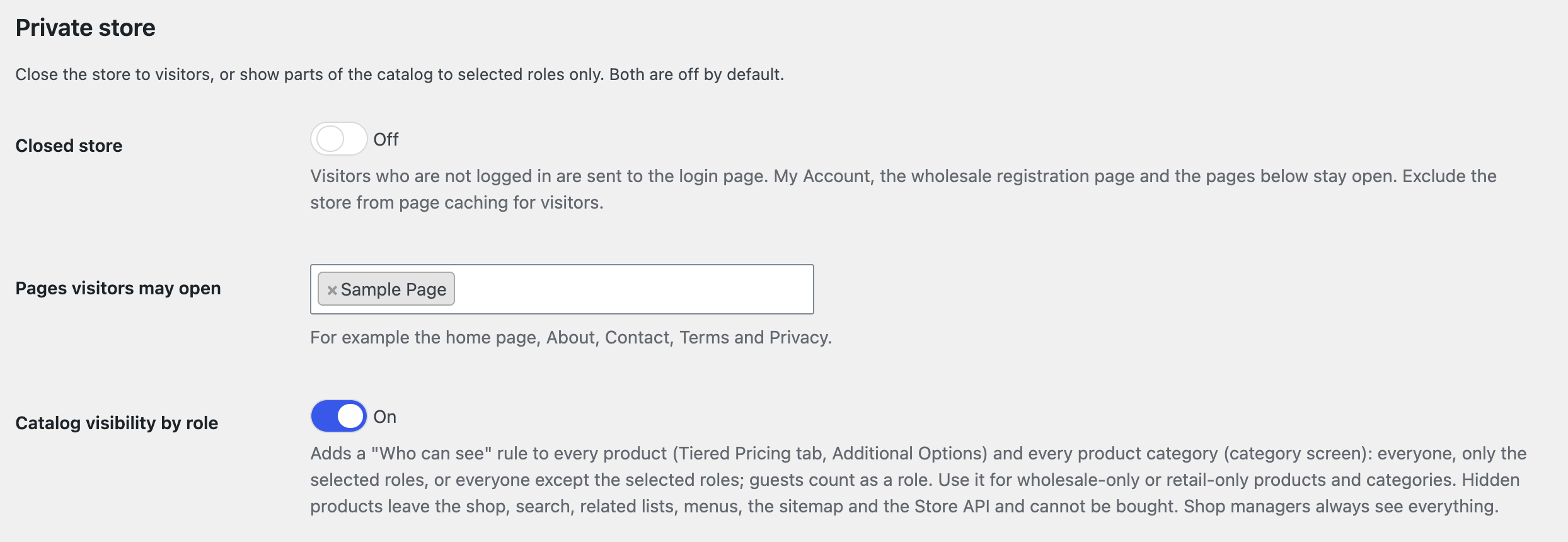
The Private store group on the Wholesale tab has two switches, both off by default.
Closed store sends every visitor who is not logged in to the login page and brings them back to the page they wanted after the login. My Account, the registration page and the pages you list under Pages visitors may open stay public, so the home page, an About page or the terms can be read without an account; feeds and not-found pages are not redirected, and the Store API gives visitors no product data. Combined with wholesale registration this is the classic trade-only store: visitors see a login form with an “Apply for a wholesale account” link, and nothing else.
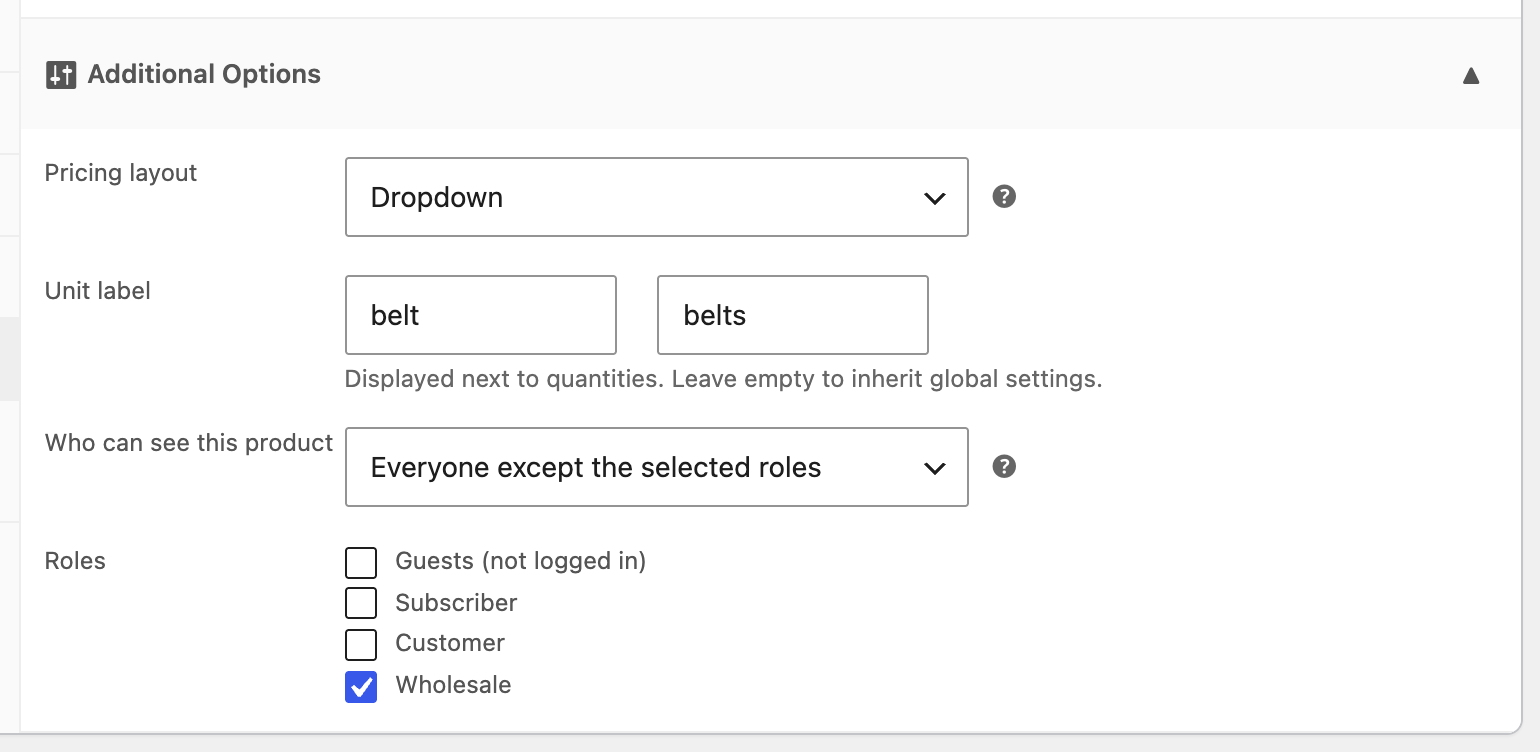
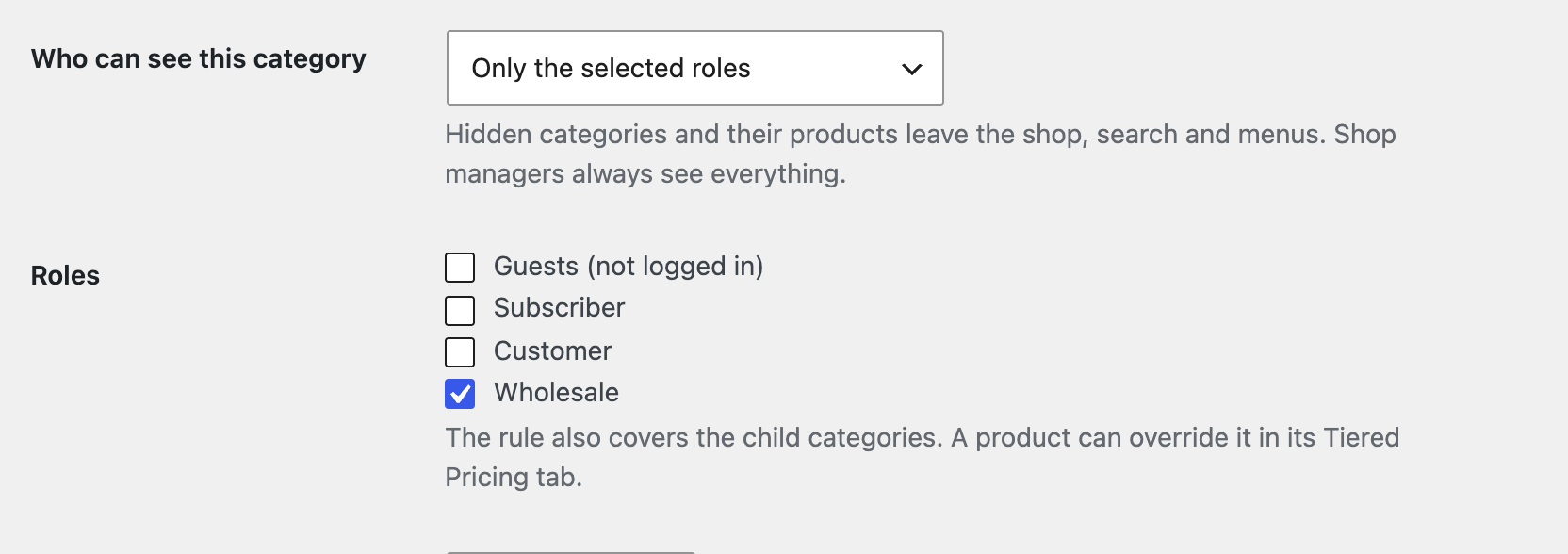
Catalog visibility by role adds a Who can see rule to every product (in the product’s Tiered Pricing tab, under Additional Options) and every product category: Everyone, Only the selected roles or Everyone except the selected roles. Guests count as a role, so wholesale-only, retail-only and members-only products are all possible.
- A product’s own rule wins. A product without one follows its categories, parents included, and every category rule must let the visitor through.
- A hidden product leaves the shop, the search, the related, upsell and cross-sell lists, the menus, the sitemap and the Store API, cannot be bought and is removed from an existing cart. A hidden category leaves the category lists, the menus, the breadcrumbs and its archive.
- A visitor who opens a hidden page goes to the login page (the Hidden products and categories switch) or, with the switch off, gets a not-found page; a logged-in customer who may not see it always gets a not-found page. Shop managers see everything.
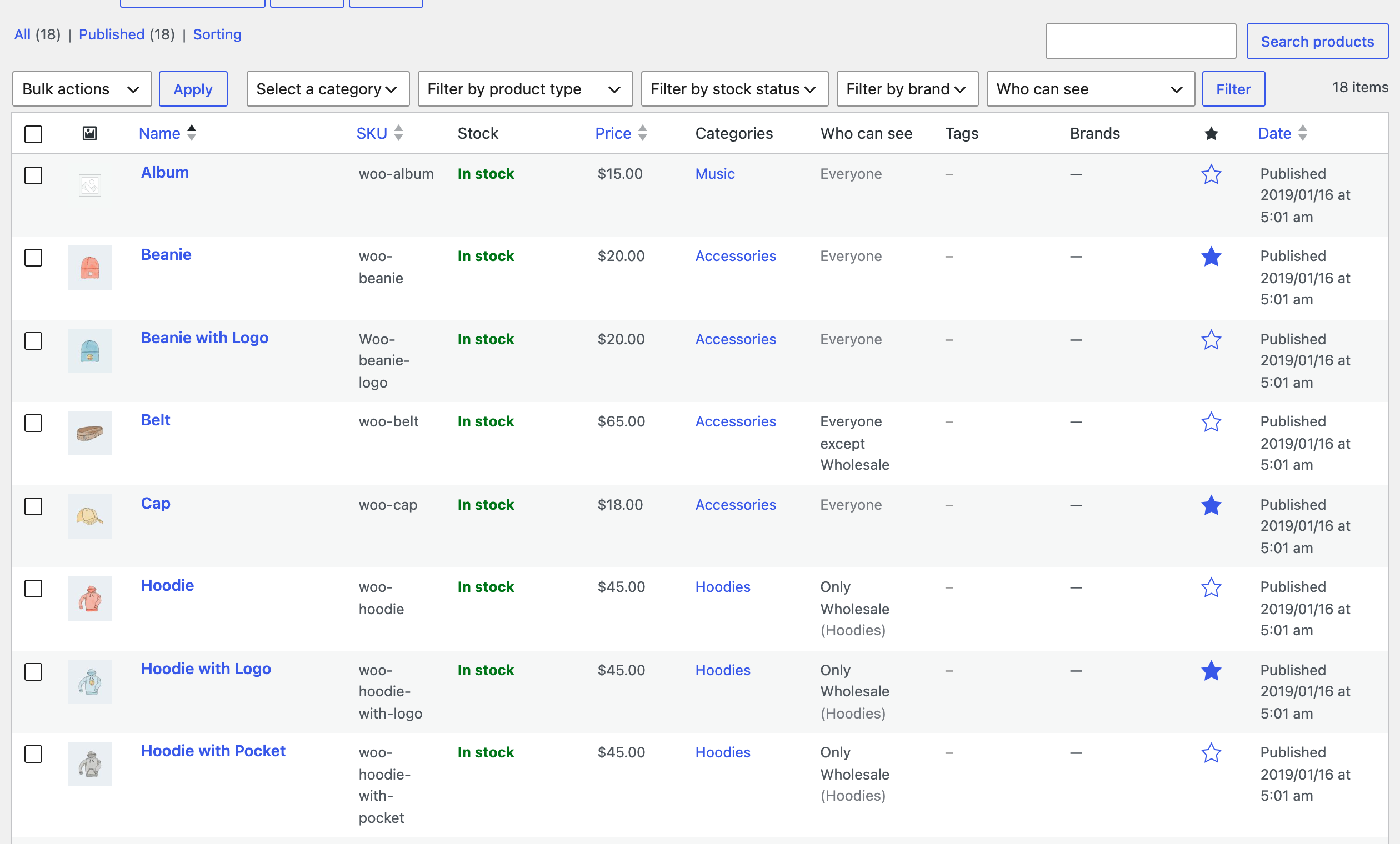
The products list and the categories list show a Who can see column, and the products list can be filtered by it (everyone, restricted, hidden from a role), so you can check a large catalog without opening every product.
Page caching
A closed store and hidden products depend on who is logged in. Exclude the store from page caching for visitors, or the cache may serve a visitor a page made for a customer. Purge the cache after changing these settings.
Step 10: Tax for wholesale roles
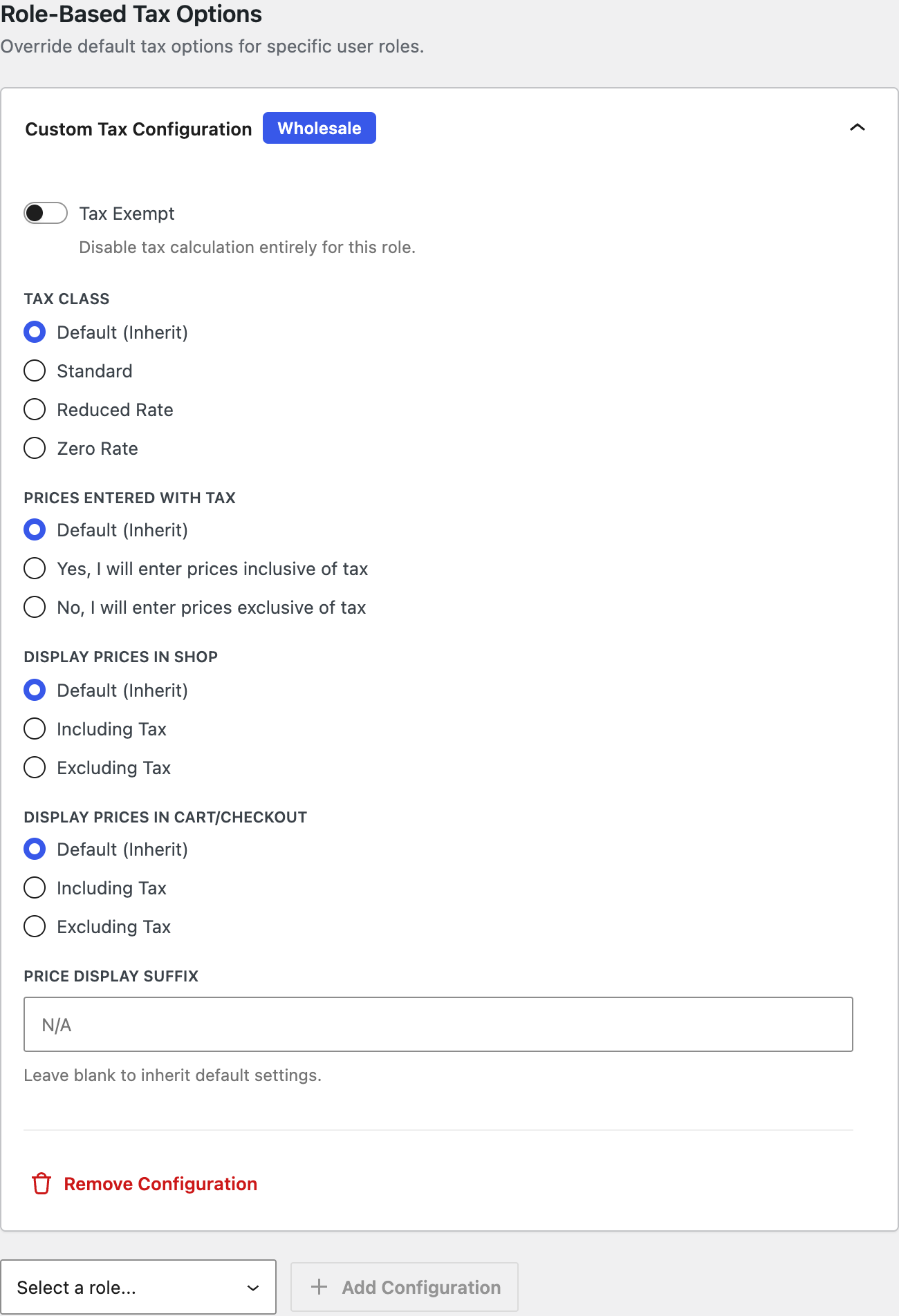
Trade customers often buy tax-exempt or want net prices. Go to WooCommerce → Settings → Tax, scroll to Role-Based Tax Options, select the role and click Create Configuration:
- Tax Exempt — no tax is calculated for the role.
- Tax Class — a different class for the role.
- Prices Entered With Tax, Display Prices in Shop and Display Prices in Cart/Checkout — show the role net prices while retail customers see gross prices.
- Price Display Suffix — for example “excl. VAT”.
Global pricing rules and role rules also have a Tax section of their own, for a tax status or class that applies only to the products the rule covers.
Step 11: Quotes for large orders
Above a certain quantity you may prefer to talk to the customer. Build a form under Settings → Request a Quote and attach it to the role rule (the Request a Quote Form dropdown in step 4) or to a global rule, so only wholesale customers see it. Requests land in WooCommerce → Quote Requests and convert to orders with one click. The details are in Request a quote for bulk orders.
Step 12: Import a wholesale price list
Role prices export and import with the WooCommerce CSV tools, one column set per role, named after the role key: wholesale_tiered_price_pricing_type (flat or percentage), wholesale_tiered_price_regular_price, wholesale_tiered_price_sale_price, wholesale_tiered_price_discount, wholesale_tiered_price_type (fixed or percentage) and wholesale_tiered_price_fixed or wholesale_tiered_price_percentage with the tiers as quantity:value pairs. Export a product that already has a role price to get the exact headers. The workflow is the same as in Import tiered pricing via the WooCommerce importer.
Step 13: Orders you create yourself
Phone and e-mail orders are common in B2B. When you create an order in the admin area, choose the wholesale customer and add the products, then click Re-calculate with tiered pricing on the order screen: every line is priced with that customer’s rules and an order note records it. The cart rules of step 7 do not limit these orders.
Test before you launch
- Apply with a test e-mail address on the registration page and approve the application from the queue; check that the four e-mails arrive and that the account has the wholesale role.
- Log in with the test account in a private browser window and check a product page, the shop grid, the cart and the checkout: the wholesale price, the tiers, the minimum and the payment methods you reserved for the role must all appear.
- Add more than the first tier to the cart and check the line price and the totals; then go below the minimum order and check that the notice blocks the checkout.
- Log out and check the same pages as a guest: hidden prices, the closed store’s login redirect and the open pages, and that wholesale-only products and categories are gone from the shop, the search and the menus.
- Purge your page cache; cached pages may still show retail prices to logged-in users, or a customer’s page to a visitor, unless the cache excludes them.
Troubleshooting
- A wholesale customer sees retail prices — the user has the wrong role, the rule is suspended, or the page came from a cache. Debug mode shows which rule the plugin used.
- The global rule is ignored on some products — those products have their own rules and the global rule prefers product rules. Change its Priority Settings or switch on Prioritize global pricing rules.
- The registration page shows a note instead of the form — wholesale registration is switched off under Settings → Wholesale; only shop managers see the note.
- The application e-mails do not arrive — check the four e-mails under WooCommerce → Settings → Emails and the shop’s e-mail delivery; the new-application e-mail goes to the recipient set there.
- An approved customer still sees retail prices — the wholesale role has no prices yet: add a global rule (step 3) or role prices on the products (step 4).
- Guests still see prices in some places — third-party blocks and widgets that print their own price are not covered by the guest options; check the theme’s product cards.
- A hidden product is still visible — you are logged in as a shop manager, who sees everything, or the page came from a cache. Check in a private window as a visitor or a retail customer.
- Visitors still see the closed store’s pages — a page cache served them a copy made for a logged-in user or before the store was closed. Exclude the store from caching for visitors and purge the cache.
- A reserved payment or shipping method does not show for the role — the customer has another role with no access, or the shipping method’s own rules (a minimum amount for free shipping, for example) are not met.
- A coupon should not stack with wholesale prices — tick Disable tiered pricing on the coupon; covered products are then charged at the regular price while the coupon is applied.