
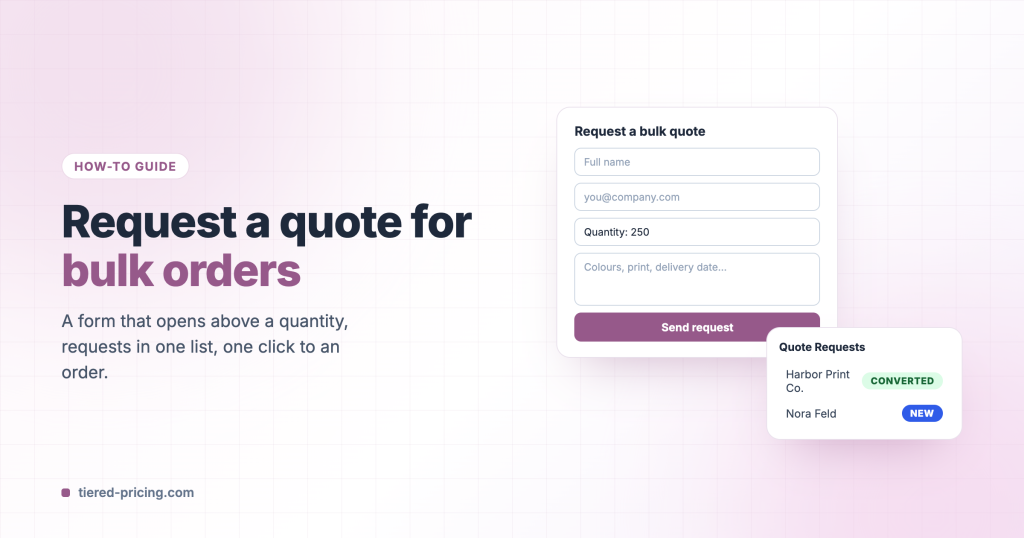
Above a certain quantity you would rather talk to the customer than sell at a list price. Tiered Pricing Table for WooCommerce adds a Request a quote form to your products, lets customers collect several products in a quote list and send one request for all of them, keeps the requests in one place and turns an accepted quote into an order with one click.
1. Build the form
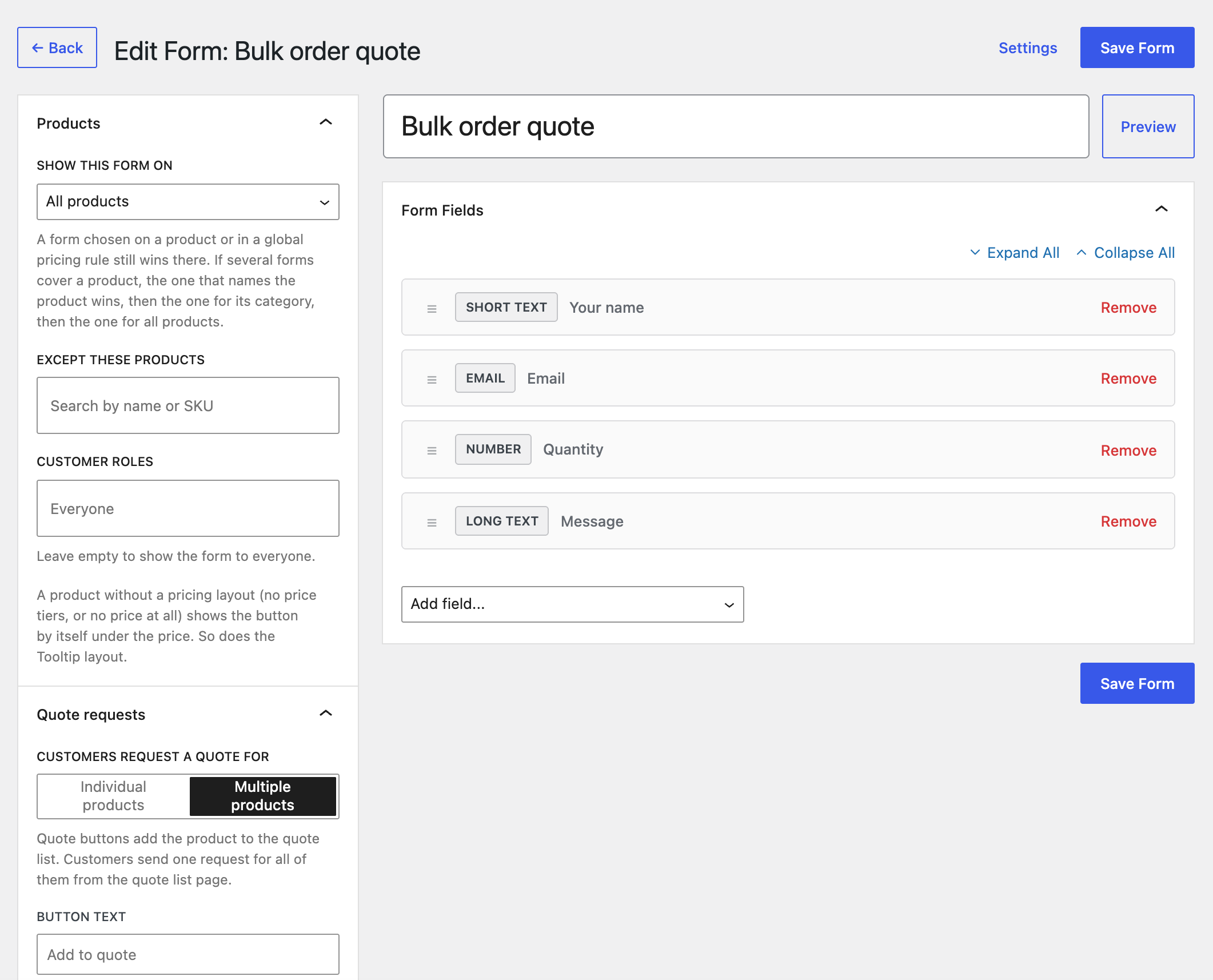
Go to WooCommerce → Settings → Tiered Pricing → Request a Quote and click Add New Form. Give it a name and add the fields: short and long text, e-mail, number, dropdown, radio buttons, checkboxes, date picker, file upload, plus headings and paragraphs. A number field set to Sync with product quantity follows the product’s quantity box.
Under Appearance & Content choose where the button shows:
- Inside the pricing layout: an extra entry at the end of the pricing layout, for example “Custom quantity” with the button: the last row of a table, one more block, option or line of text, or a strip under a horizontal table. Set Open the form from a quantity to open the form by itself when a customer chooses that quantity or more.
- Below the pricing layout: a button under the pricing layout.
- Next to Add to cart: a button beside the add-to-cart button. Tick Show for non-purchasable products to show it on products without a price or out of stock. Tick Hide Add to Cart button to sell the product on request only: the add-to-cart button disappears, shop pages link to the product instead, and the product cannot be added to the cart any other way.
The Button style is Outlined (secondary), Filled (like Add to cart) or Text link; outlined keeps Add to cart the main action of the page. You can also set the popup title, the send button text and a short note under it, such as “No payment now. We reply by e-mail.” Preview shows the button and the form as customers will see them. Finish with the success message (or a redirect) and the admin and customer e-mails, then save.
2. Choose where the form shows
The Products panel of the form decides which products get it:
- All products, or Some categories and products, with Except these products for the exceptions. A category covers its subcategories, and a product with variations covers all of them.
- Products and pricing rules that choose it: open a product and choose the form under Request a Quote Form in the General tab, below the tiered prices, or choose it in a role rule or a global pricing rule.
- Customer roles limits the form to some roles; empty means everyone.
A form chosen on a product or in a pricing rule always wins. If several forms cover a product, the one that names the product wins, then the one for its category, then the one for all products. A product without a pricing layout (no tiers, or no price at all) gets the button by itself under the price.
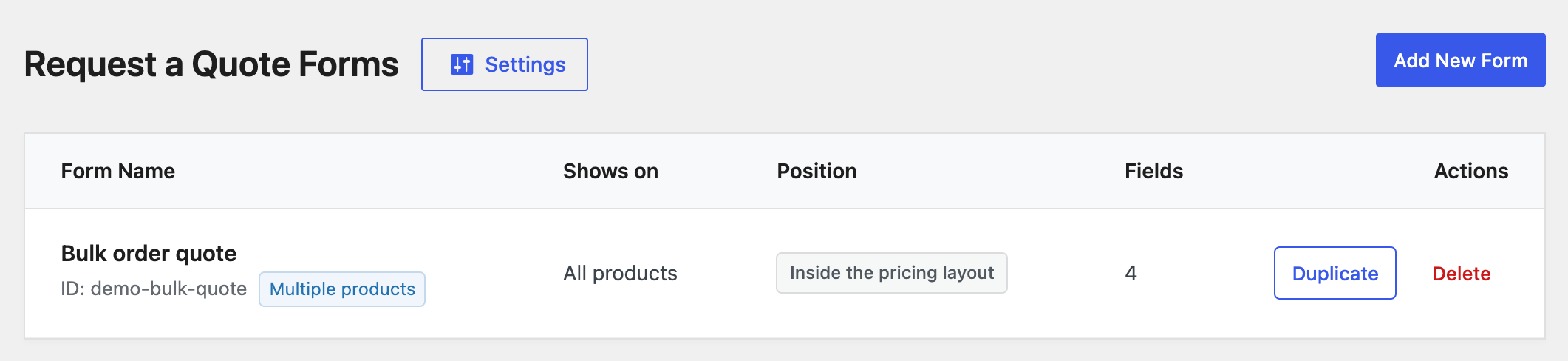
The forms list shows where each form appears, and a form you save without any products asks where customers should see it.
3. One product, or a whole quote list
Under Quote requests, Customers request a quote for:
- Individual products: each quote button opens the form for its product, with the quantity filled in.
- Multiple products: quote buttons add the product to the quote list, and customers send one request for everything from the quote list page.
The quote list has its own settings: click Settings on the quote forms screen.
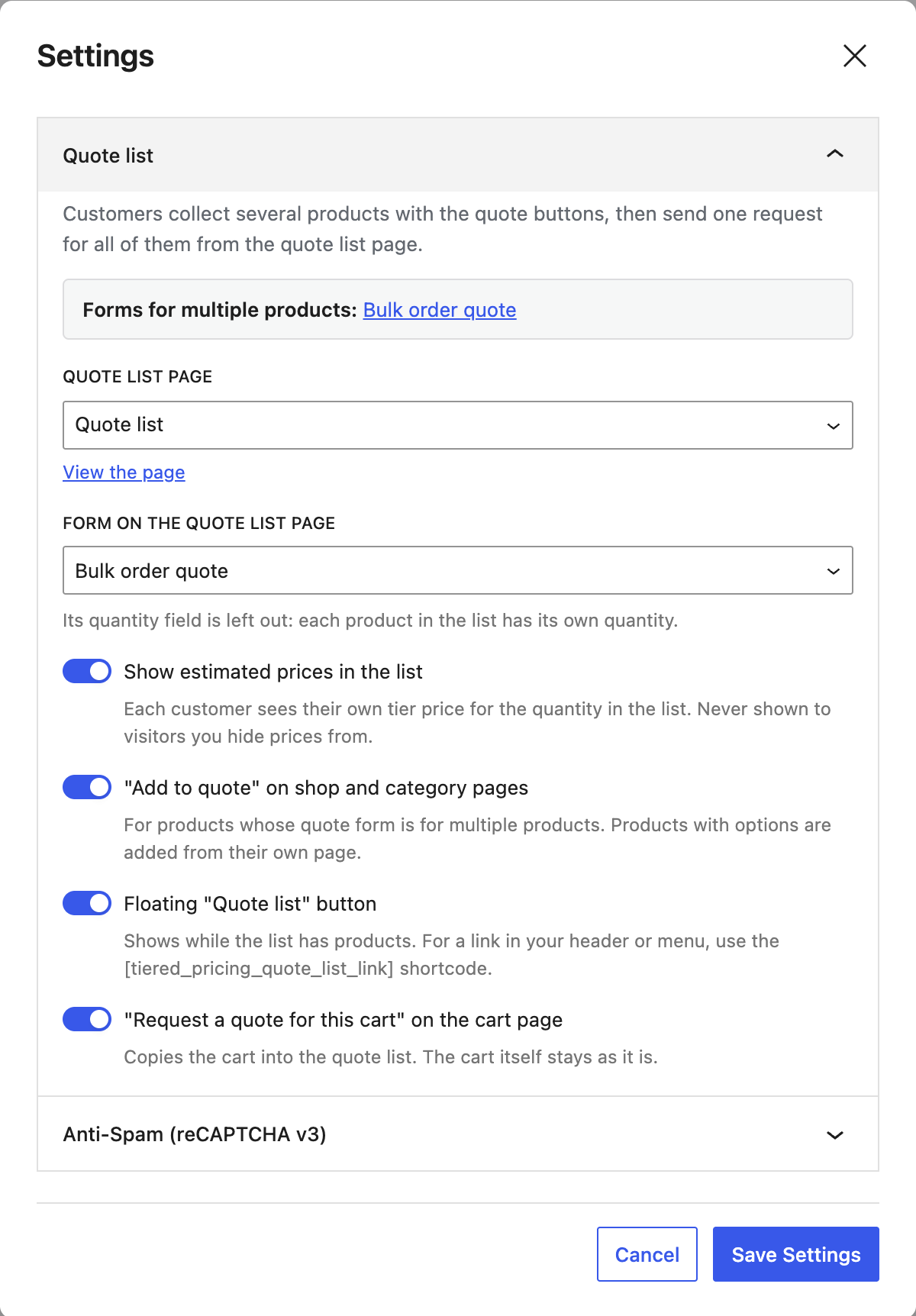
- Quote list page: pick a page or click Create the page. Any page with the
[tiered_pricing_quote_list]shortcode works. The list stays off until it has a page. - Form on the quote list page: the form customers fill in under their list. Its quantity field is left out, because every product in the list has its own quantity.
- Show estimated prices in the list: each customer sees their own tier price for the quantity in the list. Never shown to visitors you hide prices from.
- “Add to quote” on shop and category pages: one click from the shop grid. Products with options are added from their own page.
- Floating “Quote list” button: shows while the list has products. For a link in your header or menu, use the
[tiered_pricing_quote_list_link]shortcode. - “Request a quote for this cart” on the cart page: copies the cart into the quote list. The cart itself stays as it is.
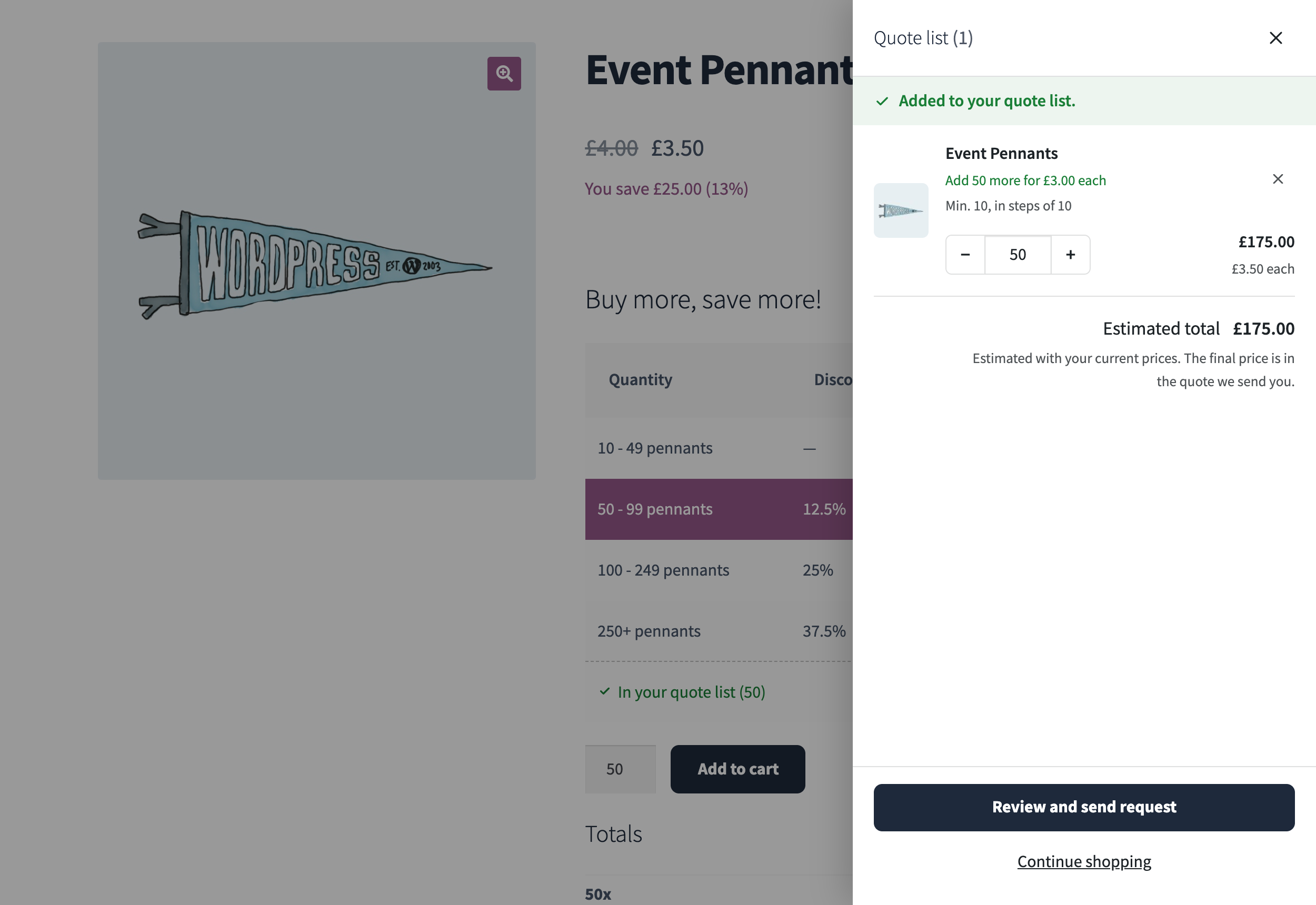
When a customer clicks Add to quote, a side panel opens with the list: quantities, the next price break, the product’s minimum and step, and the estimated total. The quote entry in the pricing layout now reads In your quote list (50). On the quote list page the customer changes quantities, removes products, adds their details and sends the request.
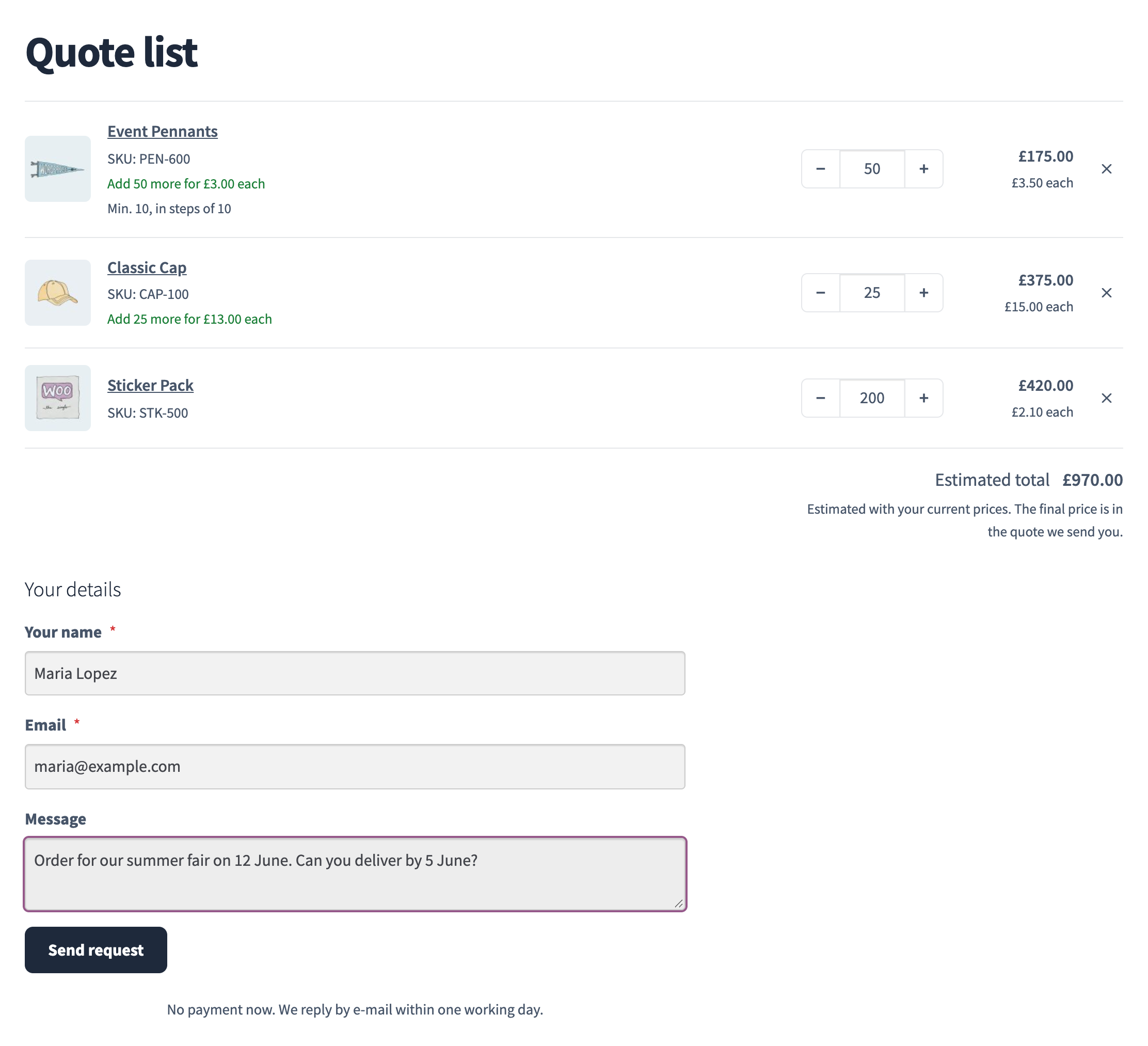
Customers can also fill the list from the quick order form with its Add to quote list button. The list lives in the customer’s browser and holds up to 100 products; when it is sent, every product and price is checked again on your server, so the browser’s numbers never reach the request.
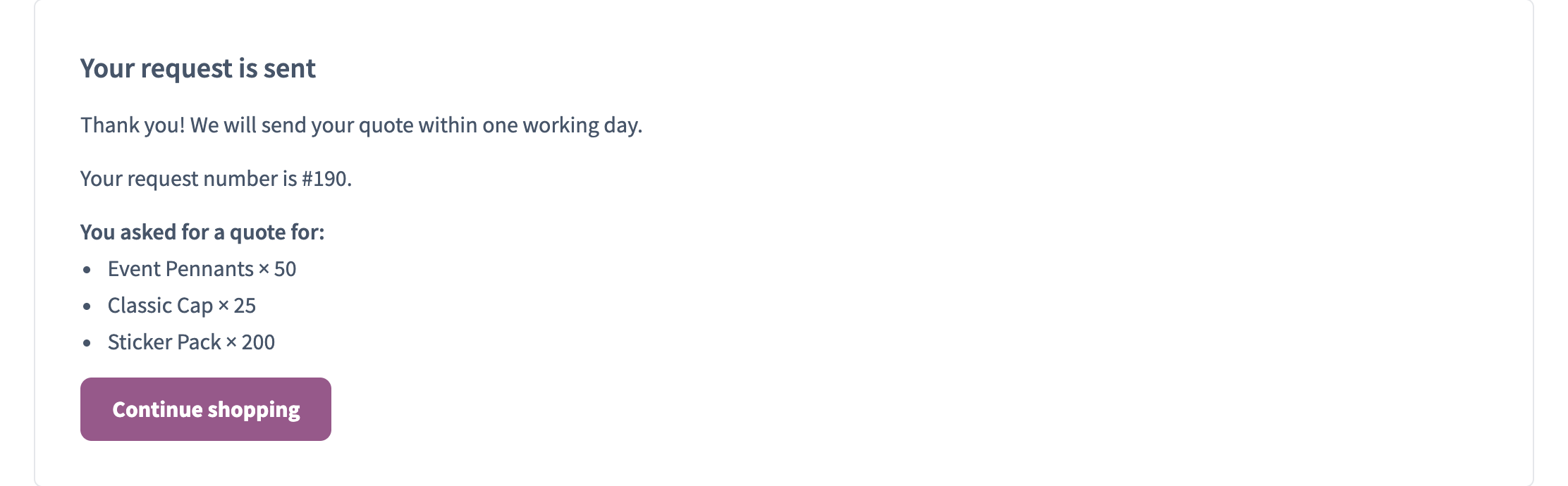
After sending, the customer sees the request number and the products they asked about, and is told where the copy was e-mailed.
4. Handle the requests
Requests land in WooCommerce → Quote Requests, with the request number, the products, the estimated value and the date received. New requests are unread; opening one marks it as read, and you can filter the list by product.
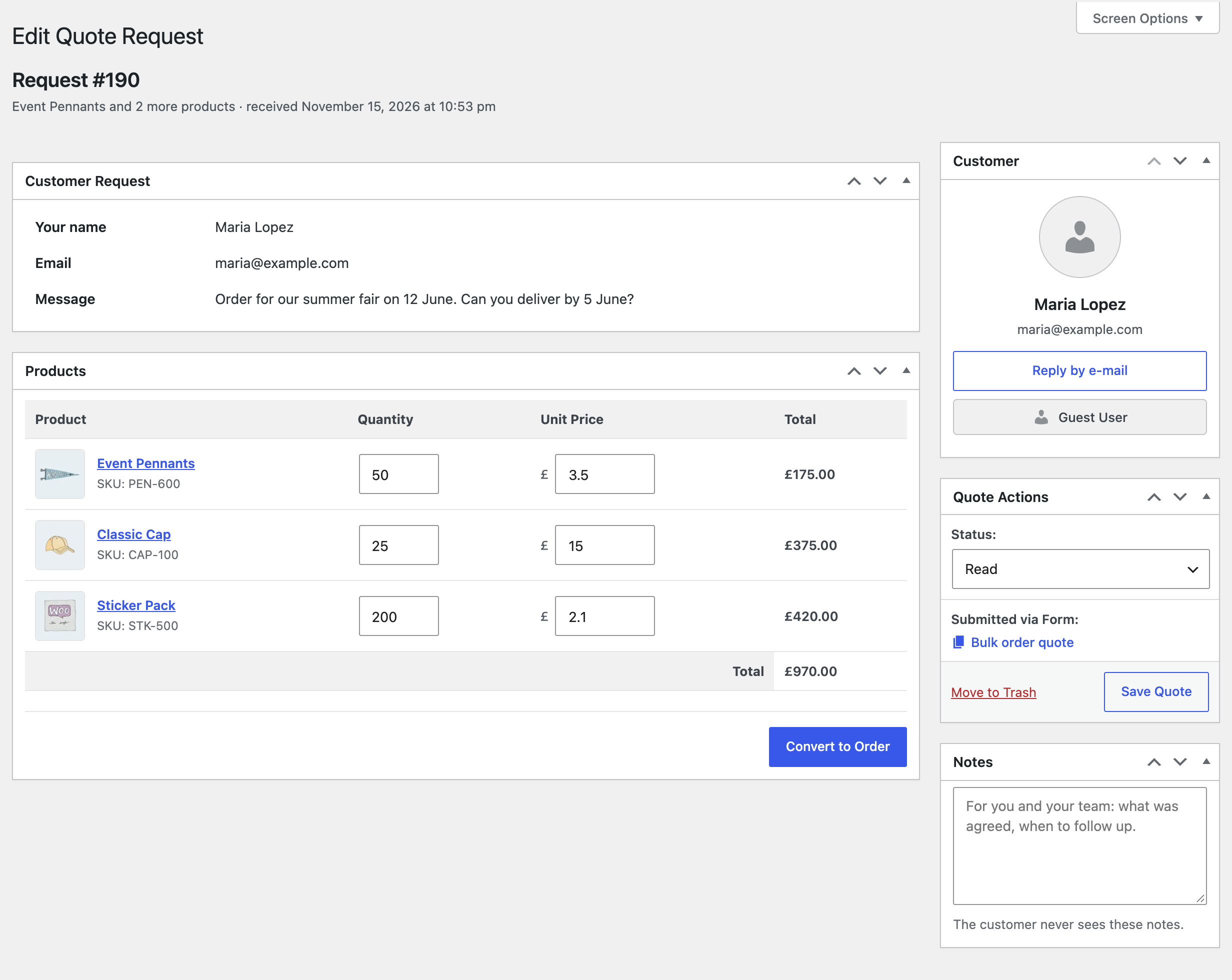
On the request screen:
- Products: change the quantity and the unit price of every line; the totals follow as you type. Save Quote keeps your changes.
- Reply by e-mail opens a reply to the customer with the request number in the subject.
- Notes are for you and your team, for example what was agreed and when to follow up. The customer never sees them.
- Files the customer attached are private: download them from the request or from the admin e-mail.
- Convert to Order creates a pending WooCommerce order with the agreed prices and the customer’s name, e-mail and, if they were logged in, their account and saved addresses. The order notes link back to the request. Use Customer payment page on the order, or the order action that e-mails the order details, to send them the link to pay. A request is marked Converted only by converting it.
The admin and customer notifications are ordinary WooCommerce e-mails, editable under WooCommerce → Settings → Emails. They show the request number, the unit price and the total, and replying to the admin e-mail writes to the customer.
Spam protection
Every form has a hidden spam trap and accepts at most ten requests an hour from one visitor. If spam still gets through, add a reCAPTCHA v3 site key and secret under Settings on the quote forms screen; requests that score below the lowest score accepted (0.5 unless you change it) are refused.