
Getting started
What Tiered Pricing Table does
Charge different prices depending on the quantity a customer buys. You set the tiers; the plugin shows them on the product page, updates the price, totals and savings as the quantity changes, charges the right price in the cart and checkout, and shows the lowest price or a price range in the catalog.
Also included: minimum, maximum and step quantities, prices per customer role or individual customer, global rules for categories, tags, brands or roles, request a quote, tier labels such as “Best value”, and a wholesale module with registration, a private store and cart rules.
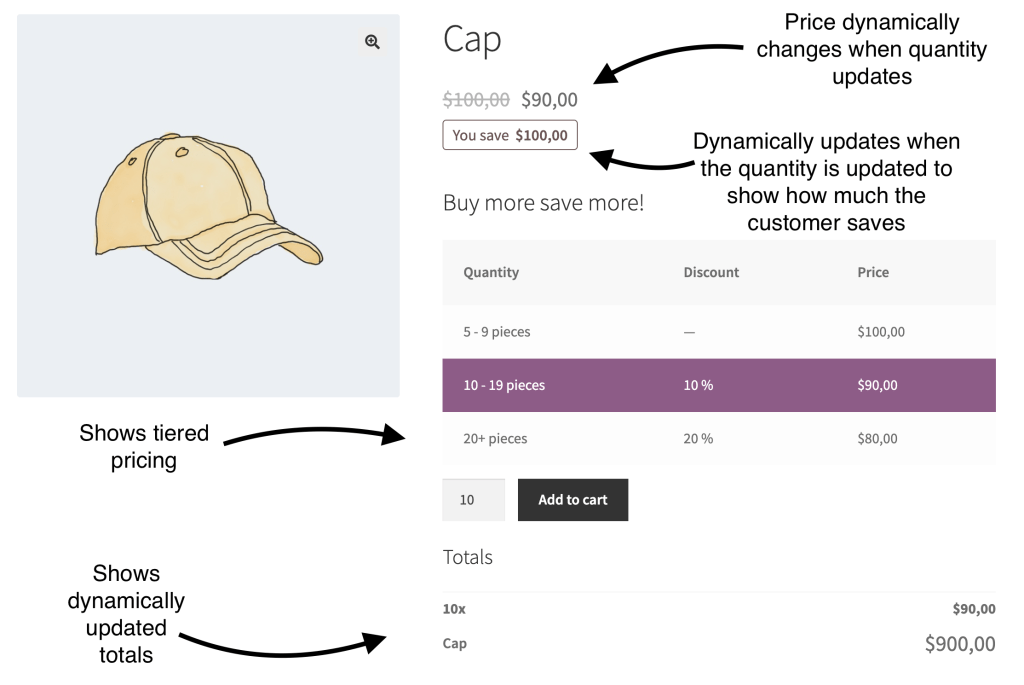
How pricing tiers work
- A tier is a quantity and the price (or discount) that applies from that quantity up to the next tier.
- Tiers start at quantity 2; quantity 1 always pays the regular or sale price.
- Fixed rules set the unit price; percentage rules set a discount from the product price.
- The highest tier the quantity reaches is used: tiers at 10 and 20 give quantity 15 the 10+ price.
Quick start: your first tiered price
- Products → Edit → General: under the price, choose a Tiered pricing type and add rows (quantity and price or discount) with New tier.
- Optional, on the Tiered Pricing tab: quantity limits, a layout and a unit label for this product. Role and customer prices live on the Role & Customer Pricing tab.
- Update. The table appears above Add to cart and the price follows the quantity.
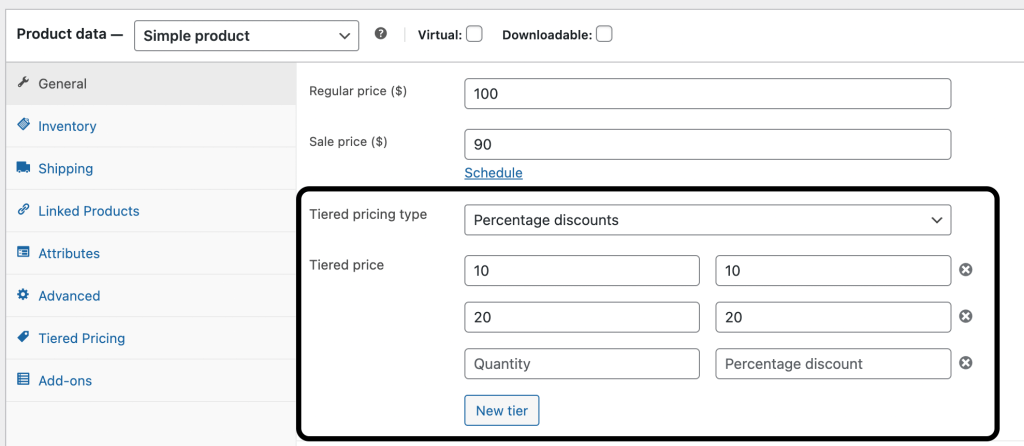
Store-wide defaults
How tiers look (layout, colours, texts, position, catalog prices) is set once under WooCommerce → Settings → Tiered Pricing. Product fields only decide what the prices are.
Where to find everything
| Screen | What you do there |
|---|---|
| Products → Edit → General | Tiered pricing rows for the product or each variation |
| Products → Edit → Tiered Pricing | Min / max / step quantity, layout, unit label, default variation, who can see the product |
| Products → Edit → Role & Customer Pricing | Prices per role or per customer |
| WooCommerce → Pricing Rules | Global rules for many products, roles or customers, with priority, schedule and status |
| WooCommerce → Settings → Tiered Pricing | General (Pricing Display, Price Calculation), Badges & Labels, Request a Quote, Wholesale, Integrations, Multicurrency, Product Addons, Advanced (Modules, Roles Management, Pricing Test, Cache, Debug, Data clean-up) |
| WooCommerce → Wholesale Applications | Wholesale account applications to approve or reject |
| Products → Categories → Edit | Who can see the category (Private store) |
| WooCommerce → Quote Requests | Submitted quotes |
| WooCommerce → Settings → Tax | Per-role tax settings |
Pricing rules
Fixed and percentage rules
Fixed rules set a unit price per tier. Percentage rules set a discount from the product price (from the sale price if there is one; switch to the regular price in Settings → General → Price Calculation). Both examples below give 1–9 = $100, 10–19 = $90, 20+ = $80.
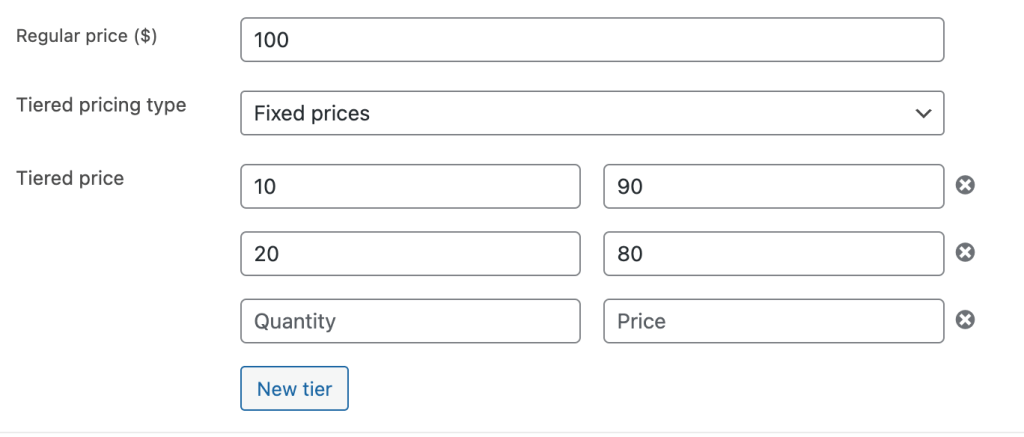
Please note
Never enter the regular price as a tier: tiers start at quantity 2.
Minimum, maximum and quantity step
Set on the Tiered Pricing tab, and in every role, customer and global rule:
- Minimum: the quantity field starts there and smaller quantities are rejected.
- Maximum: the quantity field is capped and checked on add-to-cart and cart update.
- Group of (step): multiples only (10, 20, 30 …).
With a minimum of 10 and tiers 10–19 = $100, 20–49 = $90, 50+ = $80, enter: regular price $100, minimum 10, tiers 20 = $90 and 50 = $80.
Mix & match lets the minimum apply to the sum of all variations in the cart: per product under Additional options, or for every product in Settings → General → Price Calculation.
Variable products
- Each variation has its own tiered pricing rows and minimum.
- Rules on the parent (Tiered Pricing tab) apply to variations without rules of their own.
- Default variation: its table is shown before attributes are selected.
- Variations have the same prices: the table never reloads when attributes change (needs a default variation).
Per-product display options
Additional options on the Tiered Pricing tab: a layout for this product only and a unit label (“bottle / bottles”) next to quantities. Empty means the global settings.
Role-based pricing
Role & Customer Pricing tab → pick a role → Setup for role. A role rule can set a base price (flat regular or sale prices, or a percentage discount), minimum, maximum and step, tiered pricing rules, and a tax status and class. Empty fields keep the product’s values.
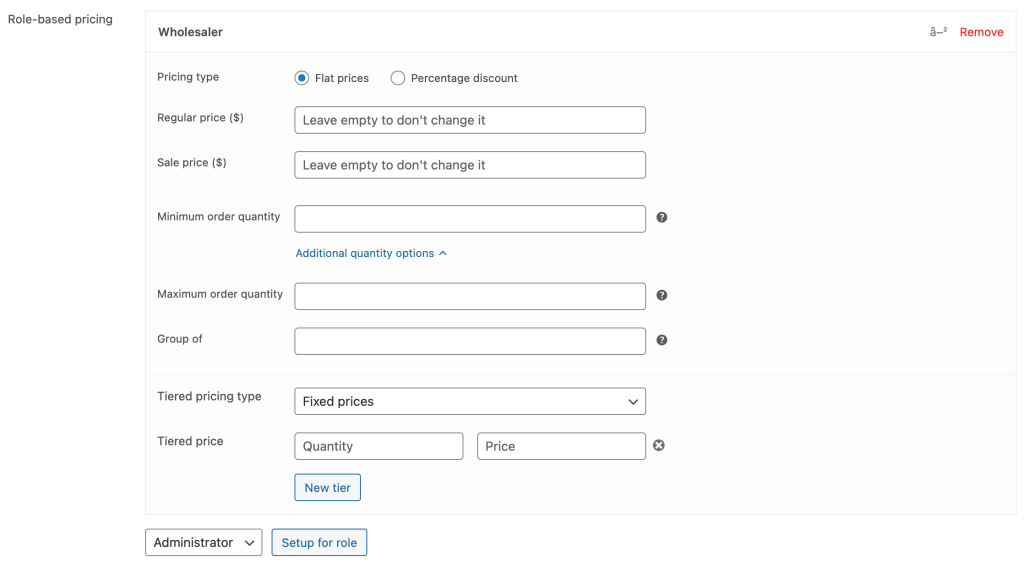
A role rule replaces the product’s pricing for customers with that role; the first matching role wins. Also available on variations and in global rules, and exportable via CSV (see Import and export).
Customer-specific pricing
Same tab, same fields, for one customer: search the customer → Setup for customer. A customer rule beats the role rule, which makes it the place for negotiated prices.
Global pricing rules
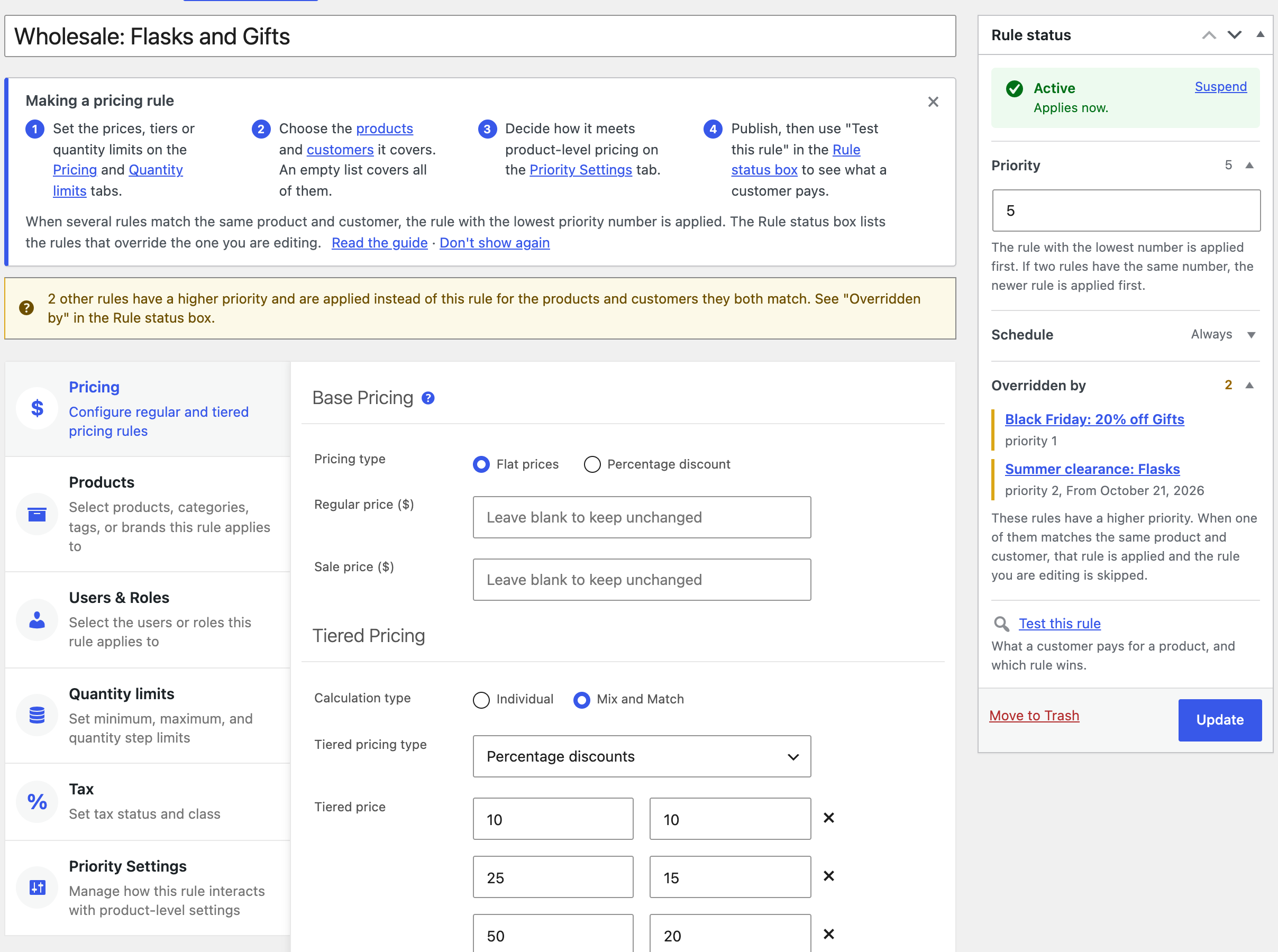
WooCommerce → Pricing Rules → Add new applies one pricing to many products at once.
| Tab | What you set |
|---|---|
| Pricing | Base price override (flat or %), tiers, and the calculation type: Individual (each product on its own) or Mix and Match (quantities of all covered products added up) |
| Products | Categories, tags, brands, products, plus exclusions. Empty = all products. Include subcategories covers the subcategories of the selected (and excluded) categories |
| Users & Roles | Roles and customers to include or exclude. Empty = everyone. Guests (not logged in) is listed with the roles |
| Quantity limits | Min, max, step, mix & match minimum |
| Tax | Tax status and class for matching products |
| Priority settings | How the rule interacts with product-level rules (see Which rule wins?) |
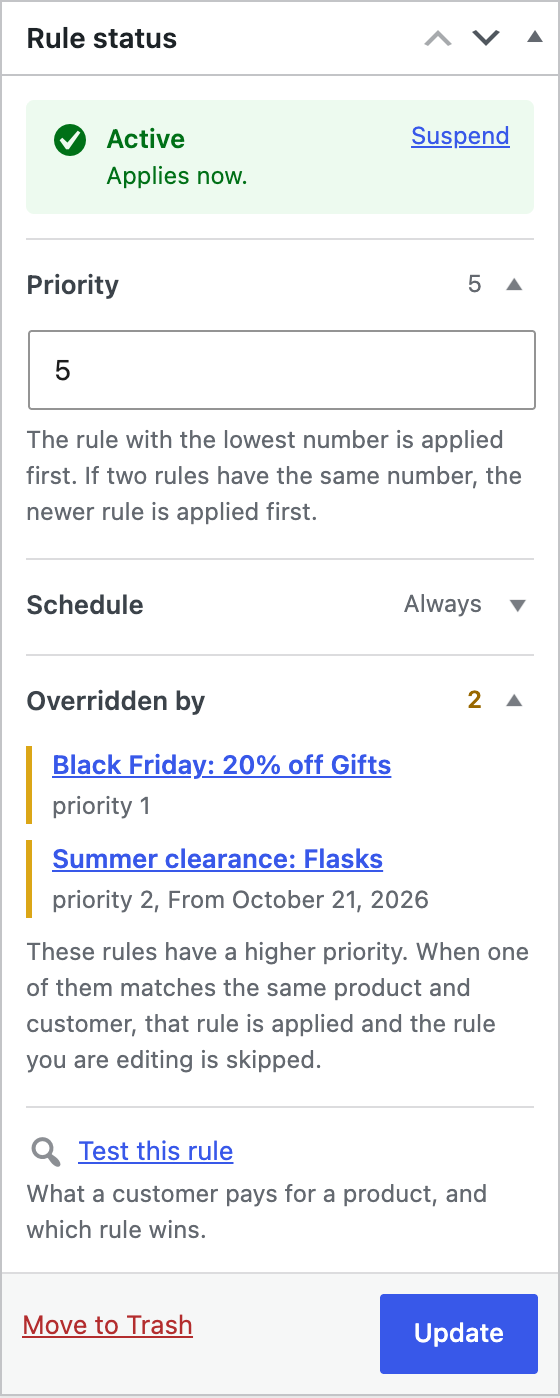
The Rule status box on the right replaces the Publish box: the status with its reason, Suspend / Reactivate, the Priority number, optional start and end dates, the rules that override this one, and Test this rule.
Priority, schedule and status
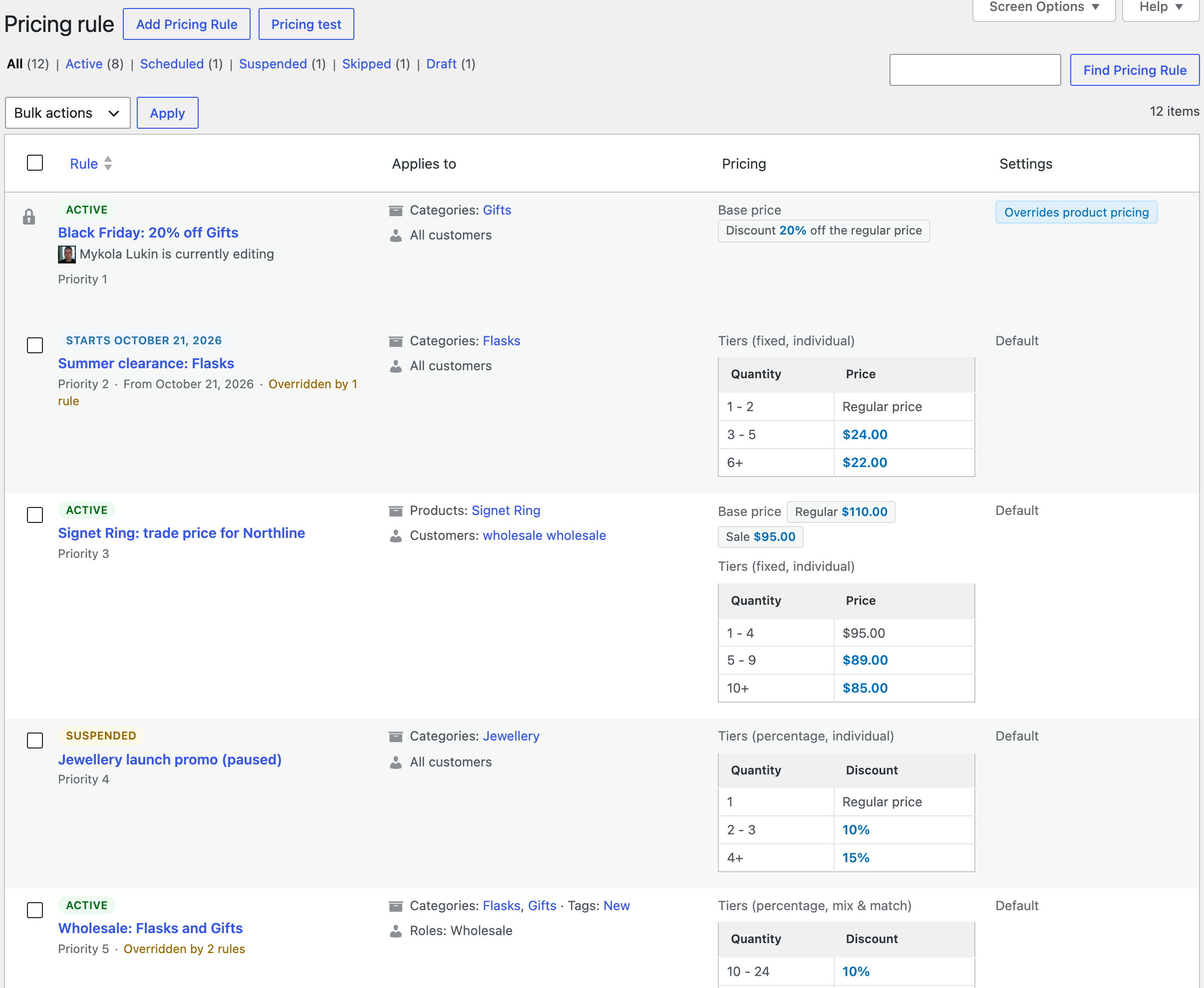
- One rule per product and customer. When several match, the lowest priority number is applied (same number: the newer rule). New rules start at 10; give campaigns a low number and the store-wide fallback a high one.
- Overridden by lists the higher-priority rules that take products and customers away from the rule you edit; the list shows Overridden by N rules.
- Schedule: a start date, an end date or both, as whole days in the site’s timezone. Outside the window the rule is ignored.
- Status: Active, Scheduled, Expired, Suspended, Skipped (the rule changes nothing: no price or discount of its pricing type, no tiers, limits or tax) or Draft. The links above the rules list filter by status; rules can also be suspended, duplicated and tested from the row.
Which rule wins?
- Product rules: the tiers, base price and limits on the product or variation.
- A role rule replaces them for customers with that role.
- A customer rule replaces both for that customer.
- A global rule is applied on top according to its Priority settings: Prefer product rules (used only when the product has none of its own), Override (always wins), Flexible (decide separately for tiers, base price and quantity limits) or Default, which follows Prioritize global pricing rules in Price Calculation. Among global rules, the lowest priority number is applied.
Tip
Unsure what applied? Run the Pricing test, or switch on Debug mode to see the source of the pricing under the table and in the cart.
Price calculation settings
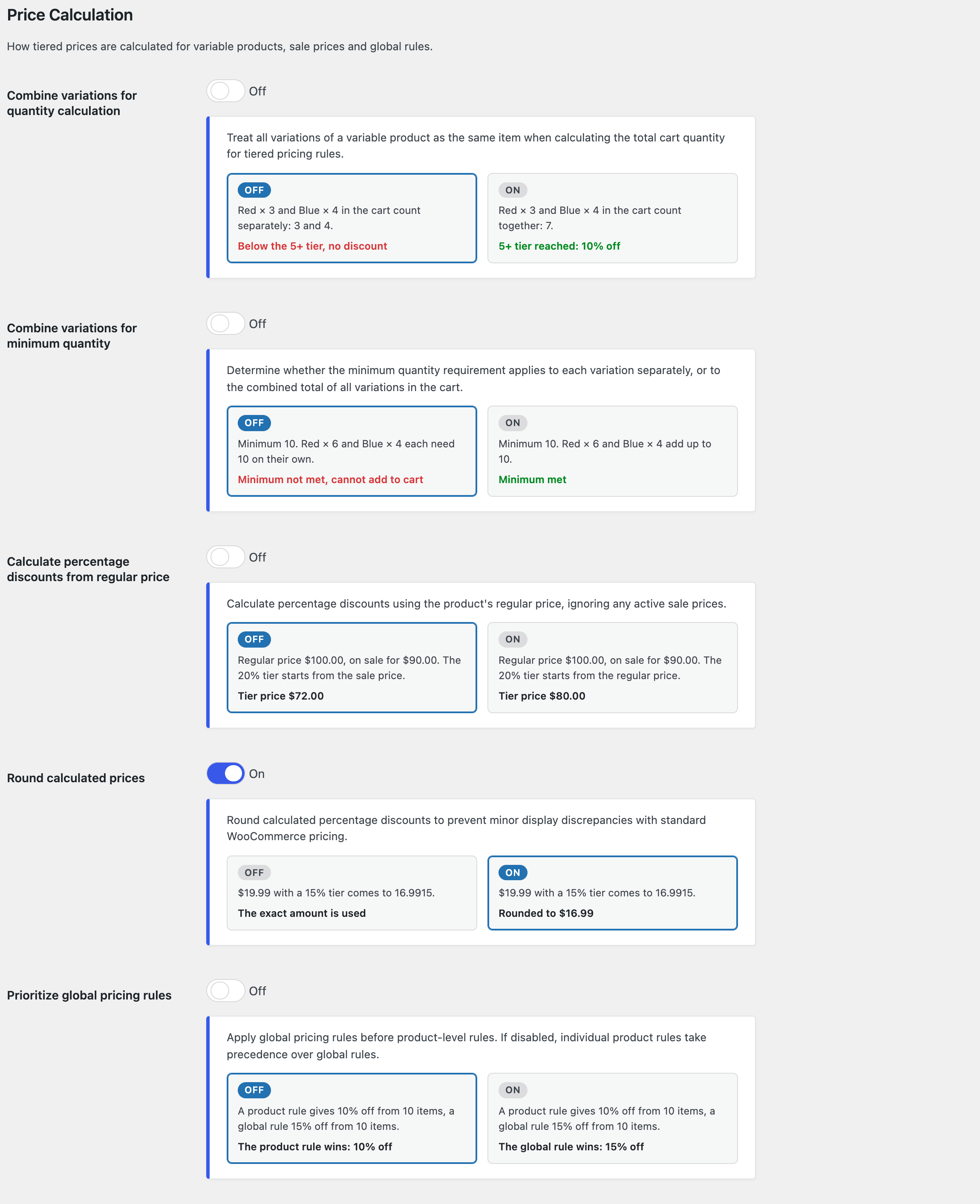
Settings → General → Price Calculation, each switch with an Off / On example:
- Combine variations for quantity calculation: variations of one product count as one item for the tier quantity.
- Combine variations for minimum quantity: the minimum applies to the sum of all variations in the cart.
- Calculate percentage discounts from regular price: percentage tiers start from the regular price even during a sale.
- Round calculated prices: tier prices are rounded to the store’s decimals.
- Prioritize global pricing rules: a matching global rule wins over the product’s own rules.
Product page
Everything the customer sees on the product page is set under Settings → General → Pricing Display.
The layout configurator
Pricing Display is a visual editor: the options on the left, a live preview of the product page, the shop grid or the cart on the right. Three tabs cover the storefront: Product page, Shop & category pages and Cart & Checkout. Nothing is stored until you click Save changes.
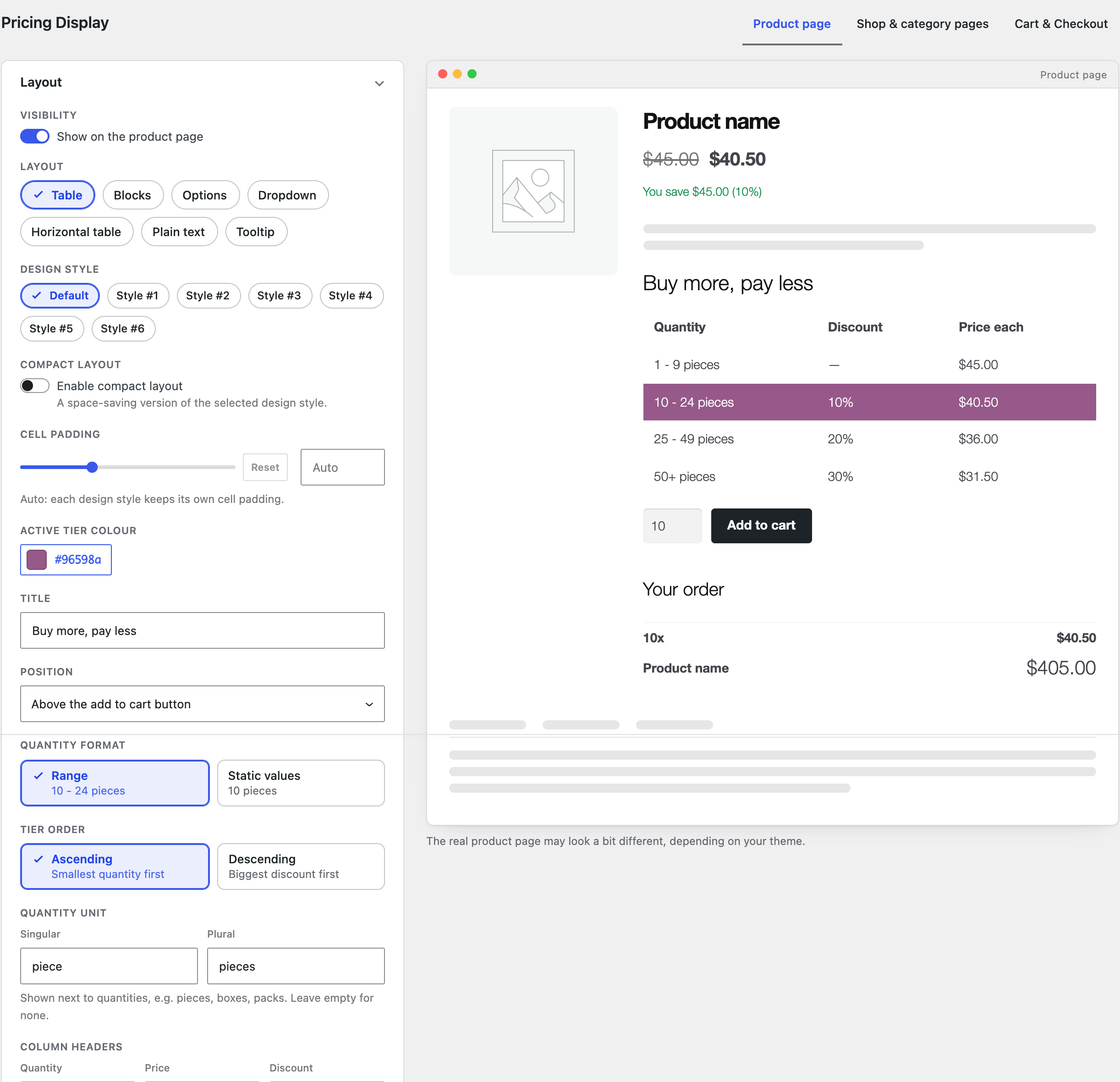
Classic settings
Switch off Layout Configurator under Settings → Advanced → Modules to get the classic rows of settings instead; both edit the same options.
Layouts and design styles
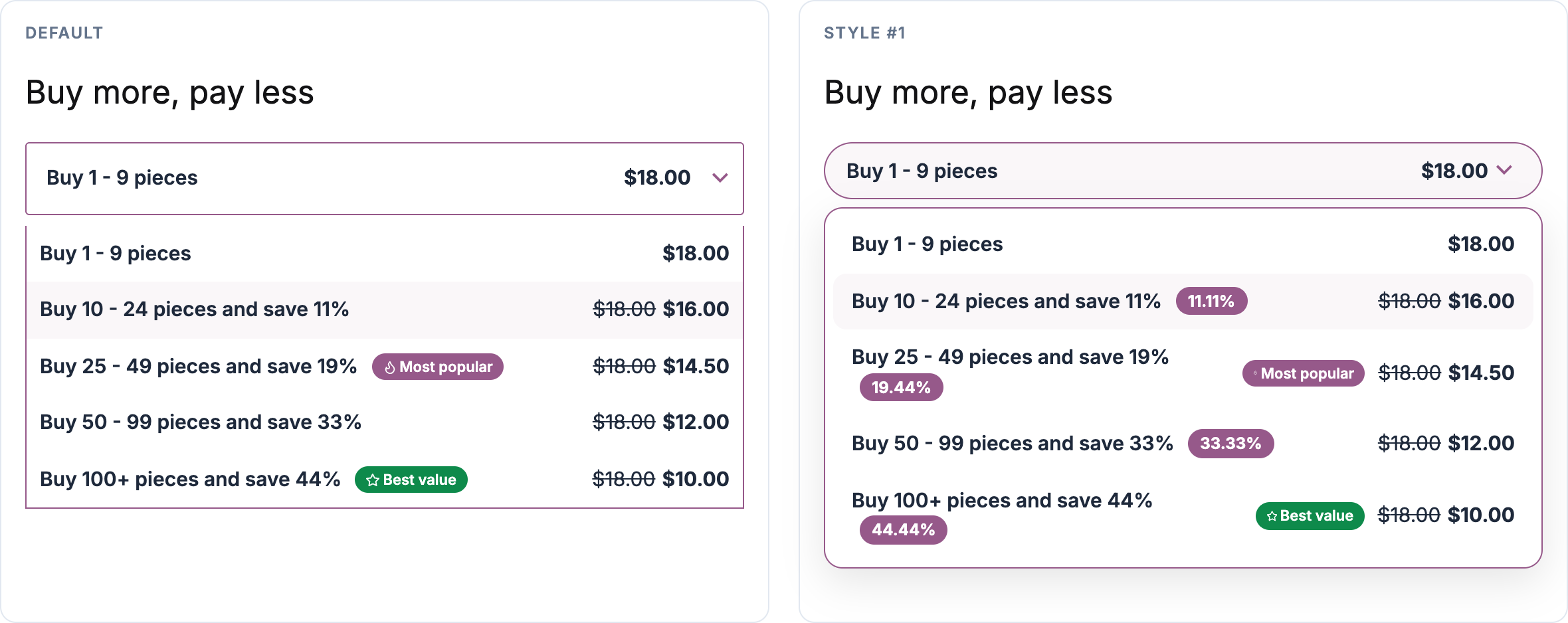
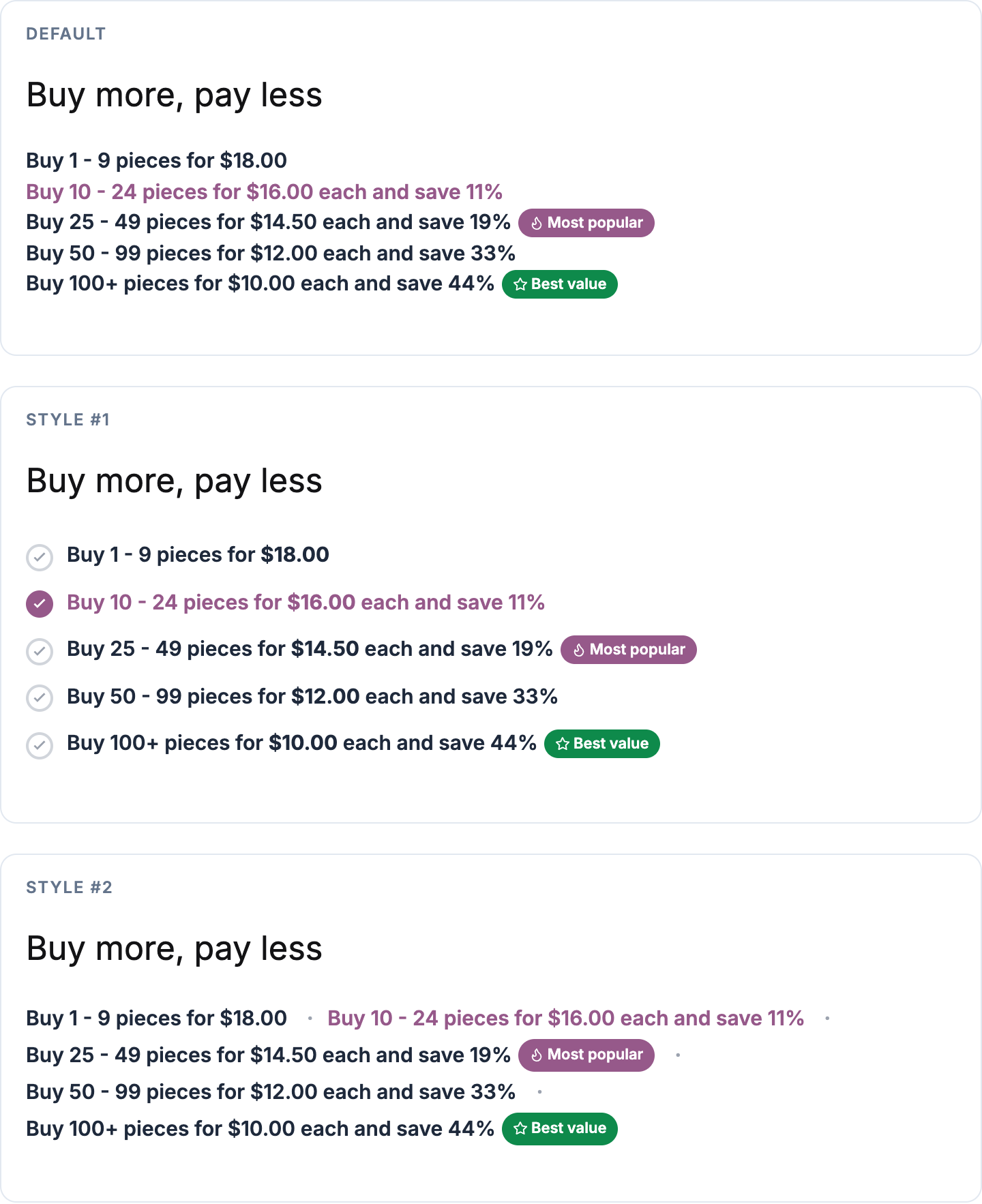
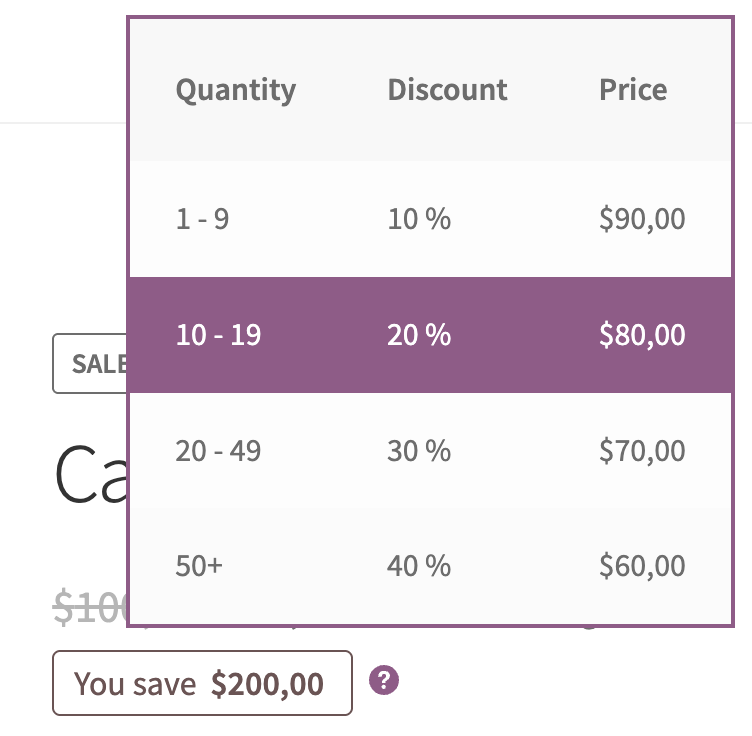
Pick a Layout and a Design style on the Product page tab; a product can override the layout on its Tiered Pricing tab. All layouts highlight the active tier and can be clickable.
| Layout | Best for | Design styles |
|---|---|---|
| Table | Quantity / discount / price, extra columns | Default + 6 |
| Blocks | Compact cards, 3–8 tiers | Default + 8 |
| Options | Radio list, optional totals | Default + 6 |
| Dropdown | Many tiers, little space | Default + 1 |
| Horizontal table | Tiers as columns | — |
| Plain text | One templated sentence per tier | Default + 2 |
| Tooltip | Table on hover next to the price | — |
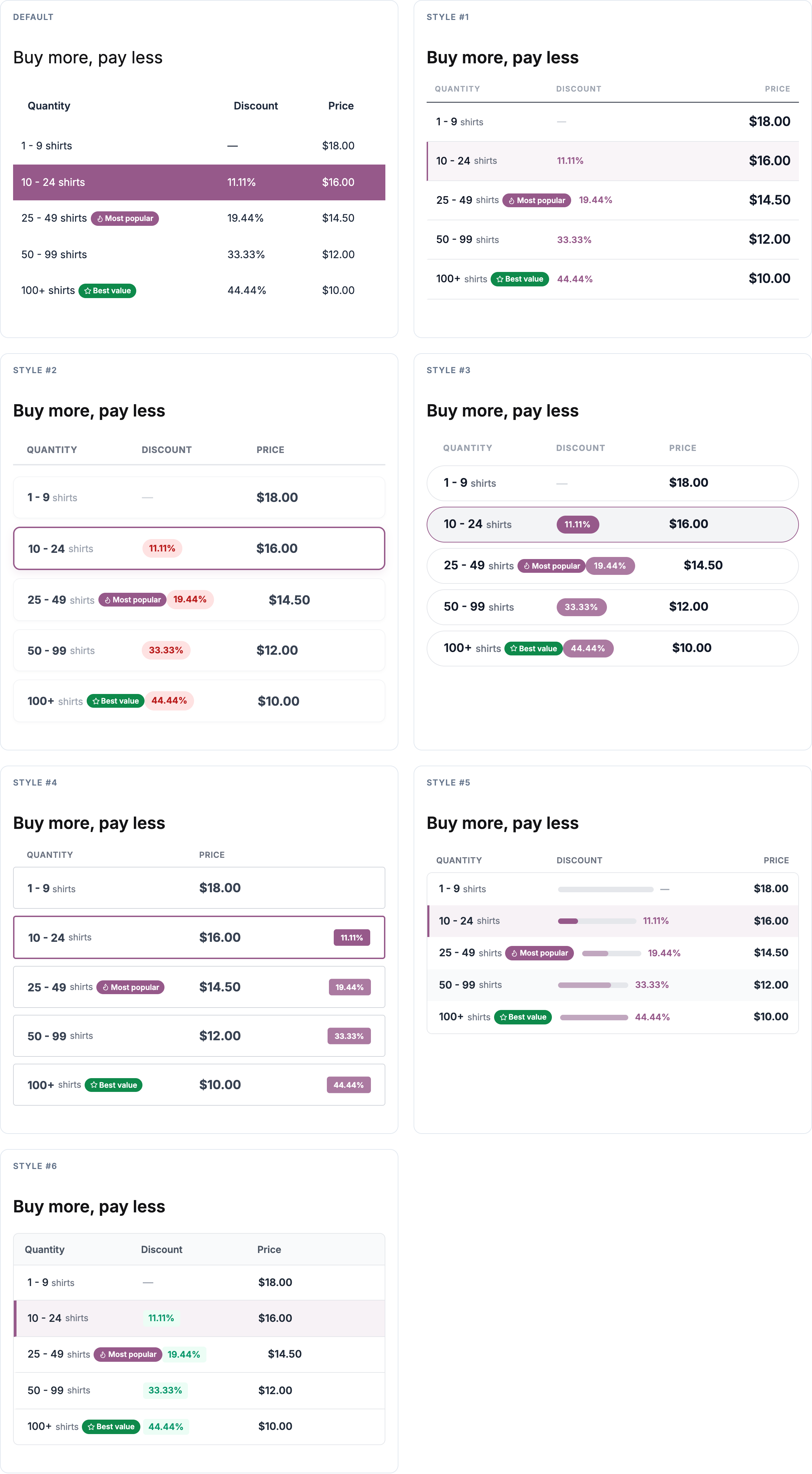
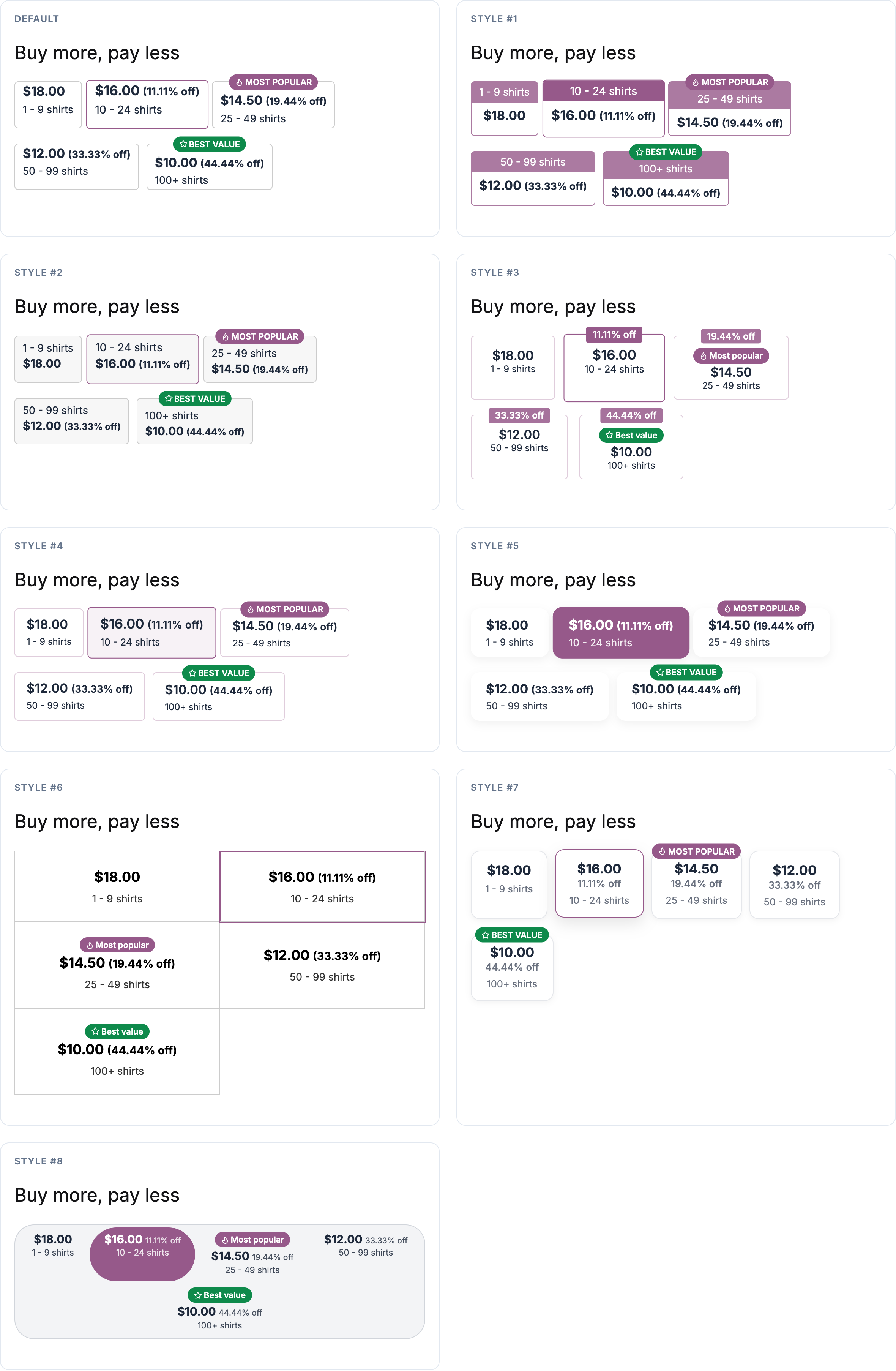
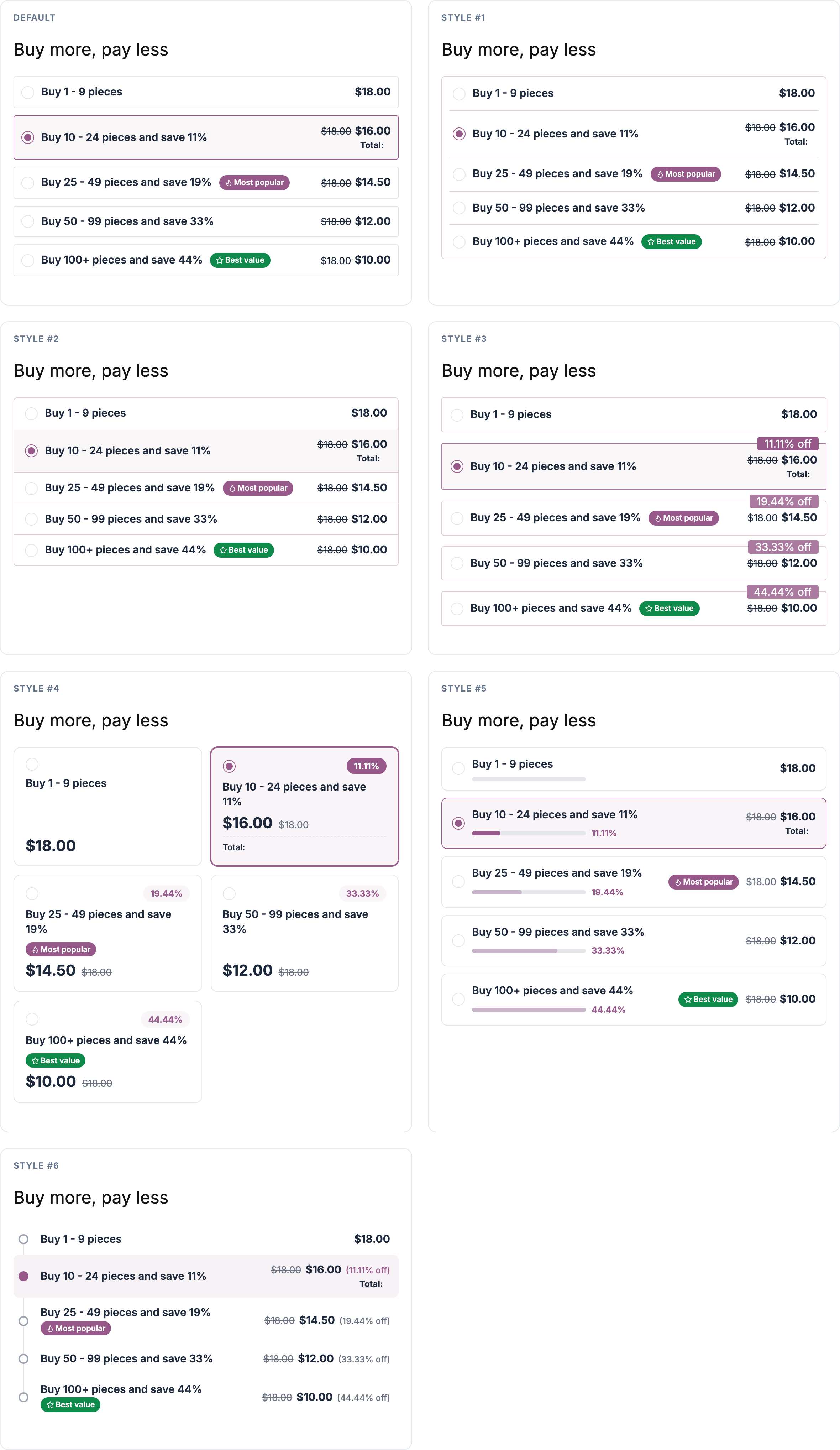

Settings shared by all layouts
- Show on the product page: off means nothing is inserted automatically; place the layout yourself with the shortcode, the block or the Elementor widget.
- Position: above or below the Add to cart button or form, above the title, or before the summary.
- Compact layout, Spacing between tiers and Cell padding (Auto keeps the style’s own values).
- Active tier colour, Discount badge colour and an Active tier border for some table styles.
- Title, Quantity format (Range “10 – 24” or Static “10”), Tier order, Make pricing tiers clickable.
- Quantity unit (singular and plural), Column headers (rename, or empty to hide a column), Discount format (percentage, amount saved, or both).
Table columns and custom columns
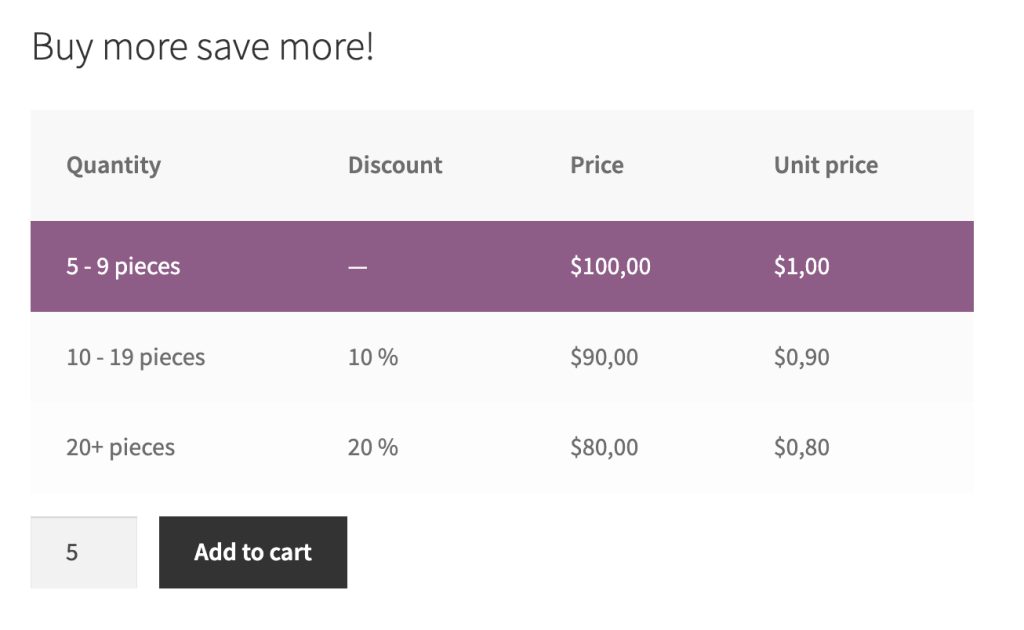
The Custom table columns card adds columns to the table layouts: custom data (price, number or text, entered per tier in the product editor, role rules and global rules) or dynamic values (price excl. or incl. taxes, total row price, saving per item).
Layout-specific options
- Blocks: show or hide the discount label.
- Options / dropdown: crossed-out regular price, the total for the selected option, a base price option (“Buy 1 – 9”), and the option text with
{tp_quantity},{tp_discount},{tp_rounded_discount},{tp_base_unit_name}. - Plain text: the pricing string (also
{tp_price}), first tier on or off. - Tooltip: icon colour and size, border.
Tier labels
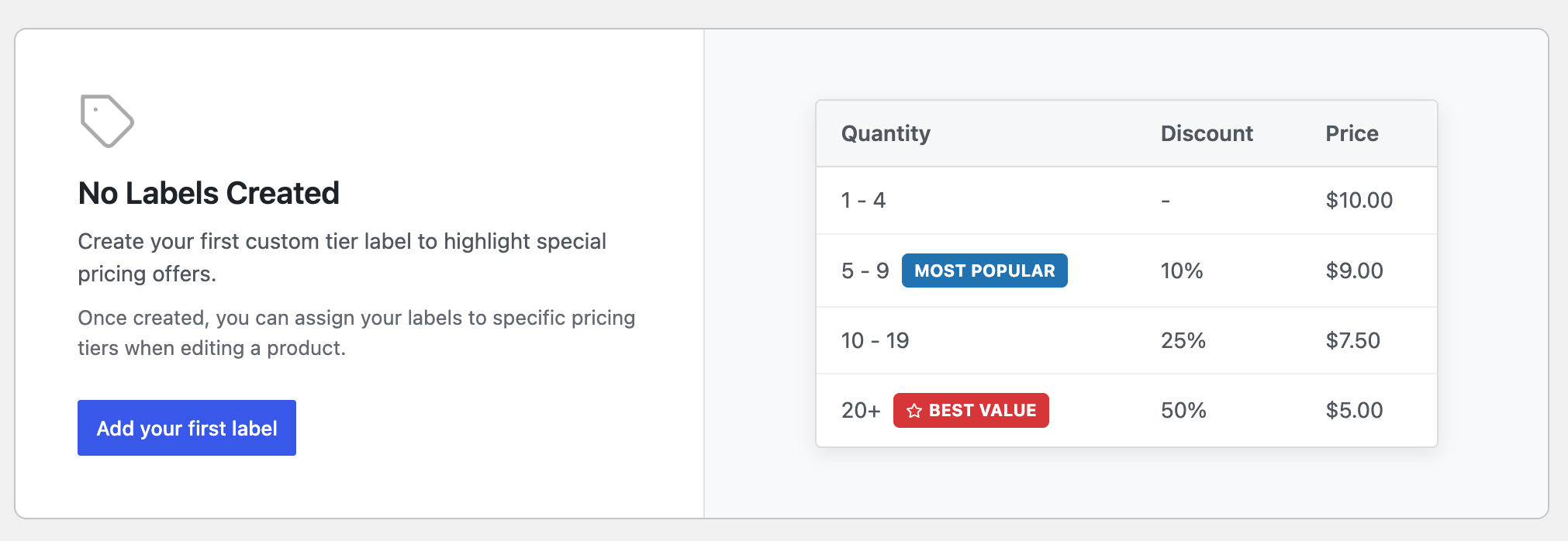
Design labels such as “Most popular” or “Best value” under Settings → Badges & Labels (shape, icon, colours, live preview) and assign them to tiers in products, role rules or global rules. They show in every layout.
Pricing summary
The Pricing summary card adds a quantity × price block near the layout that updates live: Detailed, Compact or Inline labels, with a title, a position, the Total and Each labels, and a switch for products without tiers.
Savings badge
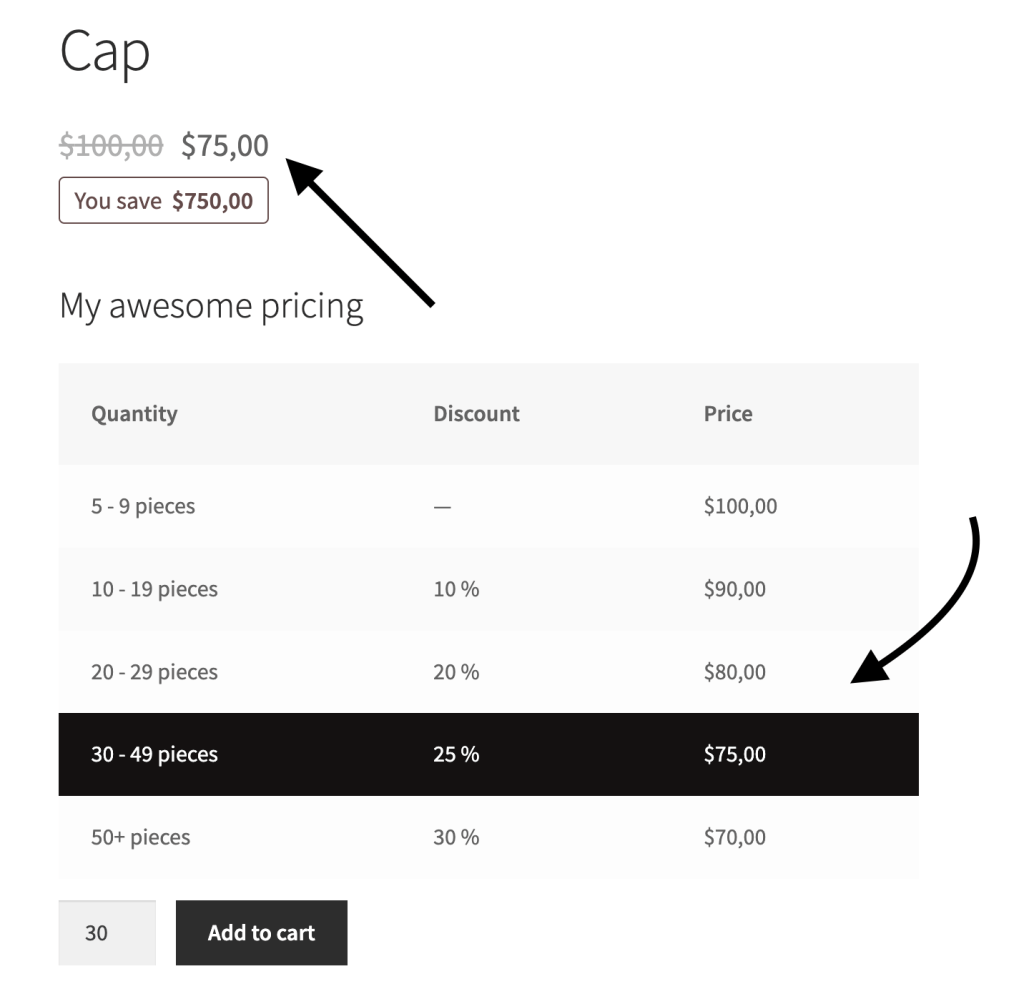
The Savings badge card shows “You save …” for the selected quantity: a template with {tp_ys_price}, {tp_ys_total_price} and {tp_ys_percentage_discount}, a style (text, pill or outline) and colour (Auto follows the active tier colour), a position (under the price, above the add-to-cart button or after the layout), and switches to include the WooCommerce sale discount and to show it on products without tiers. Also the [tiered_price_you_save] shortcode.
Price display
The Price card decides what the main product price shows: Match shop & categories (the lowest price or a range, as in the grid) or Price for the selected quantity, optionally with the original price crossed out and the total instead of the price per item.
Request a quote
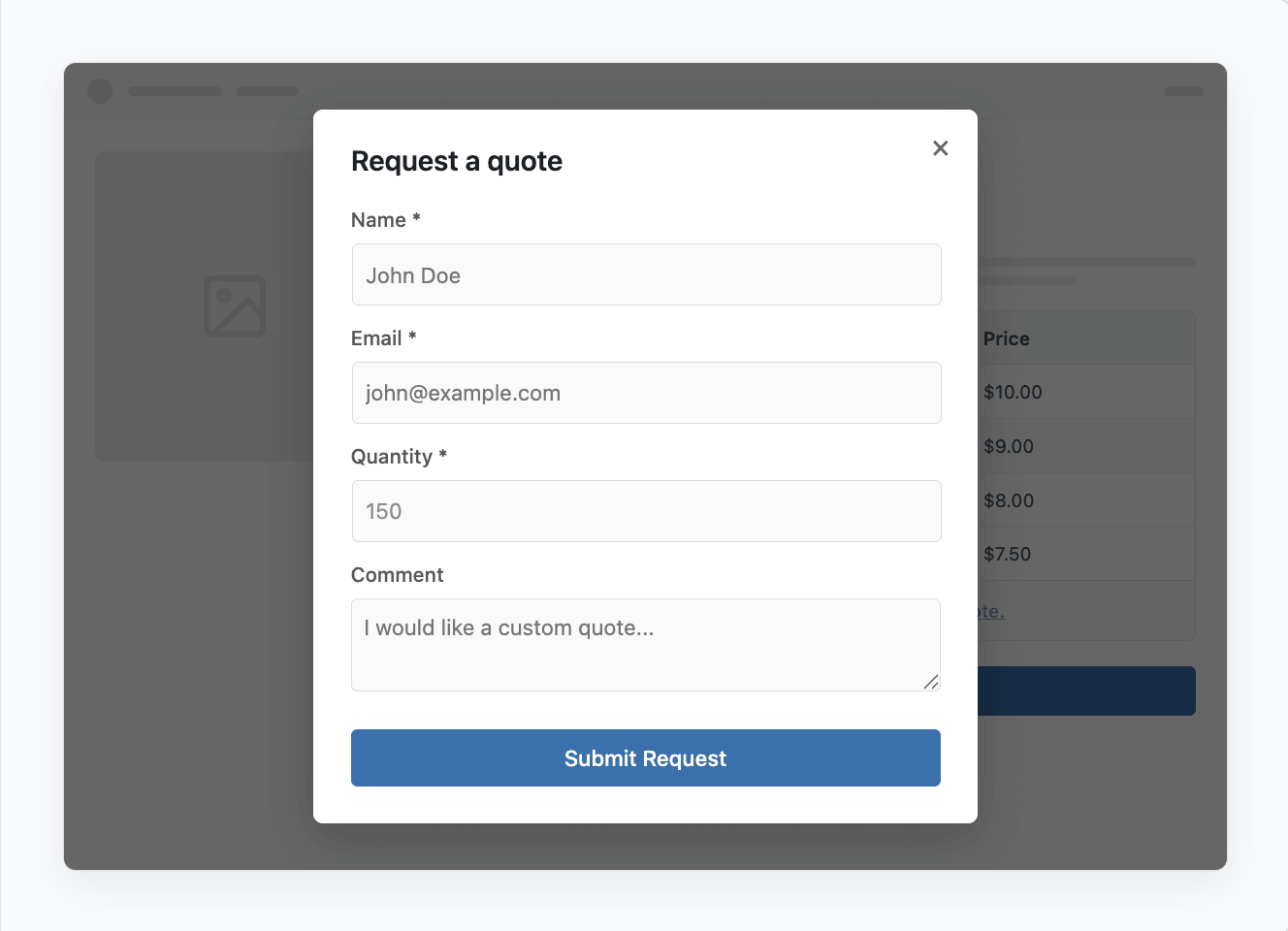
Settings → Request a Quote: build forms (text, e-mail, phone, number, select, checkbox, date, file and more) and show them integrated in the layout (an extra row, optionally opening above a quantity) or next to Add to cart (a button beside or instead of it, also for non-purchasable products). Attach a form per product, role rule or global rule. Requests land in WooCommerce → Quote Requests with one-click convert to order; e-mails are WooCommerce e-mails; reCAPTCHA v3 is supported.
Shop and category pages
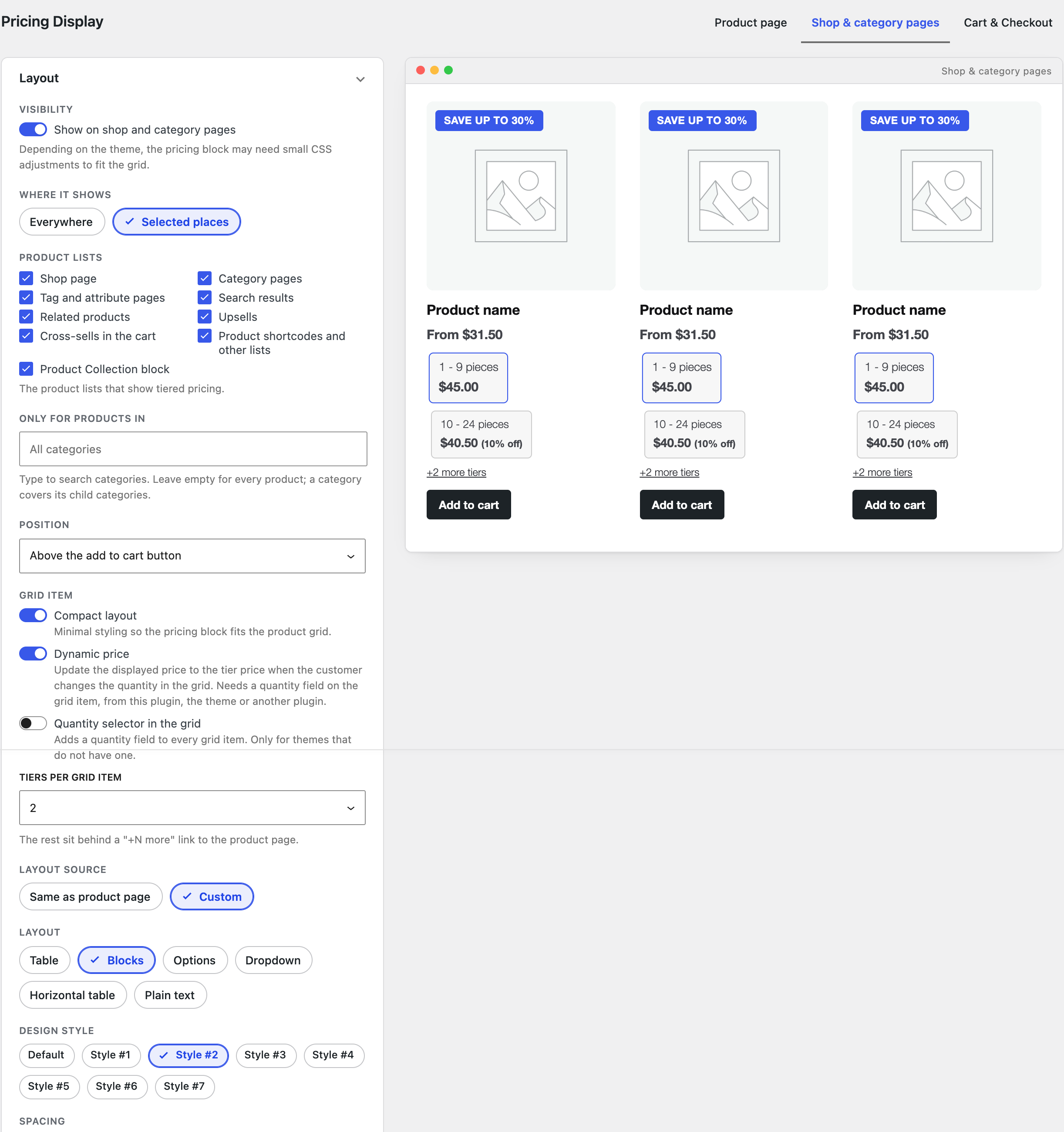
Configured on the Shop & category pages tab of Pricing Display.
Catalog prices
The Price card replaces the regular price of products with tiers by the lowest price with a prefix (“From $19.80”), a price range (“$75.00 – $90.00”) or a custom template ({tp_lowest_price}, {tp_prices_range}, {tp_original_price}), optionally for variable products too.
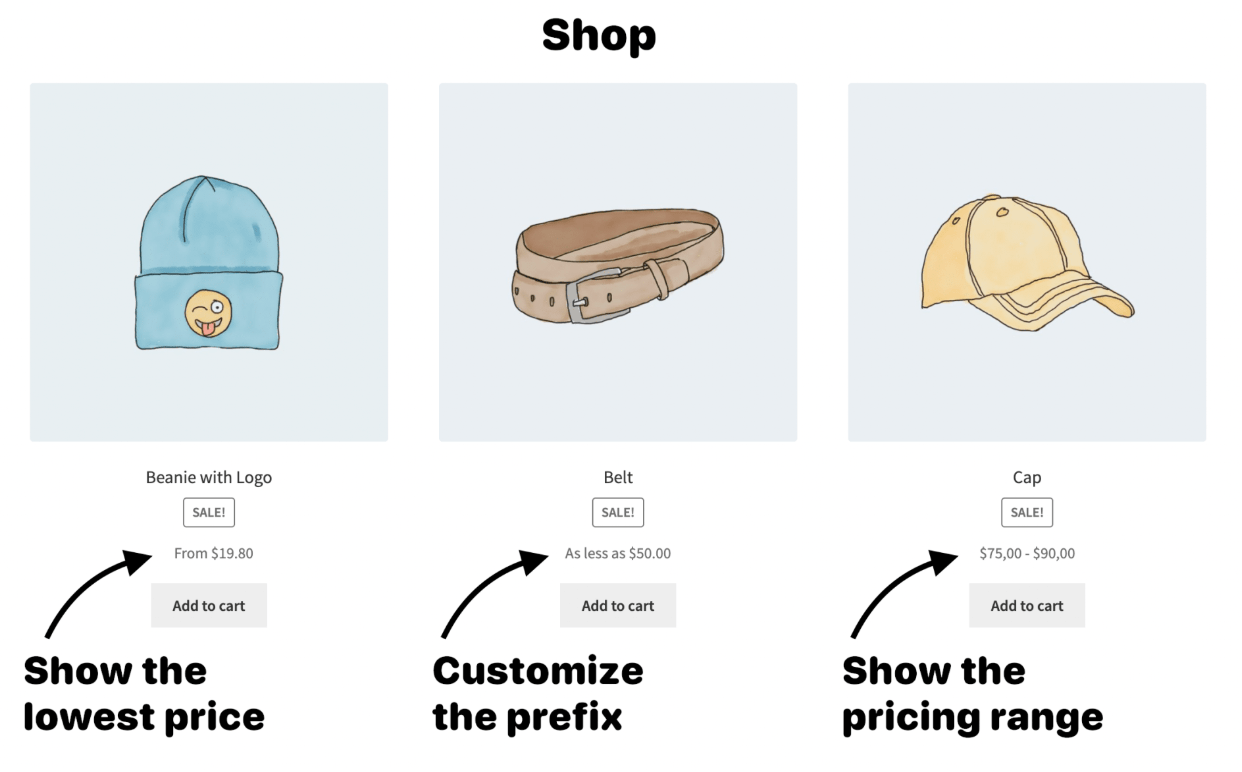
Pricing tiers in the product grid
Show on shop and category pages puts a reduced pricing layout in every product card.
- Where it shows: everywhere, or selected lists (shop, categories, tags, search, related, upsells, cross-sells, shortcodes, the Product Collection block), optionally only for chosen categories.
- Position: above or below the add-to-cart button or the title.
- Grid item: compact layout, a dynamic price that follows the quantity, a quantity selector for themes without one, and the number of tiers per card (the rest sit behind a “+N more tiers” link).
- Layout source: the same as the product page, or a custom layout, style, spacing, colours and title.
Bulk savings badge
A badge on the product image with the biggest discount the product’s tiers give. Template (Save up to {tp_max_discount} by default; also {tp_lowest_price}, {tp_lowest_quantity}, {tp_max_saving}), position (top left or right) and colour (Auto = the active tier colour).
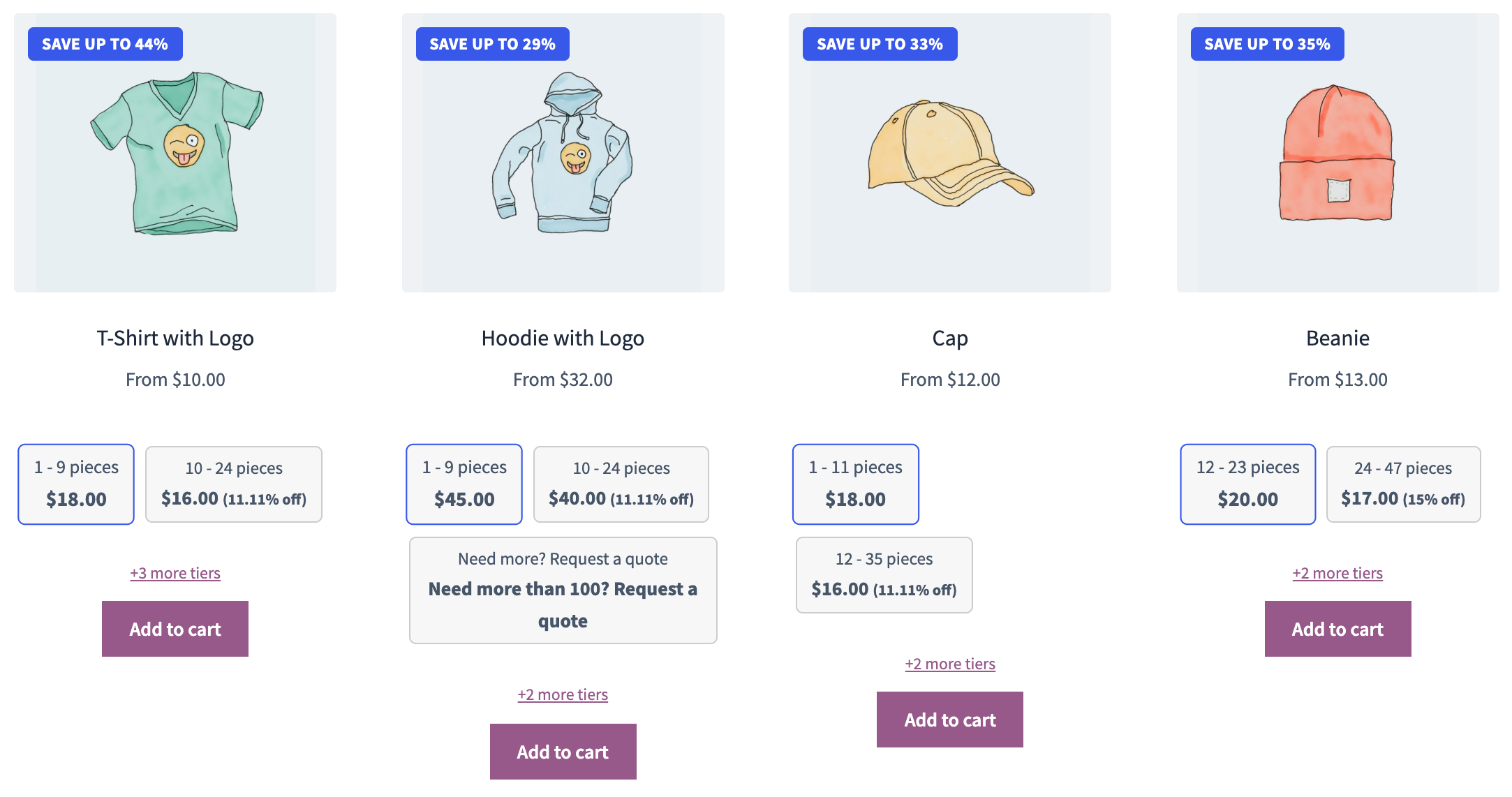
Cart and checkout
Configured on the Cart & Checkout tab of Pricing Display.
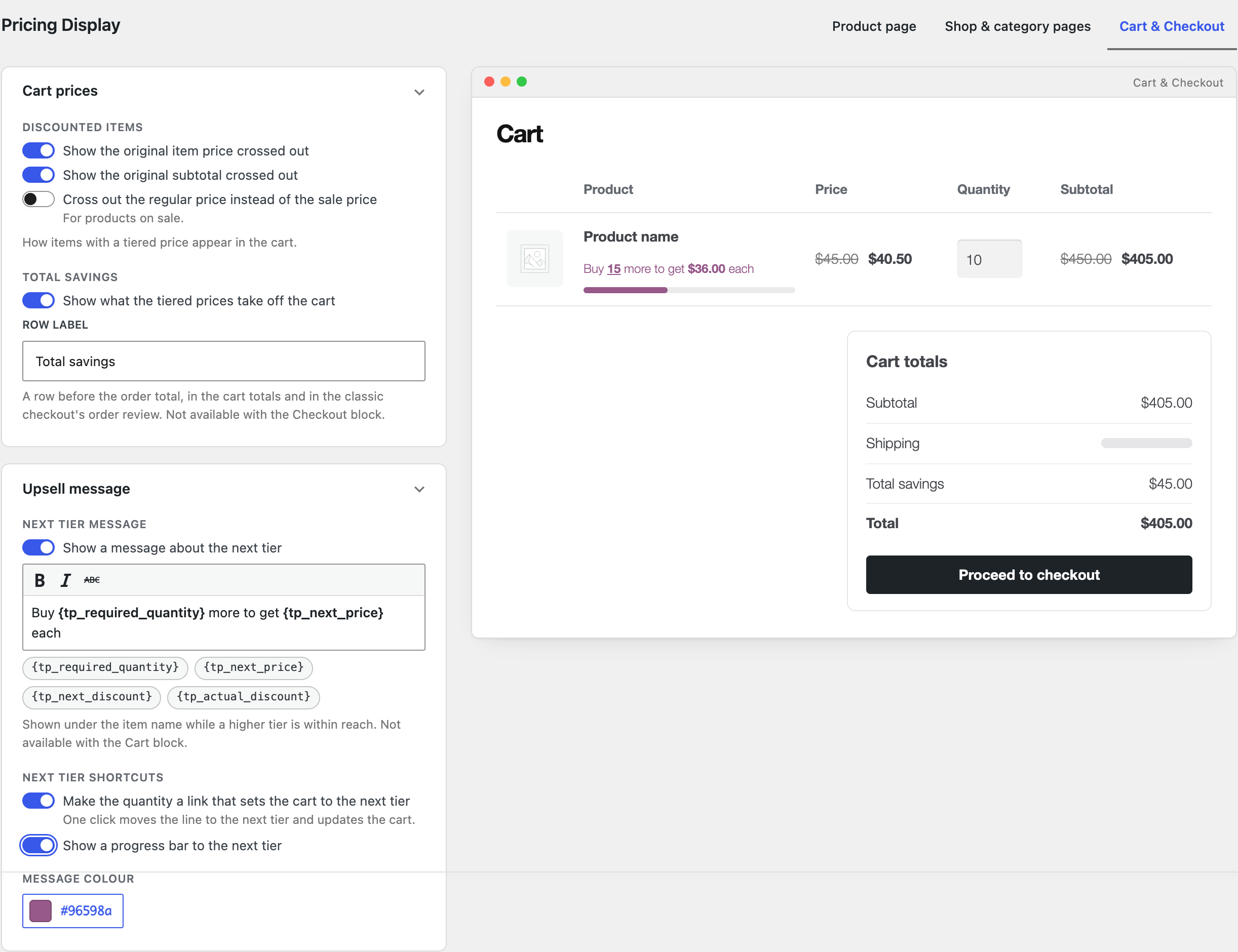
Tiered prices in the cart
The cart charges the tier price for the quantity in the cart. Cart prices decides how discounted items look (original price and subtotal crossed out, regular instead of sale price for products on sale). Total savings adds a row before the order total in the cart and the classic checkout (not the Checkout block). Variations are counted together with Combine variations for quantity calculation; Mix and Match global rules add up every covered product.
Cart upsells
Upsell message: “Add 13 more to get $14.50 each” under the item while a higher tier is within reach (not with the Cart block). The template takes {tp_required_quantity}, {tp_next_price}, {tp_next_discount} and {tp_actual_discount}. Next tier shortcuts make the quantity a one-click link and add a progress bar.
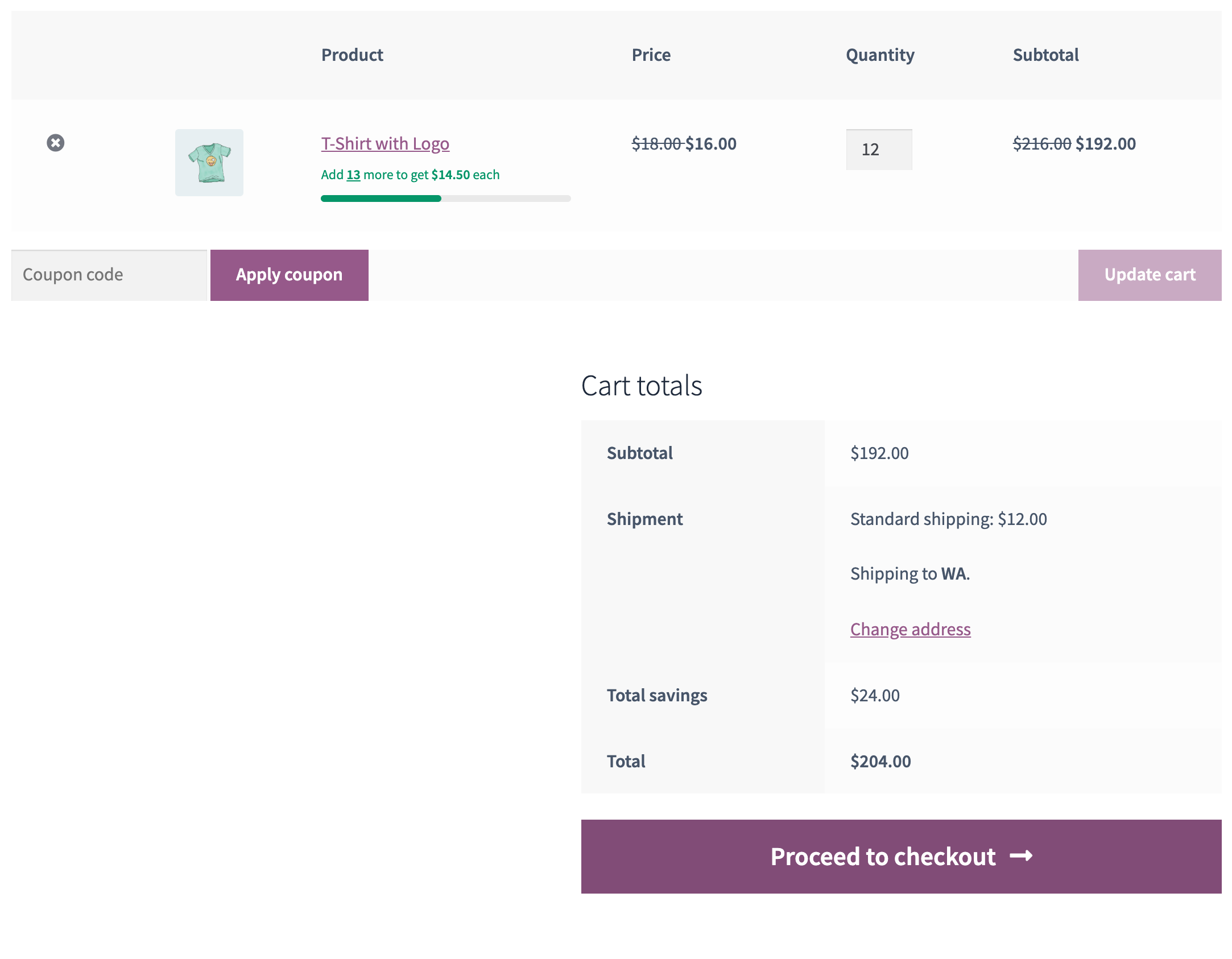
Coupons
Tick Disable tiered pricing on a coupon and covered products are charged the regular price while it is applied.
Wholesale
Please note
These features belong to the Wholesale & Guest Users module and live on the Wholesale tab. All of them are off until you switch them on. Registration and the private store are in the free plugin; the cart rules and the guest options need the premium version.
Wholesale registration and approval
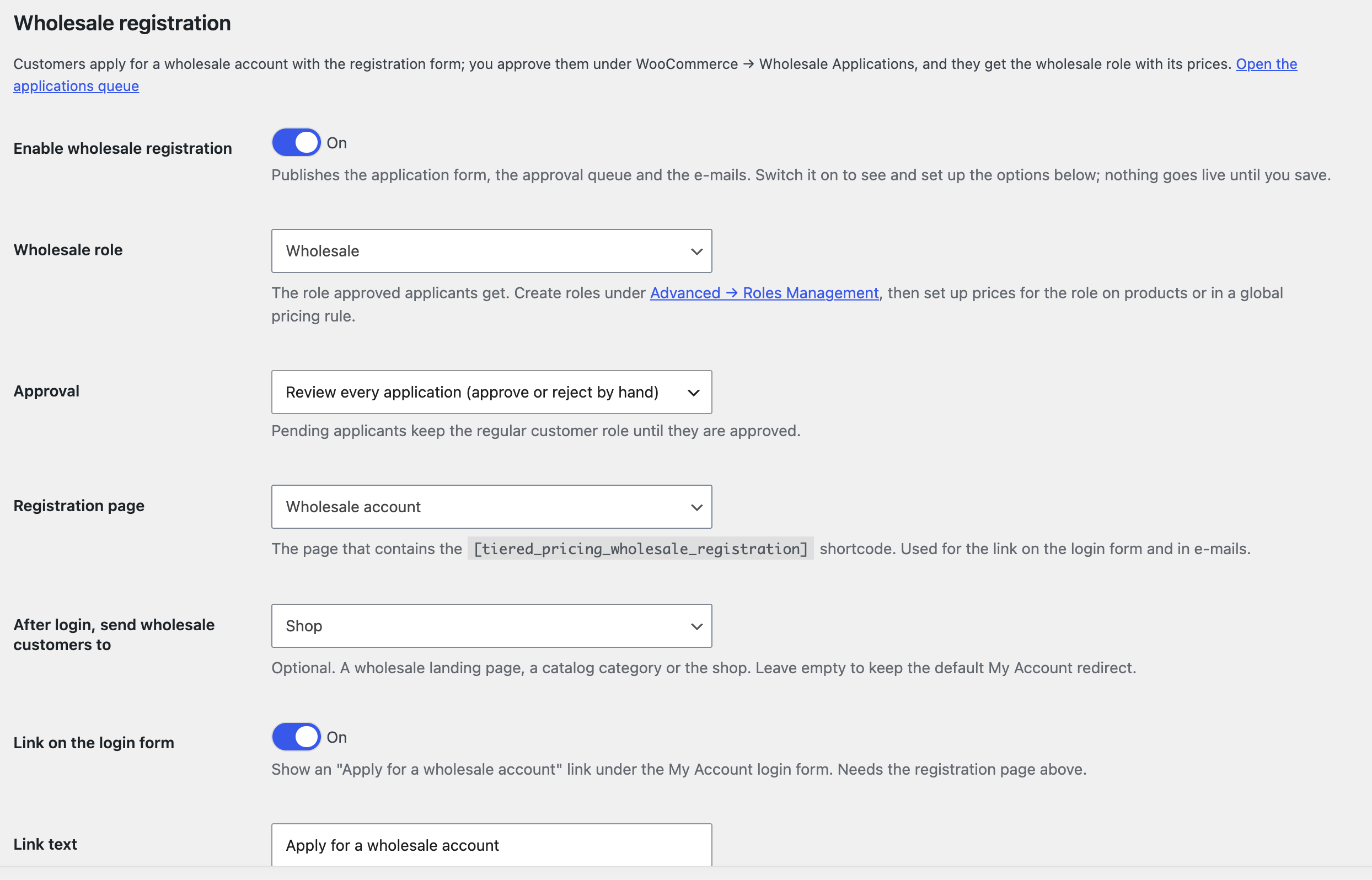
Let customers apply for a wholesale account on your site. Under Settings → Wholesale → Wholesale registration:
- Create the wholesale role (Settings → Advanced → Roles Management) and give it prices with a global rule or per product.
- Switch on Enable wholesale registration and pick the Wholesale role approved applicants get.
- Choose the Approval mode: by hand, or automatic.
- Put the
[tiered_pricing_wholesale_registration]shortcode on a page and select it as the Registration page. Optionally set a login redirect page and show an Apply for a wholesale account link under the My Account login form.
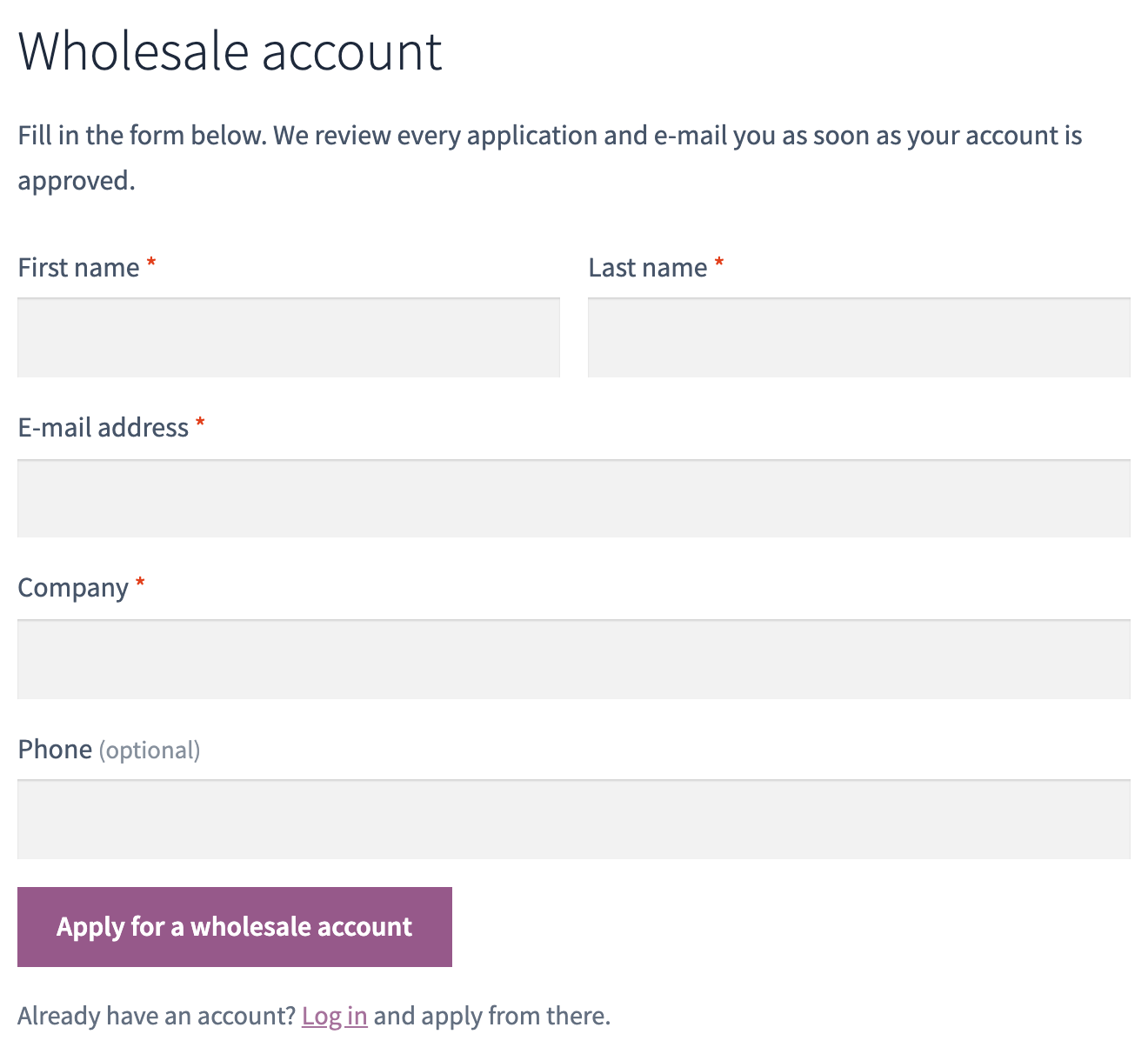
The form asks for name, e-mail and, when WooCommerce does not generate passwords, a password. Add your own fields under Application form (text, phone, e-mail, URL, number, dropdown, checkbox, required or not) or pick common ones such as Company, Phone, Tax ID and Website. An optional terms page adds an “I agree” checkbox; a honeypot and optional reCAPTCHA v3 keep spam out. The three status messages are editable.
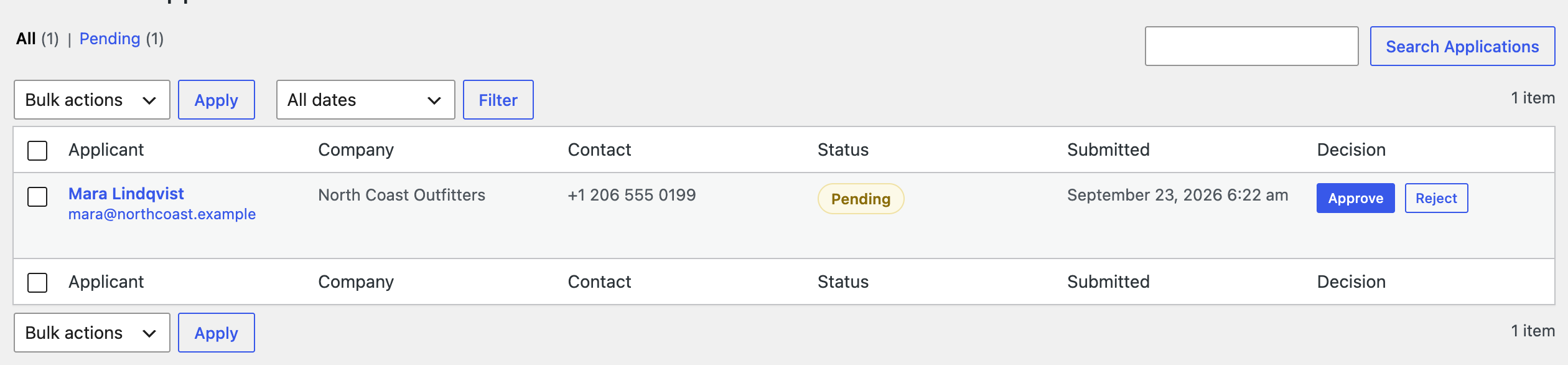
Applications land under WooCommerce → Wholesale Applications, with a pending counter in the menu. Approve or reject from the list, in bulk, or from the application screen with a reason for the applicant. Approving gives the customer the wholesale role. Four WooCommerce e-mails cover the flow: new application (to the shop), received, approved and rejected (to the applicant).
Guest users
Settings → Wholesale → Guest Users: hide prices from visitors who are not logged in (with a custom message) and/or prevent purchasing (relabelled button and notice).
Private store
Two switches under Settings → Wholesale → Private store, both free:
- Closed store sends visitors who are not logged in to the login page and back after the login. My Account, the registration page and the pages you list stay open. Exclude the store from page caching for visitors.
- Catalog visibility by role adds a Who can see rule to every product (Tiered Pricing tab, Additional Options) and category: everyone, only the selected roles, or everyone except them. Guests count as a role. A product’s own rule wins; otherwise it follows its categories, parents included.
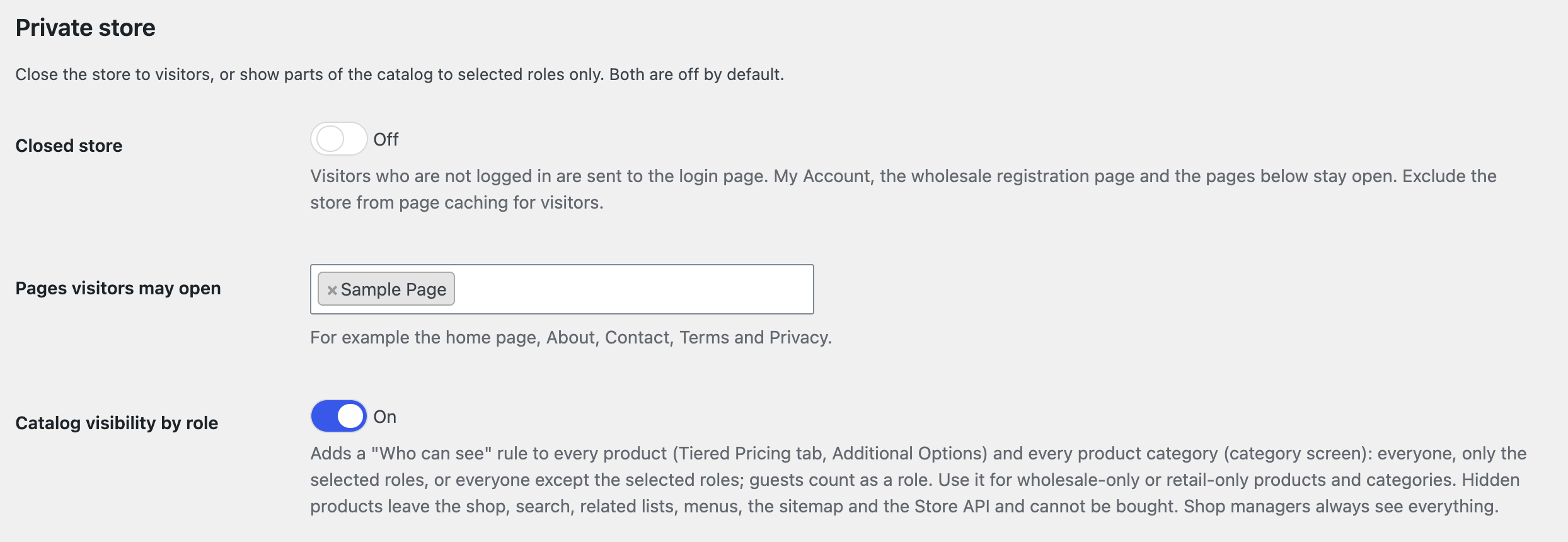
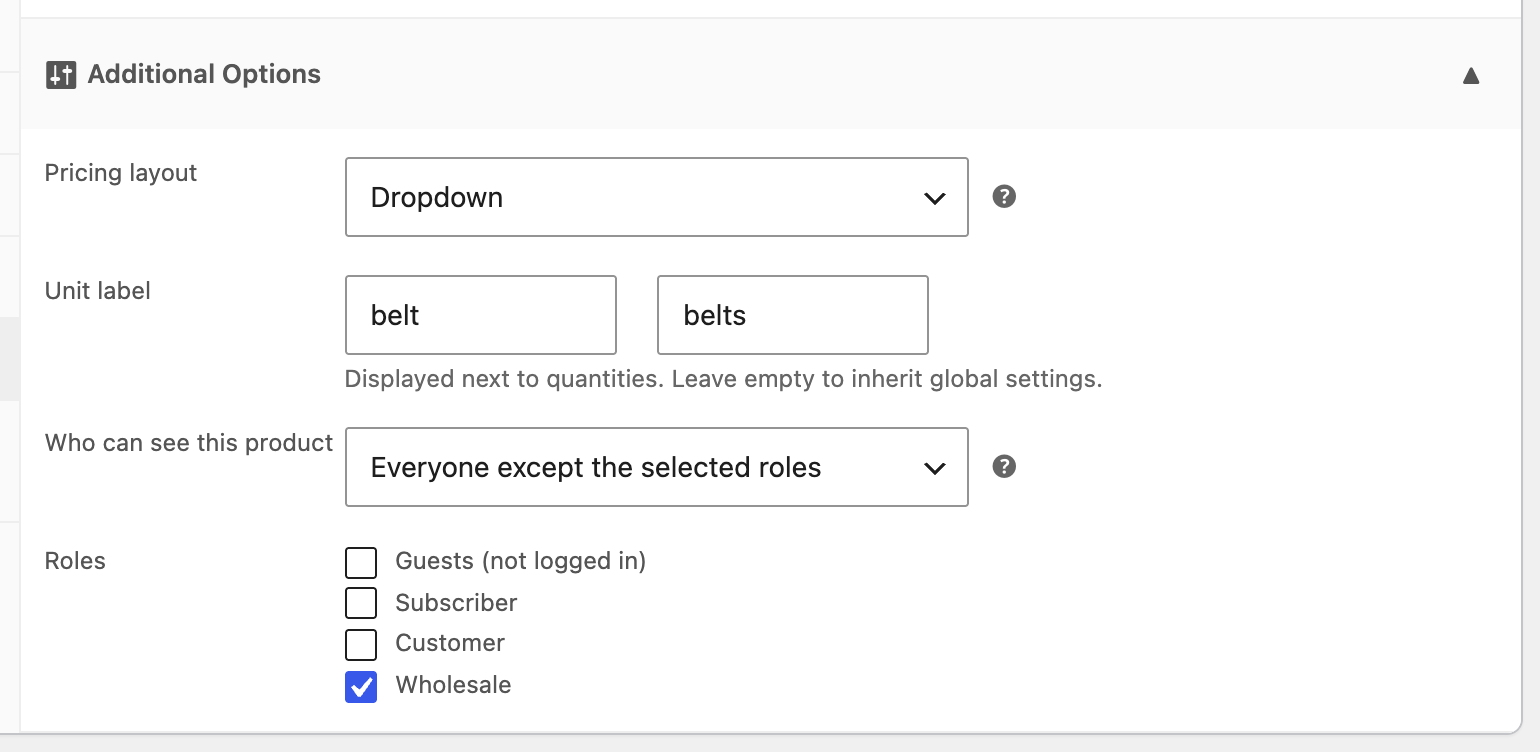
Hidden products and categories leave every list, menu, search, the sitemap and the Store API, cannot be bought and are removed from the cart. A visitor who opens a hidden page goes to the login page or gets a not-found page, as you choose. Shop managers see everything; the products list shows a Who can see column and can be filtered by it.
Cart rules by role
Settings → Wholesale → Cart rules by role (premium):
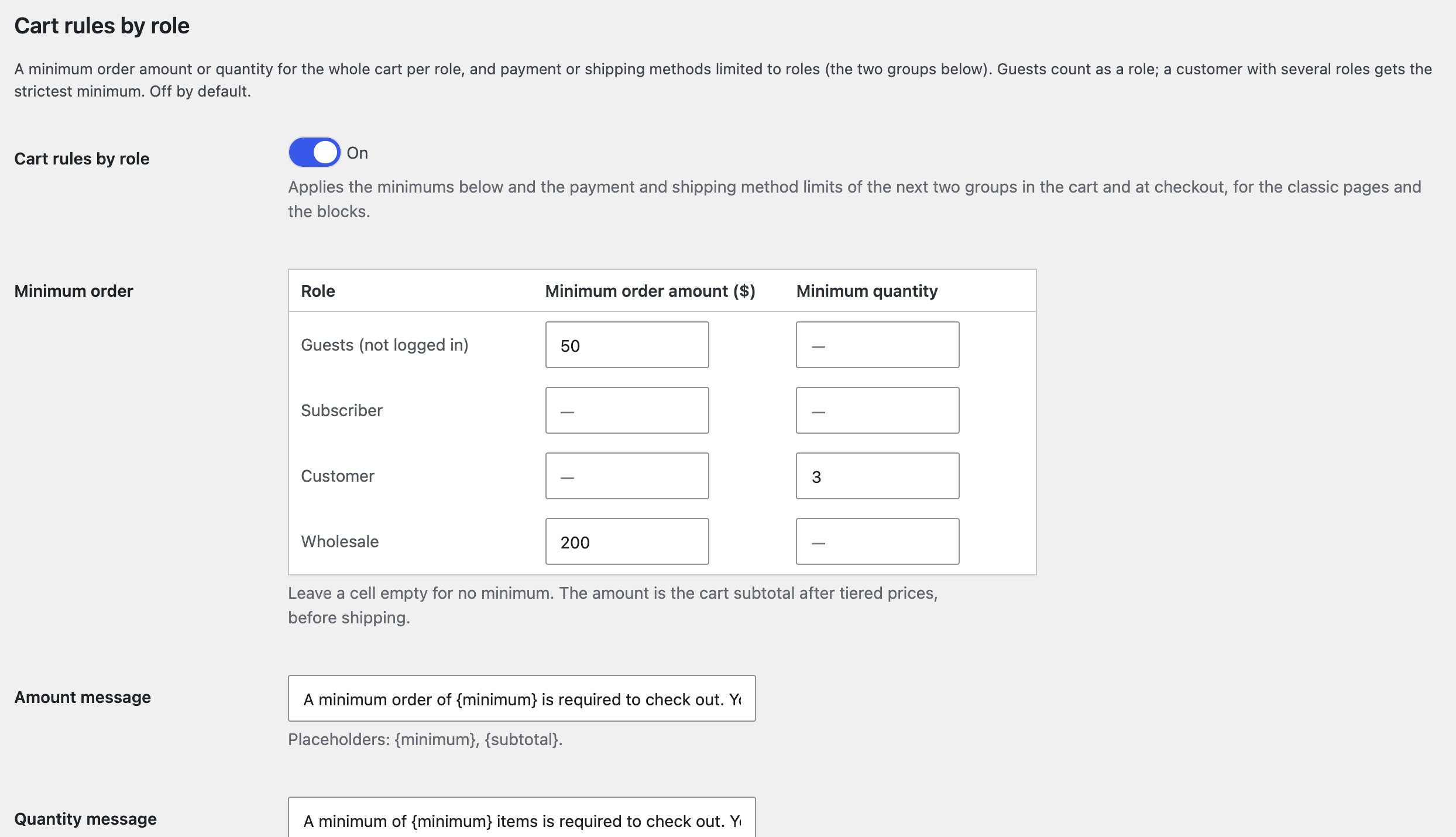
- Minimum order: a minimum amount and/or quantity for the whole cart, per role; guests count as a role, and a customer with several roles gets the strictest minimum. Cart and checkout, classic and blocks, block the order until it is met; the messages take
{minimum},{subtotal}and{count}. - Payment methods by role and Shipping methods by role: for each method, the roles that may use it. Empty keeps it for everyone.
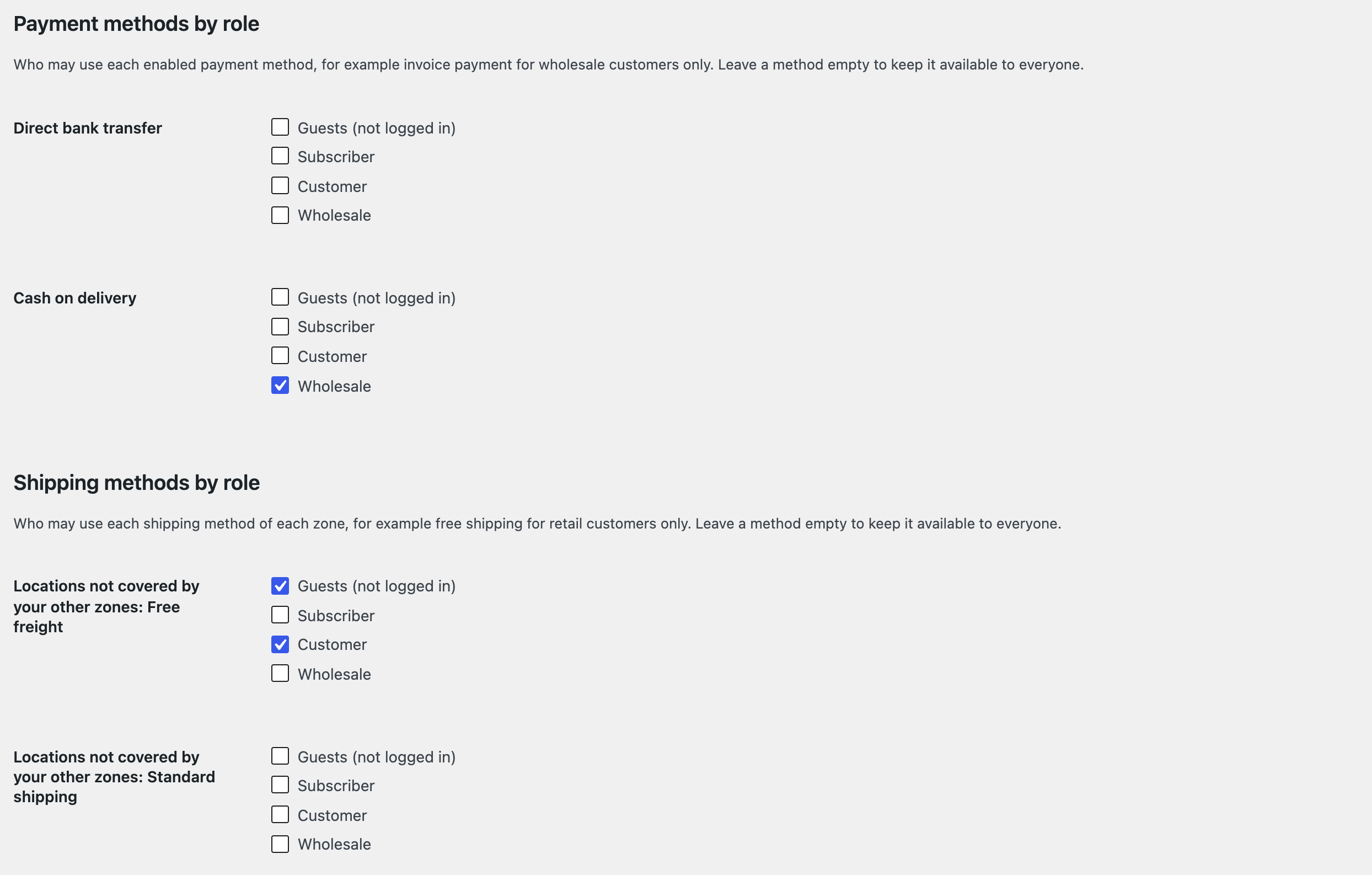
Admin order screens keep every method, so you can still create any order by hand.
Orders
Manually created orders
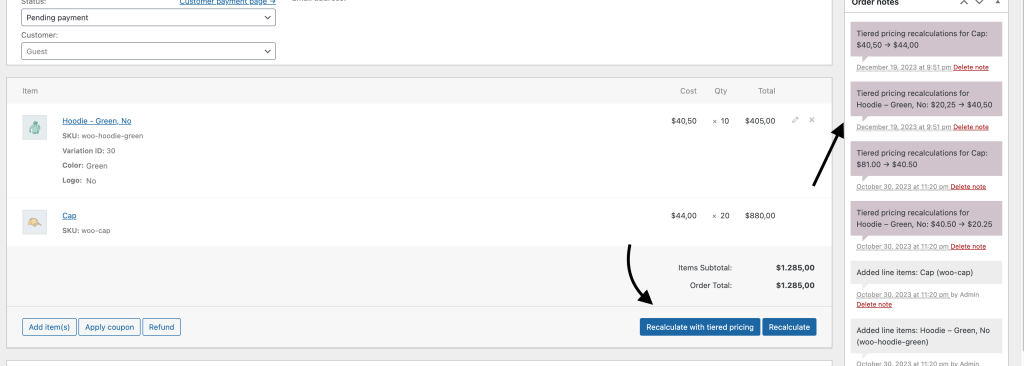
Admin orders skip the cart: click Re-calculate with tiered pricing on the order screen to price every line by the customer’s rules. An order note is added.
Import and export
WooCommerce CSV importer and exporter
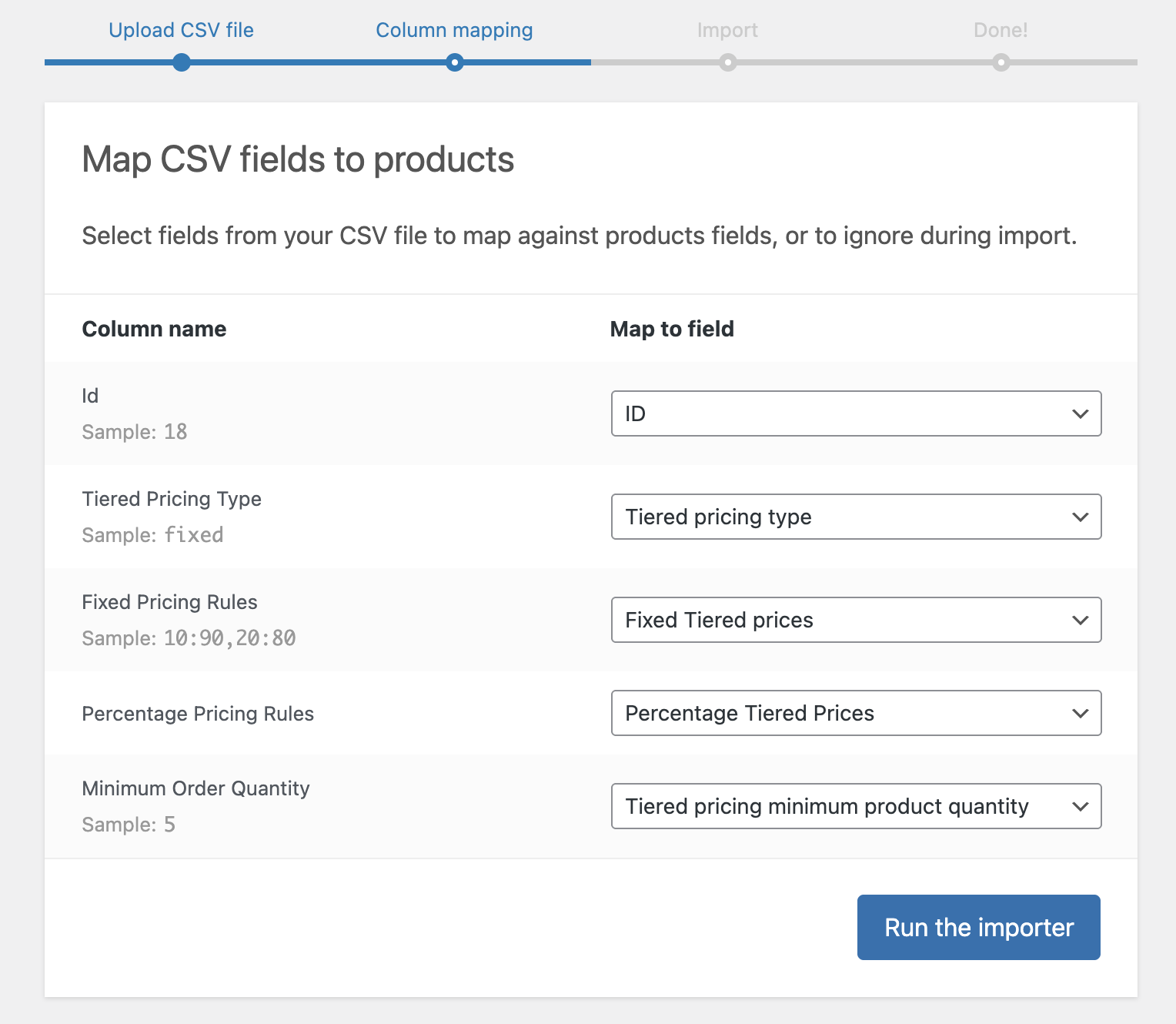
Products → Export / Import handle tiered pricing; the columns map automatically (group Tiered Pricing), one column set per role for role-based pricing.
| Column | Format | Example |
|---|---|---|
| Tiered pricing type | fixed / percentage | fixed |
| Fixed pricing rules | quantity:price,… or quantity=price,… | 10:90,20:80 |
| Percentage pricing rules | quantity:discount,… or quantity=discount,… | 10:10,20:20 |
| Minimum order quantity | number | 5 |
Spreadsheets turn 20:100 into a time
Excel, Google Sheets and Numbers read a single rule such as 20:100 as a time and save it as 21:40:00, which the importer ignores. Open the CSV with the rule columns as Text, or write the rules as 20=100.
WP All Import
A Tiered Pricing Table section in product and variation templates: fixed or percentage tiers (10:5,20:15), pricing type, minimum quantity and per-role pricing.
Taxes
- Per rule: role rules and global rules have a Tax section with a tax status (taxable, shipping only, none) and a tax class.
- Per role: WooCommerce → Settings → Tax → Role-based tax settings: tax-exempt roles, tax class, prices shown incl. or excl. tax, entered prices incl. tax, and a price suffix.
Integrations
Toggles under Settings → Integrations:
| Category | Plugins | Effect |
|---|---|---|
| Product add-ons | WooCommerce Product Add-ons, Acowebs WCPA, Advanced Product Fields (StudioWombat) | Add-on costs on top of tier prices |
| Currency switchers | FOX (WOOCS), WP Experts (WCCS), CURCY, Aelia, WPML Multi-currency, YITH Multi Currency, WooPayments | Tier prices converted |
| Product types | WooCommerce Subscriptions (+ All Products for Subscriptions), Product Bundles, WPC Bundles, Mix & Match, Deposits | Correct prices for plans, bundles, deposits |
| SEO | Yoast, Rank Math, SEOPress | lowest price / price range variables, offer per tier in structured data |
| Translation | WPML, Polylang | Pricing copied to translations; global rules match translated terms |
| Other | Elementor (widget), WP All Import, YITH / Addify Request a Quote, Discount Rules for WooCommerce | Widget, import add-on, correct quote prices, free-gift compatibility |
| Themes | Avada, Astra, Divi, Flatsome, Shopkeeper, The Retailer, Merchandiser, Zakra, OceanWP | Styling fixes |
Shortcodes, blocks and page builders
Set the position to “I display the table via shortcode / block / Elementor”, then:
| Method | How |
|---|---|
| Shortcode | [tiered-pricing-table] (current product) or [tiered-pricing-table product_id="123"]; attributes override settings: display_type="blocks", title="…", active_tier_color="#96598a", show_discount_column="no", quantity_type="static" |
| You save | [tiered_price_you_save] next to your own price output |
| Block | Tiered Pricing block (WooCommerce category) in a single-product template |
| Elementor | Tiered Pricing Table widget in a single-product template |
Tools and maintenance
Modules
Settings → Advanced → Modules switches every feature on or off. The Wholesale & Guest Users module carries the whole Wholesale tab.
Cache
Catalog prices are cached and refresh on product save. After bulk changes click Purge cache (Settings → Advanced → Cache), or disable caching while setting up.
Debug mode
Settings → Advanced → Debug prints the pricing source, tiers, limits and a change log under the table and each cart item. It is visible to everyone, so turn it off when done.
Pricing test
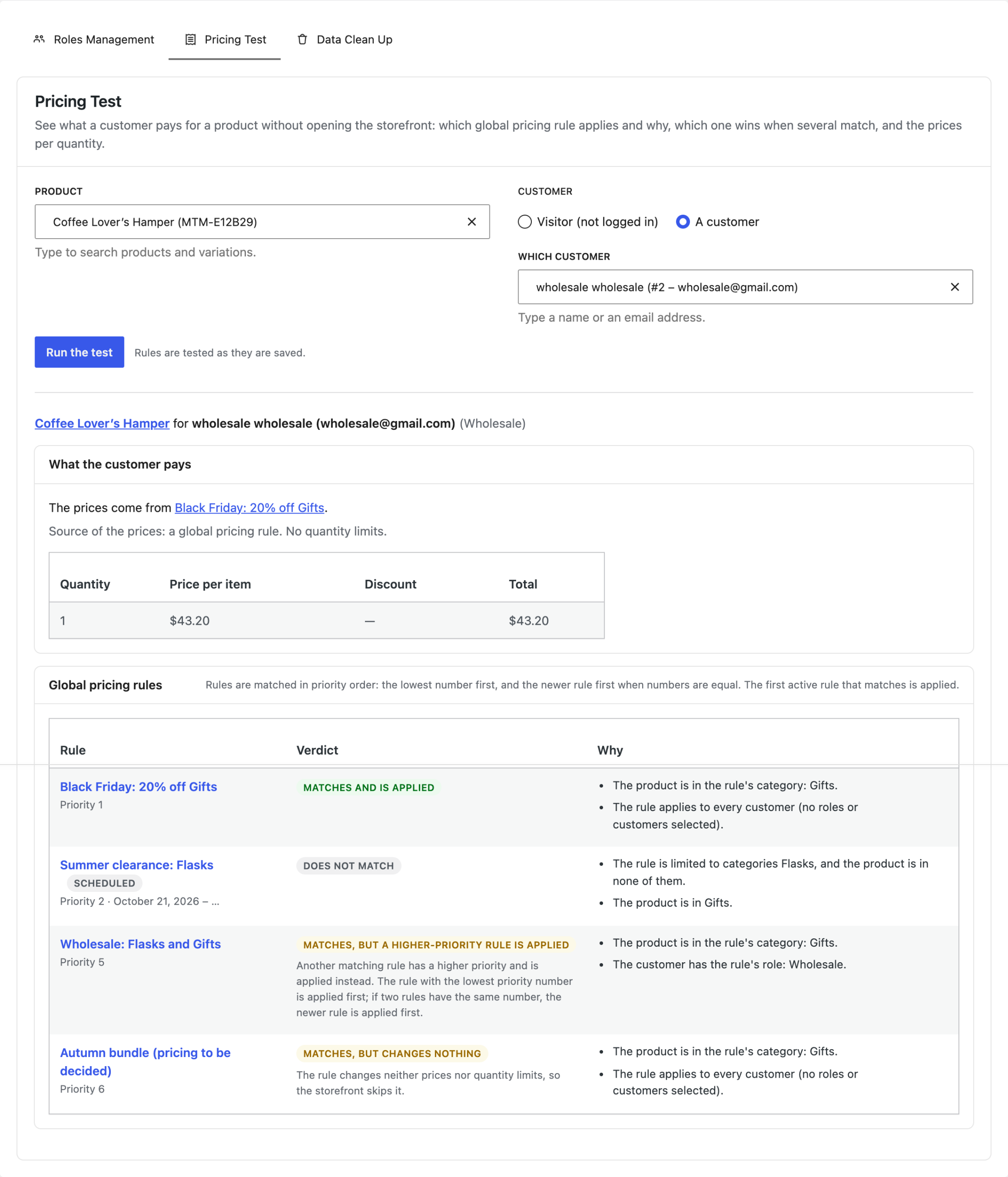
Settings → Advanced → Utilities → Pricing Test: pick a product and a visitor or a customer, and see what they pay per quantity, where the prices come from, and every global rule with its verdict and the reasons. Test in the rules list and Test this rule in the editor open it with that rule highlighted.
Utilities
Settings → Advanced also holds Roles management (create, edit and delete customer roles) and Data clean-up (remove tiered pricing data from products, reset the plugin settings, delete all global rules).
Troubleshooting
- No table on the product page: Show on the product page must be on, the product needs a tier of 2 or more, and nothing is inserted automatically when the position is set to shortcode or block.
- Price doesn’t change with quantity: choose Price for the selected quantity under Product page → Price; themes with custom quantity fields need a one-line override (see Developer Docs).
- Quantity 1 isn’t discounted: by design; lower the regular price or use a role or global base price.
- Cart shows another tier: the cart counts the cart quantity, plus variations with Combine variations and plus other products for Mix and Match rules; check coupons.
- Wrong prices for a customer: run the Pricing test for that product and customer; a global rule’s status (Skipped, Suspended, Scheduled, Expired, Overridden by) says why it does nothing.
- Stale catalog prices: purge the plugin cache (Settings → Advanced) and your page cache.
- Contact us or read the Guides.